| title | Connect Spark to SQL Server |
|---|---|
| titleSuffix | SQL Server big data clusters |
| description | Learn how to use the MSSQL Spark Connector in Spark to read and write to SQL Server. |
| author | MikeRayMSFT |
| ms.author | mikeray |
| ms.reviewer | shivsood |
| ms.date | 11/04/2019 |
| ms.topic | conceptual |
| ms.prod | sql |
| ms.technology | big-data-cluster |
A key big data usage pattern is high volume data processing in Spark, followed by writing the data to SQL Server for access to line-of-business applications. These usage patterns benefit from a connector that utilizes key SQL optimizations and provides an efficient write mechanism.
This article provides an overview of the MSSQL Spark connector interface and instantiating it for use with non-AD mode and AD-mode. Then, provides an example of how to use the MSSQL Spark connector to read and write to the following locations within a big data cluster:
-
The SQL Server master instance
-
The SQL Server data pool


SQL Server 2019 provides the MSSQL Spark connector for big data clusters that uses SQL Server bulk write APIs for Spark to SQL writes. MSSQL Spark Connector is based on Spark data source APIs and provides a familiar Spark JDBC connector interface. For interface parameters refer Apache Spark documentation. The MSSQL Spark connector is referenced by the name com.microsoft.sqlserver.jdbc.spark. The MSSQL Spark connector supports two security modes to connect with SQL Server, non-Active Directory mode and Active Directory(AD)-mode:
In non-AD mode security, each user has a username and password which need to be provided as parameters during the connector instantiation to perform read and/or writes. An example connector instantiation for non-AD mode is below:
# Note: '?' is a placeholder for a necessary user-specified value
connector_type = "com.microsoft.sqlserver.jdbc.spark"

url = "jdbc:sqlserver://master-p-svc;databaseName=?;"
writer = df.write \
   .format(connector_type)\
   .mode("overwrite")
   .option("url", url) \
   .option("user", ?) \
   .option("password",?)
writer.save() In AD mode security, after a user has generated a key tab file, the user needs to provide the principal and keytab as parameters during the connector instantiation.
In this mode, the driver loads the keytab file to the respective executor containers. Then, the executors use the principal name and keytab to generate a token that is used to create a JDBC connector for read/write.
An example connector instantiation for AD mode is below:
# Note: '?' is a placeholder for a necessary user-specified value
connector_type = "com.microsoft.sqlserver.jdbc.spark"

url = "jdbc:sqlserver://master-p-svc;databaseName=?;integratedSecurity=true;authenticationScheme=JavaKerberos;"
writer = df.write \
   .format(connector_type)\
   .mode("overwrite")
   .option("url", url) \
   .option("principal", ?) \
   .option("keytab", ?)

writer.save()
The following table describes interface parameters that have changed or are new:
| Property name | Optional | Description |
|---|---|---|
| isolationLevel | Yes | This describes the isolation level of the connection. The default for MSSQLSpark Connector is READ_COMMITTED |
The connector uses SQL Server Bulk write APIs. Any bulk write parameters can be passed as optional parameters by the user and are passed as-is by the connector to the underlying API. For more information about bulk write operations, see SQLServerBulkCopyOptions.
The sample performs the following tasks:
- Read a file from HDFS and do some basic processing.
- Write the dataframe to a SQL Server master instance as a SQL table and then read the table to a dataframe.
- Write the dataframe to a SQL Server data pool as a SQL external table and then read the external table to a dataframe.
-
Open Azure Data Studio, and connect to the SQL Server master instance of your big data cluster.
-
Create a new query, and run the following command to create a sample database named MyTestDatabase.
Create DATABASE MyTestDatabase
GO
-
Download AdultCensusIncome.csv to your local machine.
-
Launch Azure Data Studio, and connect to your big data cluster.
-
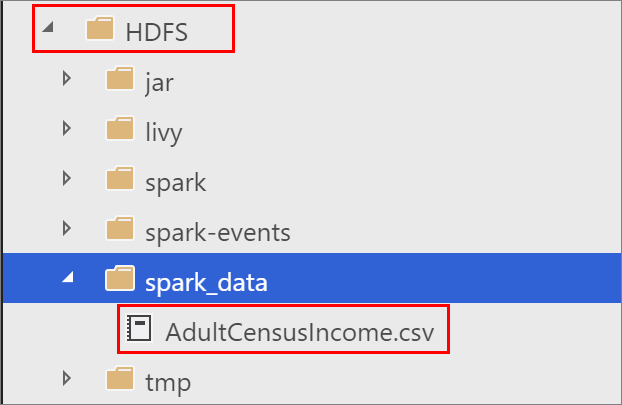
Right-click on the HDFS folder in your big data cluster, and select New directory. Name the directory spark_data.
-
Right click on the spark_data directory, and select Upload files. Upload the AdultCensusIncome.csv file.

To demonstrate the use of the MSSQL Spark Connector with this data in non-AD mode, you can download a sample notebook, open it in Azure Data Studio, and run each code block. For more information about working with notebooks, see How to use notebooks with SQL Server.
-
From a PowerShell or bash command line, run the following command to download the mssql_spark_connector_non_ad_pyspark.ipynb sample notebook:
curl -o mssql_spark_connector.ipynb "https://raw.githubusercontent.com/microsoft/sql-server-samples/master/samples/features/sql-big-data-cluster/spark/data-virtualization/mssql_spark_connector_non_ad_pyspark.ipynb"
-
In Azure Data Studio, open the sample notebook file. Verify that it is connected to your HDFS/Spark Gateway for your big data cluster.
-
Run each code cell in the sample to see usage of MSSQL Spark connector.
For more information about big data clusters, see [How to deploy [!INCLUDEbig-data-clusters-2019] on Kubernetes](deployment-guidance.md)
Have feedback or feature recommendations for SQL Server Big Data Clusters? Leave us a note at SQL Server Big Data Clusters Feedback.