| title | Task 7: Adding DQS Cleansing Transform to the Data Flow | Microsoft Docs |
|---|---|
| ms.custom | |
| ms.date | 03/06/2017 |
| ms.prod | sql-server-2014 |
| ms.reviewer | |
| ms.technology | data-quality-services |
| ms.topic | conceptual |
| ms.assetid | 0b749c71-dfb6-493a-804f-600290d46eef |
| author | lrtoyou1223 |
| ms.author | lle |
| manager | craigg |
In this task, you add DQS Cleansing Transform to the data flow to cleanse the input supplier data by using DQS. See DQS Cleansing Transform for more details about the transform.
-
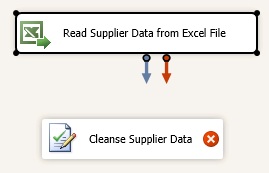
Right-click DQS Cleansing in the Data Flow tab, and click Rename. Type Cleanse Supplier Data, and press ENTER.
-
Select Read Supplier Data from Excel File; drag the blue connector to Cleanse Supplier Data. The components are now connected.
-
Double-click Cleanse Supplier Data.
-
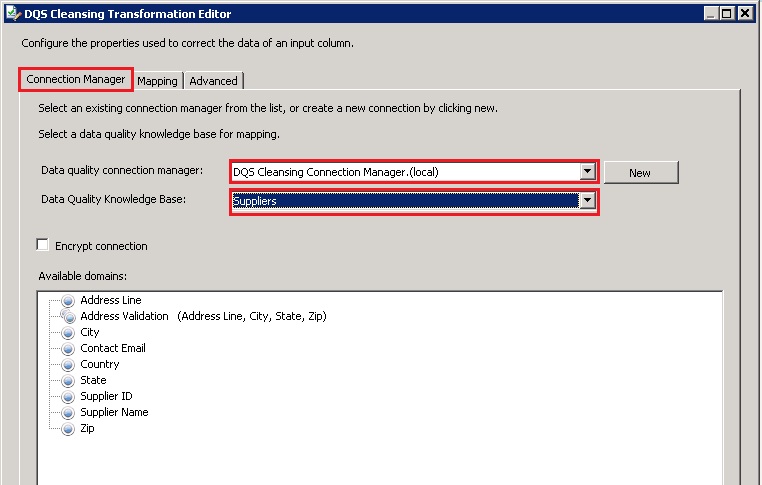
In the DQS Cleansing Transformation Editor, click New next to the Data Quality Connection Manager drop-down list.
-
In the DQS Cleansing Connection Manager dialog box, type (local) or period (.) to connect to the local server. This lesson assumes that you have DQS installed on a local server.
-
Click Test Connection to test the connection to DQS server.
-
Click OK to close the dialog box.
-
Select Suppliers for the Data Quality Knowledge Base.
-
Switch to the Mapping tab at the top.
-
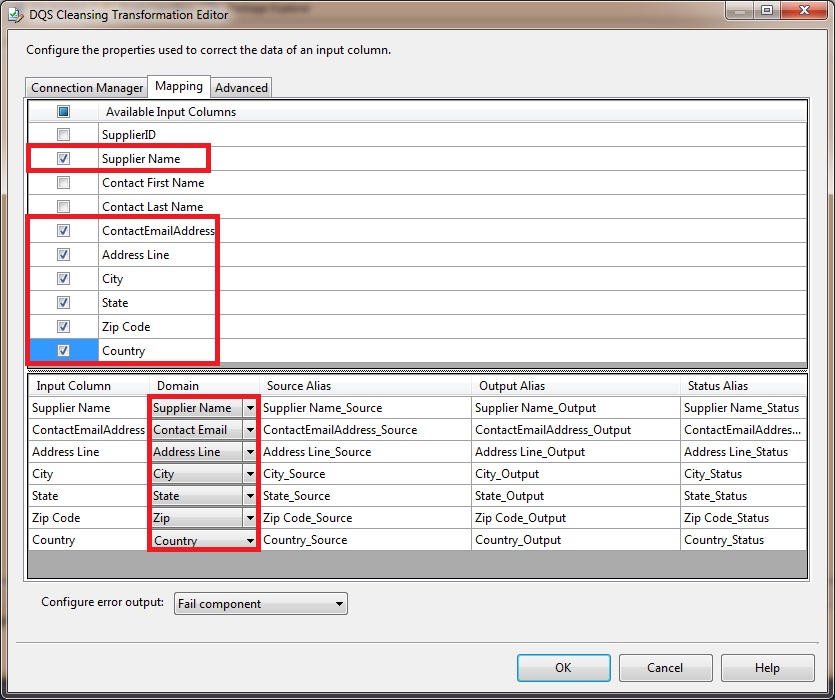
From Available Input Columns, select Supplier Name, ContactEmailAddress, Address Line, City, State, Country, and Zip Code by selecting the check boxes.
-
In the bottom pane, map these columns by using drop-down lists in the Domain column:
Column Domain Supplier Name Supplier Name ContactEmailAddress Contact Email Address Line Address Line City City State State Country Country Zip Code Zip -
Click OK to close the DQS Cleansing Transformation Editor dialog box.


Task 8: Adding Conditional Split Transform to Split Cleansing Output