| title | Task 8: Adding Conditional Split Transform to Split Cleansing Output | Microsoft Docs |
|---|---|
| ms.custom | |
| ms.date | 06/13/2017 |
| ms.prod | sql-server-2014 |
| ms.reviewer | |
| ms.technology | data-quality-services |
| ms.topic | conceptual |
| ms.assetid | d4ebe420-a4a9-4076-89d3-41abe726fc5c |
| author | lrtoyou1223 |
| ms.author | lle |
| manager | craigg |
In this transform, you add a Conditional Split Transform to the data flow. The Conditional Split transformation can route rows to different outputs based on the content of the data. For this tutorial, you use the Record Status output column from the DQS Cleansing transform. You will upload only correct or corrected records to MDS server in this tutorial. Therefore you check if the Record Status is Correct or Corrected, and combine the records before uploading the records to MDS.
-
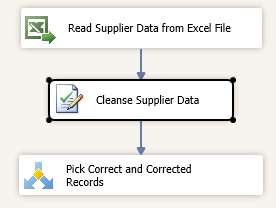
Drag-drop Conditional Split Transform from Common section in the SSIS Toolbox to the Data Flow tab under Cleanse Supplier Data.
-
Right-click Conditional Split, and click Rename. Type Pick Correct and Corrected Records and press ENTER.
-
Connect Cleanse Supplier Data and Pick Correct and Corrected Records using the blue connector.
-
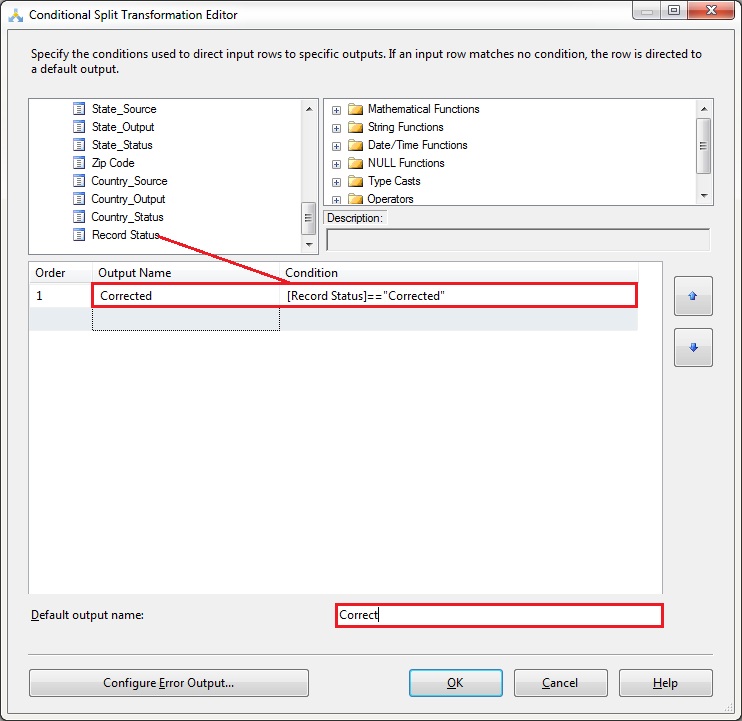
Double-click Pick Correct and Corrected Records in the Data Flow tab.
-
Change the Default Output Name at the bottom of the screen to Correct.
-
Expand Columns in the top-left pane.
-
Drag-drop Record Status to the Condition column.
-
Type =="Corrected" next to [Record Status] for the Condition column.
-
Click Case 1 in the Output Name Column, and change the name to Corrected.
-
Click OK to close the Conditional Split Transformation Editor dialog box.


Task 9: Adding Union All Transform to Combine Correct and Corrected Records