| title | Task 3: Importing Domain Values from an Excel File | Microsoft Docs |
|---|---|
| ms.custom | |
| ms.date | 12/29/2017 |
| ms.prod | sql-server-2014 |
| ms.reviewer | |
| ms.technology | data-quality-services |
| ms.topic | conceptual |
| ms.assetid | 242e8309-1195-495b-9cd5-aa127748c185 |
| ms.author | lle |
| author | lrtoyou1223 |
In this task, you import values for the State domain from a worksheet of an Excel file.
-
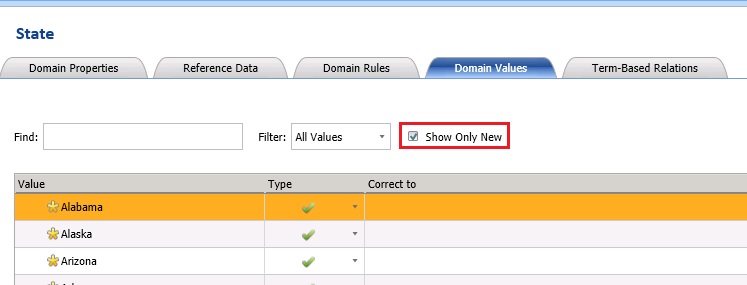
Click State domain in the Domain list.
-
Ensure that the Domain Values tab is active in the right pane.
-
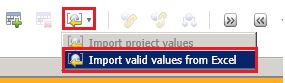
In the right pane, from the toolbar, click down arrow next to the Import Values button, and click Import Valid Values from Excel.
-
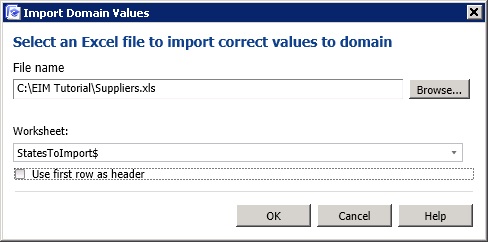
Click Browse, select Suppliers.xls, and click Open.
-
Select StatesToImport$ for the Worksheet.
-
Click OK to close the Import Domain Values dialog box. You should see all the names of states you imported in the list. Notice that Show Only New option is automatically selected after importing. When you import values and you don't see the old values in the list, it is because this option is automatically enabled after importing. To see all the values, clear the check box. If you import the same set of values again, none of the values are imported as they already exist in the domain.