| title | Task 4: Setting Domain Rules | Microsoft Docs |
|---|---|
| ms.custom | |
| ms.date | 03/09/2017 |
| ms.prod | sql-server-2014 |
| ms.reviewer | |
| ms.technology | data-quality-services |
| ms.topic | conceptual |
| ms.assetid | 3a7162ba-cf2f-481f-830d-bb6a02823827 |
| author | lrtoyou1223 |
| ms.author | lle |
| manager | craigg |
In this task, you create a rule for the Contact Email domain to verify if the email address ends with @adventure-works.com. See Creating a Domain Rule topic for more details on the page.
-
Click Contact Email in the Domain list.
-
Switch to the Domain Rules tab in the right pane.

-
In the right pane, click Add a new domain rule button on the toolbar (see the image) to add a rule.
-
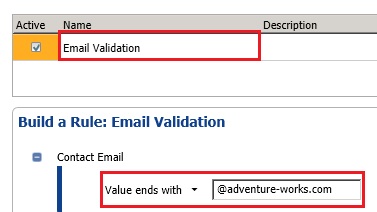
Type Email Validation for the rule name and press ENTER. The Active check box should be checked by default. This control allows you to deactivate a rule temporarily.
-
In the Build a Rule pane, click down arrow, and select Value ends with.
-
Type @adventure-works.com in the text box and press TAB. You can add more conditions by clicking Add a new condition to the selected clause toolbar button in the Build a Rule pane.
-
Click Run the selected domain rule on test data button on the toolbar in the right pane to test the rule against sample data.

-
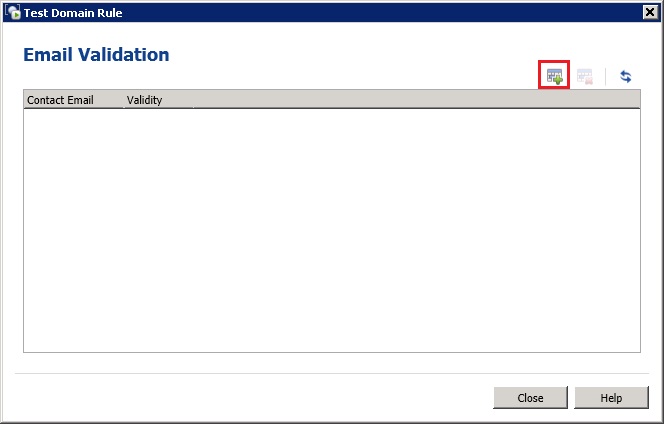
In the Test Domain Rule dialog box, click Adds a new testing term for the domain rule button on the toolbar.
-
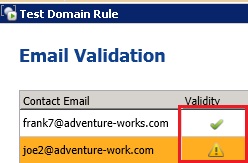
Type frank7@adventure-works.com (a valid value) in the Contact Email column.
-
Repeat previous two steps to add joe2@adventure-work.com (an invalid value with no 's').
-
Click the last button (Test the domain rule on all the terms) on the toolbar to test the input data against the rule.

-
Notice that the first entry is shown as a valid item and the second one as an invalid item.
-
Click Close to close the Test Domain Rule dialog box.


