| title | Task 1: Creating a Knowledge Base and Domains | Microsoft Docs |
|---|---|
| ms.custom | |
| ms.date | 04/27/2017 |
| ms.prod | sql-server-2014 |
| ms.reviewer | |
| ms.technology | data-quality-services |
| ms.topic | conceptual |
| ms.assetid | 7d74a60b-8933-4038-bcbb-4e9dcc4f70e9 |
| author | lrtoyou1223 |
| ms.author | lle |
| manager | craigg |
In this task, you create the Suppliers knowledge base and create domains that is used for cleansing data and matching data to remove duplicates.
-
Launch Data Quality Client. Click Start, point to All Programs, click Microsoft SQL Server 2012, click Data Quality Services, and then click Data Quality Client.
-
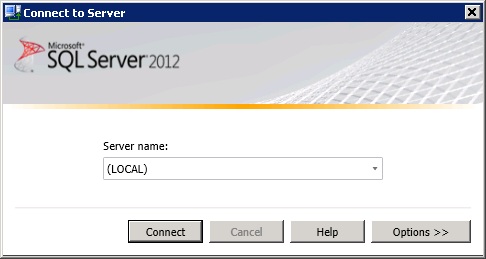
In the Connect to Server dialog box, select the database server instance on which the DQS is installed, and click Connect.
-
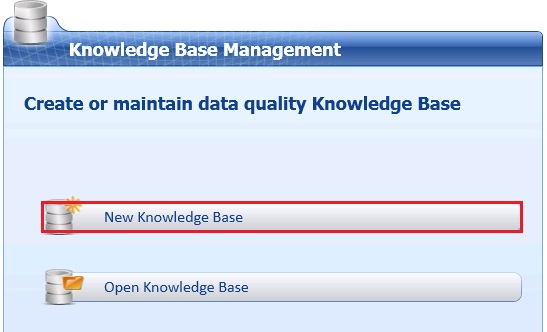
In the Data Quality Client home page, in the Knowledge Base Management pane, click New Knowledge Base.
-
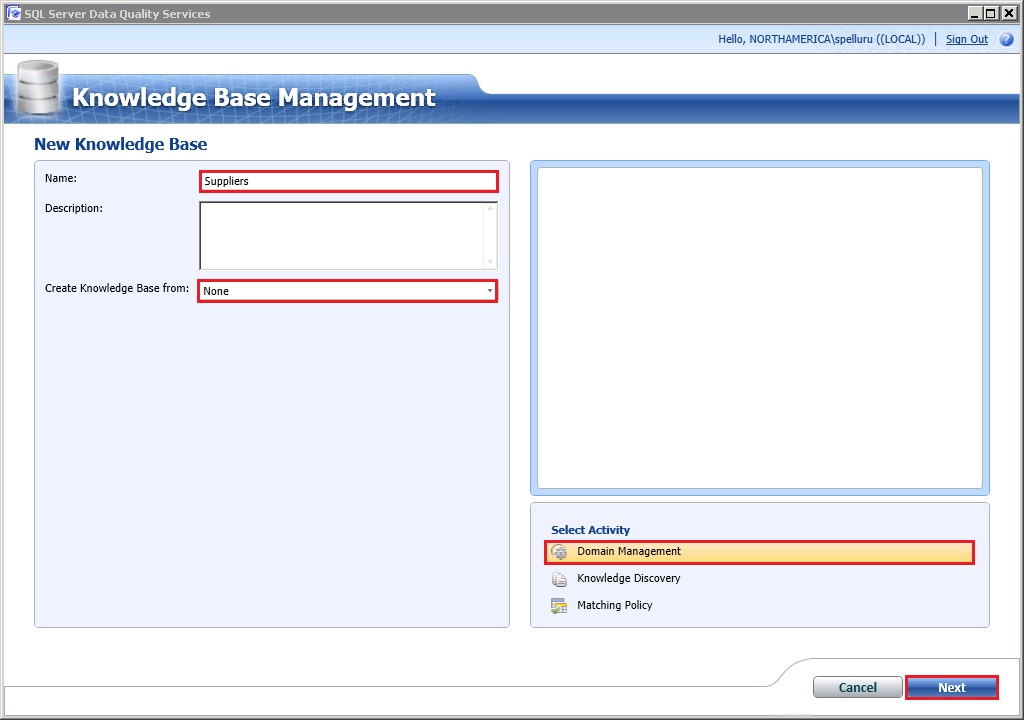
Enter Suppliers for Name of the knowledge base.
-
Confirm that Create Knowledge Base from field is set to None since you are creating the Suppliers knowledge base from scratch.
-
Confirm that Domain Management is selected for the Activity and click Next. The Domain Management activity lets you create and manage domains in the knowledge base.
-
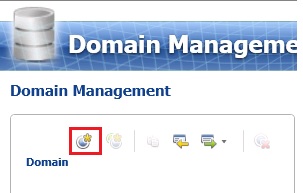
In the Domain Management window, click Create a domain toolbar button to create a domain.
-
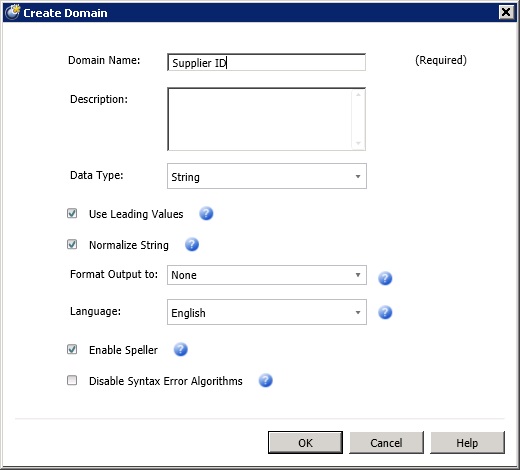
In the Create Domain dialog box, type Supplier ID for the Domain Name, and click OK.
-
Repeat previous step to create the following domains with all the default settings. To keep the tutorial simple, you set the Data Type of all the domains as String. The other allowed data types are: Integer, Decimal, and Date. When the Use Leading Values option is selected (default), all synonyms are replaced with the leading value of the synonym group in the output. Setting Normalize String option (default) removes any special characters in the domain values. The Format Output to option lets you select the formatting that is applied when the data values in the domain are output. Select Enable Speller (default) to run Speller on all string values when populating the domain. The Language setting specifies which language version of the Speller you want to apply. Select Disable Syntax Error Algorithms to populate the domain without checking string values for syntax errors. See Create a Domain topic in the MSDN library for more details.
-
Supplier Name
-
Contact Email
-
Address Line
-
City
-
State
-
Country
-
Zip
-


