| Title | Tutorial: Using Templates in SQL Server Management Studio | |||||||
|---|---|---|---|---|---|---|---|---|
| description | A Tutorial for using Templates within SSMS. . | |||||||
| keywords | SQL Server, SSMS, SQL Server Management Studio, Templates | |||||||
| author | MashaMSFT | |||||||
| ms.author | mathoma | |||||||
| ms.date | 03/13/2018 | |||||||
| ms.topic | Tutorial | |||||||
| ms.suite | sql | |||||||
| ms.prod_service | sql-tools | |||||||
| ms.reviewer | sstein | |||||||
| manager | craigg | |||||||
| helpviewer_keywords |
|
This tutorial will introduce you to the pre-built Transact-SQL (T-SQL) templates that are available within SQL Server Management Studio (SSMS). In this article, you will learn how to:
[!div class="checklist"]
- Use the Template Browser to generate T-SQL Scripts
- Edit an existing Template
- Locate the templates on disk
- Create a new Template
To complete this Tutorial, you need SQL Server Management Studio, and access to a SQL Server.
- Install SQL Server Management Studio.
- Install SQL Server 2017 Developer Edition.
In this section, you will learn how to locate and use the Template Browser.
-
Start your SQL Server Management Studio.
-
From the View Menu > Template Browser (Ctrl + Alt + T):
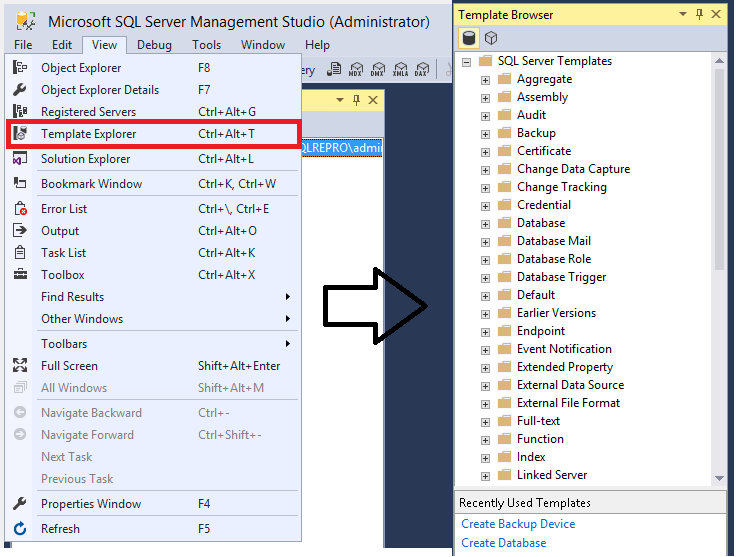
- You can also see recently used templates at the bottom of the Template Browser.
-
Expand the node you're interested in > Right click the Template > Open:

- Double-clicking the template will have the same effect.
-
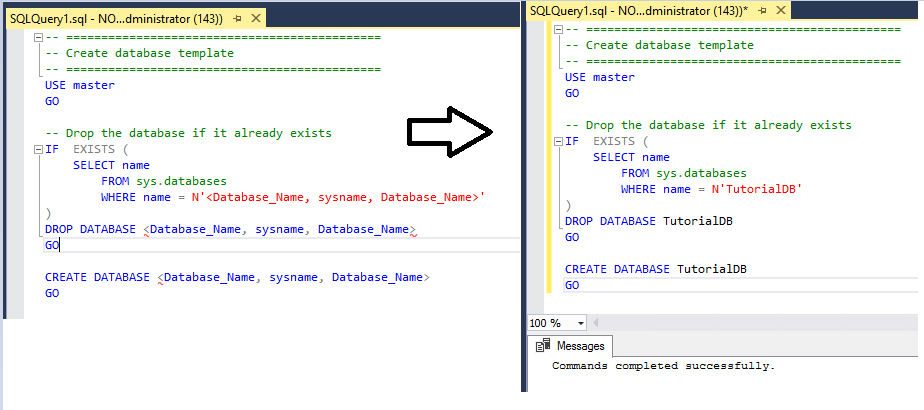
This will launch a new query window with the T-SQL already populated.
-
Modify the template to suit your needs and then Execute the query:


You can also edit the existing templates within Template Browser.
-
Locate the template of interest in the Template Browser.
-
Right-click the template > Edit:

-
Make the desired changes in the query window that opens.
-
Save the template by going to File > Save (Ctrl + S).
-
Close the query window.
-
Reopen the Template you saved > your new edits should be there.

Once a template is open, you can then locate it on disk.
-
Select a template in Template Browser > Edit.
-
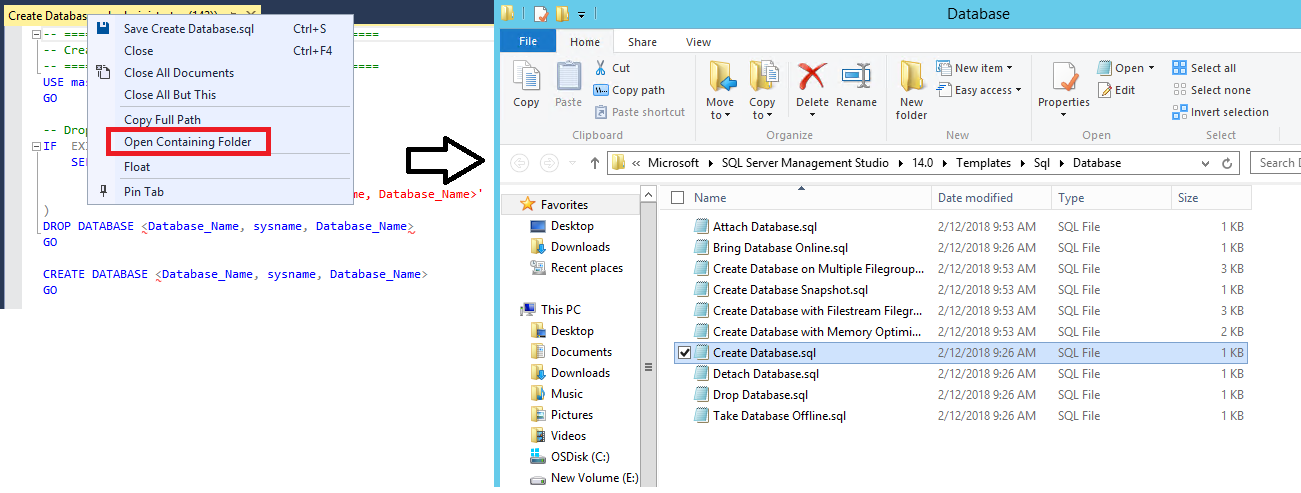
Right-click the Query Title > Open Containing Folder. This should open your explorer to where the templates are stored on disk:

Within the Template Browser you also have the ability to create new templates. These steps will teach you to create a new folder, and then create a new template within that folder. However, with these steps, you can also create a custom template within the existing folders.
-
Open Template Browser.
-
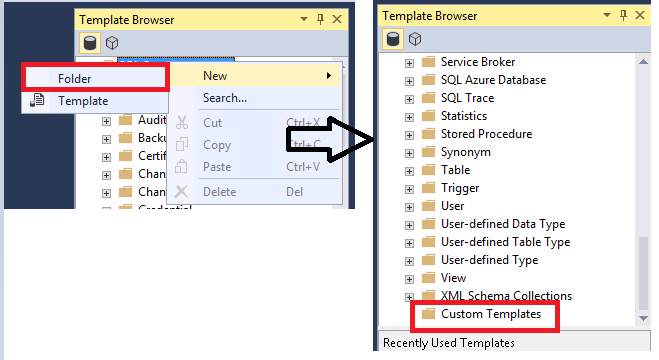
Right-click SQL Server Templates > New > Folder.
-
Name this folder Custom Templates:
-
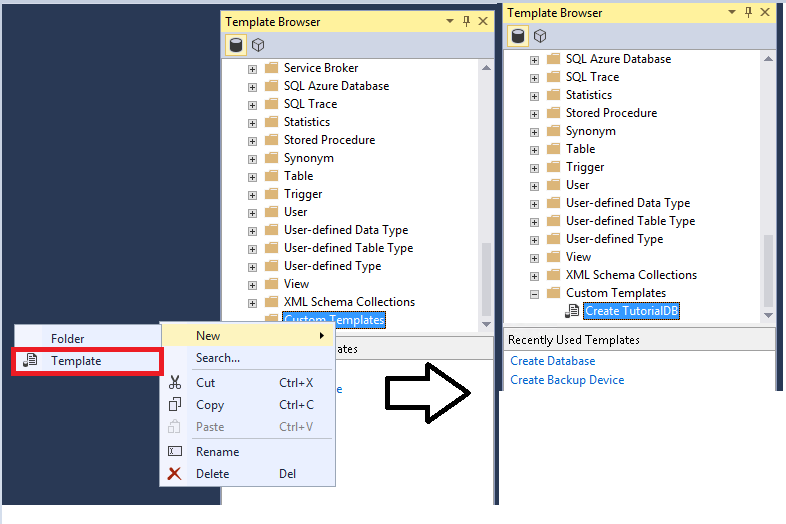
Right-click the newly created Custom Templates folder > New > Template > name your template:
-
Right-click the template you just created > Edit. This will open a New Query Window.
-
Type in the T-SQL text you want to save.
-
Save the file by going to the File menu > Save.
-
Close the existing Query Window and open your new custom template.


The next article will provide some additional tips and tricks for using SQL Server Management Studio.
Advance to the next article to learn more
[!div class="nextstepaction"] Next steps button