| Title | Tutorial: Additional Tips and Tricks for using SSMS | |||||
|---|---|---|---|---|---|---|
| description | A tutorial that covers some additional Tips and Tricks for using SSMS. | |||||
| keywords | SQL Server, SSMS, SQL Server Management Studio | |||||
| author | MashaMSFT | |||||
| ms.author | mathoma | |||||
| ms.date | 03/13/2018 | |||||
| ms.topic | Tutorial | |||||
| ms.suite | sql | |||||
| ms.prod_service | sql-tools | |||||
| ms.reviewer | sstein | |||||
| manager | craigg | |||||
| helpviewer_keywords |
|
This tutorial will provide you with some additional tricks for using SQL Server Management Studio. This article will teach you how to:
[!div class="checklist"]
- Comment / Uncomment your Transact-SQL (T-SQL) text
- Indent your text
- Filter Objects in Object Explorer
- Access your SQL Server Error log
- Find the name of your SQL Server Instance
To complete this Tutorial, you need SQL Server Management Studio, access to a SQL Server, and an AdventureWorks database.
- Install SQL Server Management Studio.
- Install SQL Server 2017 Developer Edition.
- Download an AdventureWorks Sample Databases. Instructions for restoring databases in SSMS can be found here: Restoring a Database.
Portions of your text can be commented and uncommented by using the comment button in the toolbar. Text that is commented out will not be executed.
- Open SQL Server Management Studio.
- Connect to your SQL Server.
- Open a New Query window.
- Paste the following T-SQL code snippet into your text window:
  USE master
  GO

  -- Drop the database if it already exists
  IF  EXISTS (
      SELECT name
  	    FROM sys.databases
  	    WHERE name = N'TutorialDB'
          )

  DROP DATABASE TutorialDB
  GO

  CREATE DATABASE TutorialDB
  GO

  ALTER DATABASE [TutorialDB] SET QUERY_STORE=ON
GO-
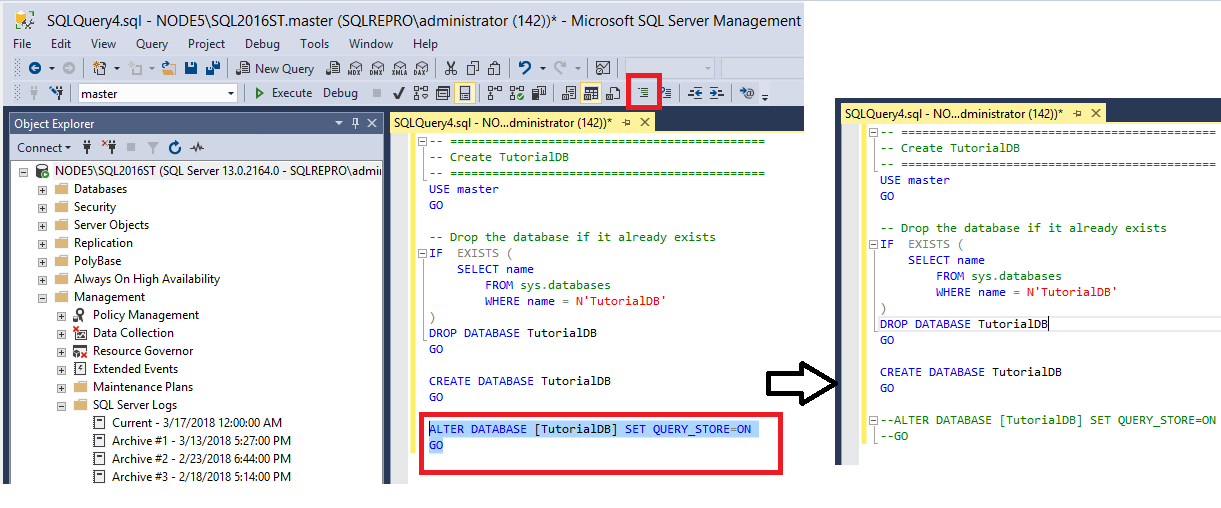
Highlight the Alter Database portion of the text and click Comment in the toolbar:
-
Click Execute to run the uncommented portion of the text.
-
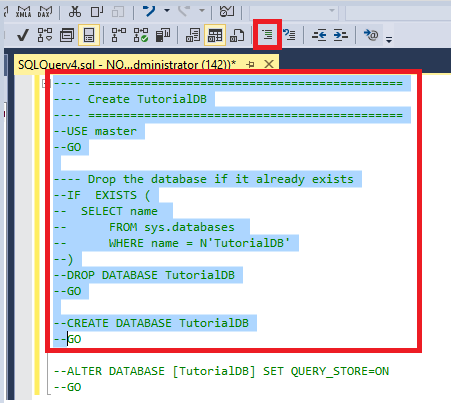
Highlight everything other than the Alter Database command and click Comment in the toolbar:
-
Highlight the Alter Database portion and click Uncomment to uncomment it:

-
Click Execute to run the uncommented portion of the text.


The indentation buttons allow you to increase and decrease the indent of your text.
- Open a New Query window.
- Paste the following T-SQL code snippet into your text window:
  USE master
  GO

  -- Drop the database if it already exists
  IF  EXISTS (
      SELECT name
  	    FROM sys.databases
  	    WHERE name = N'TutorialDB'
          )

  DROP DATABASE TutorialDB
  GO

  CREATE DATABASE TutorialDB
  GO

  ALTER DATABASE [TutorialDB] SET QUERY_STORE=ON
GO-
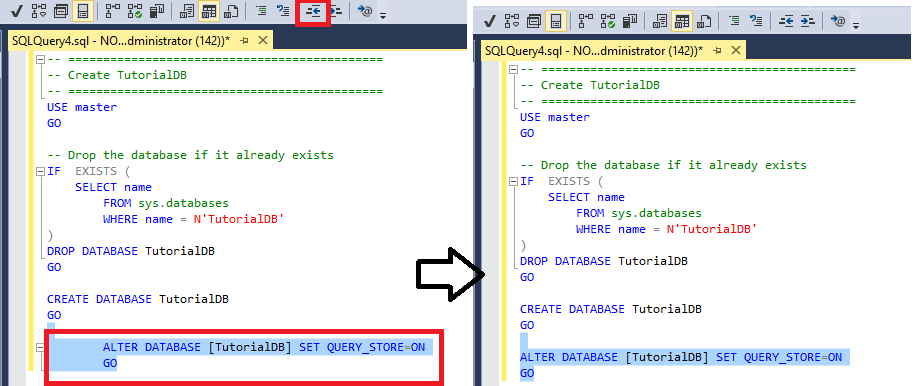
Highlight the Alter Database portion of the text and press Increase Indent in the toolbar to move this text forward:

-
Highlight the Alter Database portion of the text again and this time click Decrease Indent to move this text back.


When a database has many objects, finding a specific object can prove difficult. To make this easier, you have the ability to filter objects. This section explains how to filter tables, but the same steps can be applied to any other node within Object Explorer
-
Connect to your SQL Server.
-
Expand your Databases node.
-
Expand your AdventureWorks database node.
-
Expand your Tables node.
- You'll notice that you can see all the tables that are present in the database.
-
Right Click the Tables node > Filter > Filter Settings:

-
In the Filter Settings window, you can modify filter settings. A few examples:
- Filter by name:

- Filter by schema:

- Filter by name:
-
To clear the filter, right-click Tables > Remove Filter


The error log is a file that contains details about things occurring within your SQL Server. It can be browsed and queried within SSMS. It can also be found as a .log file on disk.
-
Connect to your SQL Server.
-
Expand the Management node.
-
Expand the SQL Server Logs node.
-
Right-click the Current error log > View SQL Server Log:


- Connect to your SQL Server.
- Open a New Query window.
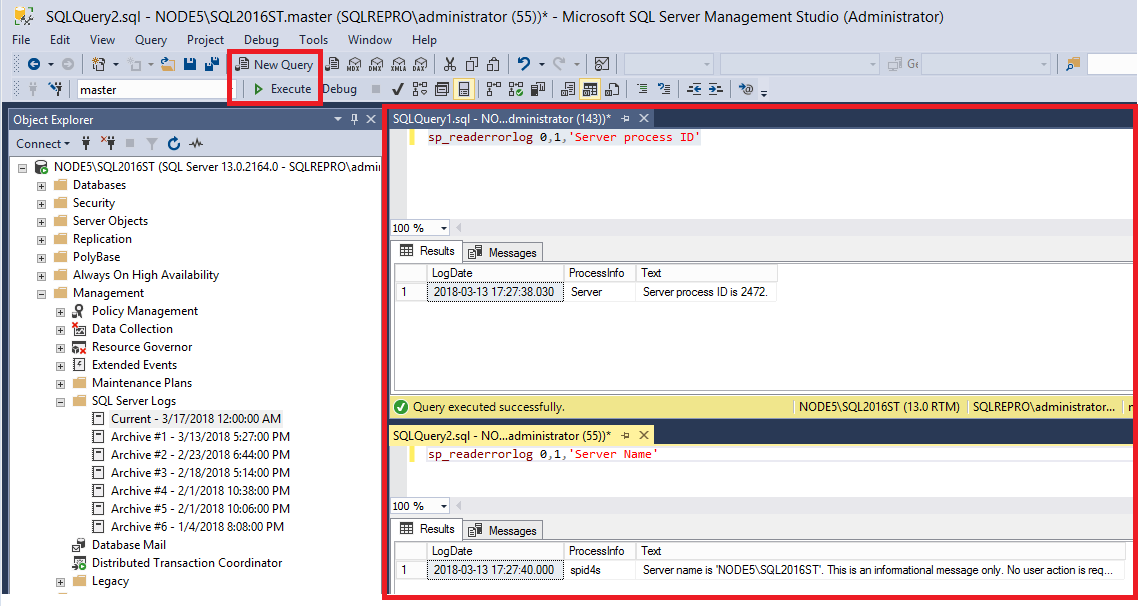
- Paste the following T-SQL code snippet into your query Window:
sp_readerrorlog 0,1,'Server process ID' -
Modify the text in the single quotes to text of interest.
-
Execute the query and review the results:

- Connect to your SQL Server.
- Open a New Query window.
- Paste the following T-SQL code snippet into your query window and click Execute:
SELECT SERVERPROPERTY('ErrorLogFileName') AS 'Error log file location' -
The results show you the location of the error log within the file system:


-
Open your SQL Server Configuration Manager.
-
Expand the Services node.
-
Right click on your SQL Server instance > Properties:

-
Select the Startup Parameters tab.
-
In the Existing Parameters area, the path after the "-e" is the location of the error log:

- You'll notice that there are several errorlog.* in this location. The one ending with *.log is the current one. The ones ending with numbers are previous logs, as a new log is created every time the SQL Server restarts.
-
Open this file in Notepad.


There are different ways to determine the name of your SQL Server before and after you connect to your SQL Server.
- Follow the steps to locate the SQL Server Error log on disk.
- Open the errorlog.log in Notepad.
- Navigate through it until you find the text "Server name is":
- Whatever is listed in the single quotes is the name of the SQL Server and what you'll be connecting to:
 The format of the name is 'HOSTNAME\INSTANCENAME'. If all you see is the hostname, then you've installed the default instance, and your instance name is 'MSSQLSERVER'. When connecting to a default instance, the hostname is all you need to type in to connect to your SQL Server.

There are three places to find which SQL Server you're connected to.
-
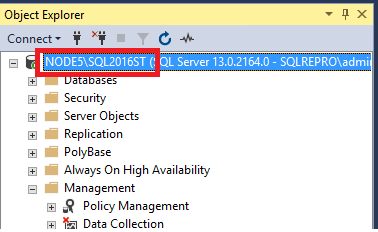
The name of the server will be listed in Object Explorer:
-
The name of the server will be listed in the query window:

-
The name of the server will also be listed in the Properties window.
- To access this open the View Menu > Properties Window:


When you're connected to an alias or an Availability Group listener, then that's what will show up Object Explorer and Properties. In this case, the SQL Server name may not be readily apparent, and must be queried.
- Connect to SQL Server.
- Open a New Query window.
- Paste the following T-SQL Code snippet into the window:
select @@Servername -
View the results of the query to identify the name of the SQL Server you're connected to:

