title: "Tutorial: Configure Replication between a Server and Mobile Clients (Merge) | Microsoft Docs" ms.custom: "" ms.date: "04/03/2018" ms.prod: "sql" ms.prod_service: "database-engine" ms.service: "" ms.component: "replication" ms.reviewer: "" ms.suite: "sql" ms.technology:
- "replication" ms.tgt_pltfrm: "" ms.topic: "get-started-article" applies_to:
- "SQL Server 2016" helpviewer_keywords:
- "replication [SQL Server], tutorials" ms.assetid: af673514-30c7-403a-9d18-d01e1a095115 caps.latest.revision: 24 author: "MashaMSFT" ms.author: "mathoma" manager: "craigg" ms.workload: "Inactive" monikerRange: ">= aps-pdw-2016 || = azuresqldb-current || = azure-sqldw-latest || >= sql-server-2016 || = sqlallproducts-allversions"
[!INCLUDEappliesto-ss-xxxx-xxxx-xxx-md] Merge replication is a good solution to the problem of moving data between a central server and mobile clients that are only occasionally connected. Using replication's wizards, you can easily configure and administer a Merge Replication topology. This tutorial shows you how to configure a replication topology for mobile clients. For more information about Merge Replication, please see An Overview of Merge Replication
This Tutorial teaches you to use Merge Replication to publish data from a central database to one or more mobile users so that each user gets a uniquely filtered subset of the data.
In this tutorial, you will learn how to:
[!div class="checklist"]
- Configure a Publisher for Merge Replication
- Add a mobile Subscriber for Merge Publication
- Synchronize the Subscription to the Merge Publication
This Tutorial is intended for users familiar with fundamental database operations, but who have limited experience with replication. Before you start this Tutorial, you must complete Tutorial: Preparing the Server for Replication.
To use this tutorial, your system must have SQL Server Management Studio and the following components installed:
-
At the Publisher server (source):
- Any edition of SQL Server, except for SQL Server Express or SQL Server Compact. These editions cannot be a replication Publisher.
- The [!INCLUDEssSampleDBobject] sample database. To enhance security, the sample databases are not installed by default.
-
Subscriber server (destination):
-
Install SQL Server Management Studio.
-
Install SQL Server 2017 Developer Edition.
-
Download an AdventureWorks Sample Databases. For instructions on restoring a database in SSMS, please see Restoring a Database.
Note
- Replication is not supported on SQL Servers that are more than two versions apart. For more information, please see Supported SQL Versions in Repl Topology.
- In [!INCLUDEssManStudioFull], you must connect to the Publisher and Subscriber using a login that is a member of the sysadmin fixed server role. For more information on the sysadmin role, please see Server Level Roles.
Estimated time to complete this tutorial: 60 minutes.
[!INCLUDEappliesto-ss-xxxx-xxxx-xxx-md] In this section, you will create a Merge publication using [!INCLUDEssManStudioFull] to publish a subset of the Employee, SalesOrderHeader, and SalesOrderDetail tables in the [!INCLUDEssSampleDBobject] sample database. These tables are filtered with parameterized row filters so that each subscription contains a unique partition of the data. You will also add the [!INCLUDEssNoVersion] login used by the Merge Agent to the publication access list (PAL).
-
Connect to the Publisher in [!INCLUDEssManStudioFull], and then expand the server node.
-
Start the SQL Server Agent by right-clicking it in Object Explorer and selecting Start. If this doesn't start the Agent, you'll need to manually do so from the SQL Server Configuration Manager.
-
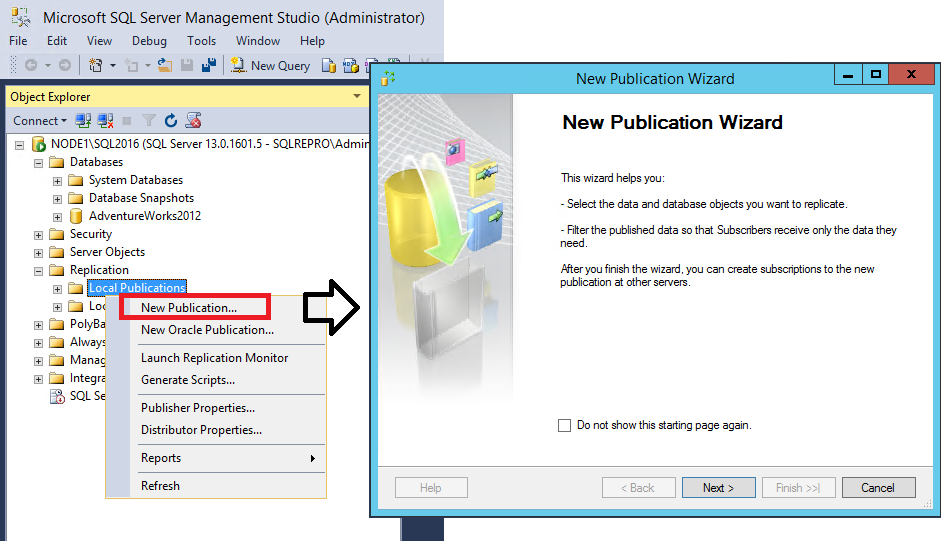
Expand the Replication folder, right-click Local Publications, and select New Publication. The Publication Configuration Wizard launches:
-
On the Publication Database page, select [!INCLUDEssSampleDBobject], and then select Next.
-
On the Publication Type page, select Merge publication, and then select Next.
a. On the Subscriber Types page, ensure that only [!INCLUDEssKatmai] or later is selected, and then select Next: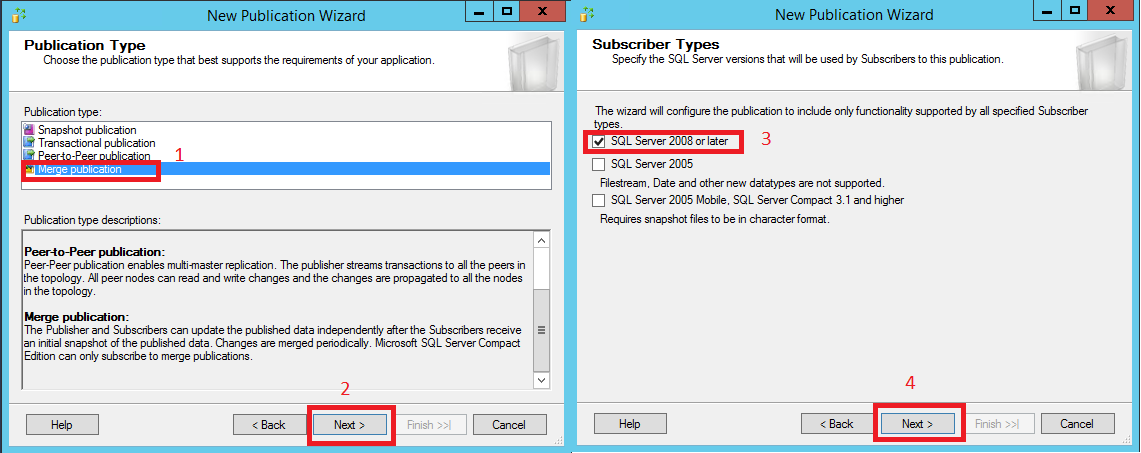
-
On the Articles page, expand the Tables node, and select the following three tables: Employee, SalesOrderHeader, and SalesOrderDetail. Select Next:
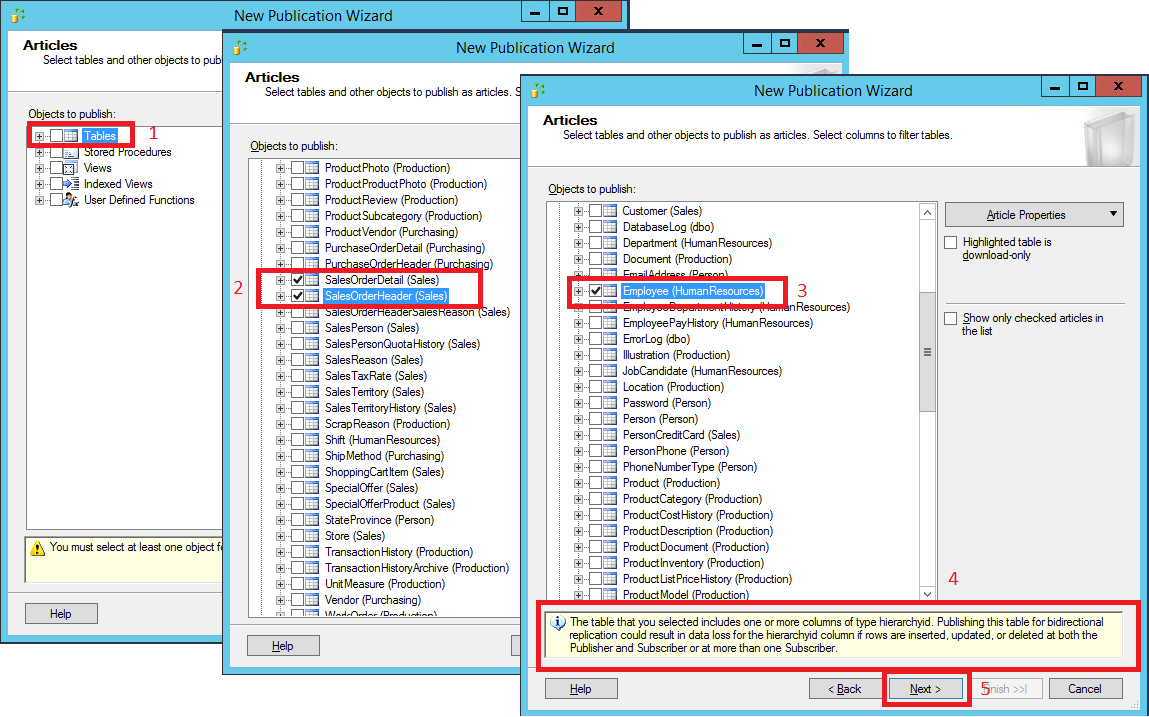
[!NOTE] The Employee table contains a column (OrganizationNode) that has the hierarchyid data type, which is only supported for replication in SQL 2017. If you're using a build lower than SQL 2017, you'll see a message at the bottom of the screen notifying you of potential data loss for using this column in bi-directional replication. For the purpose of this tutorial, this message can be ignored. However, this datatype should not be replicated in a production environment unless you're using the supported build. For more inforamtion about replicating the hierarchyid datatype, please see Using Hierarchyid Columns in Replication
-
On the Filter Table Rows page, select Add and then select Add Filter.
-
In the Add Filter dialog box, select Employee (HumanResources) in Select the table to filter. Select the LoginID column, select the right arrow to add the column to the WHERE clause of the filter query, and modify the WHERE clause as follows:
WHERE [LoginID] = HOST_NAME()
a. Select A row from this table will go to only one subscription, and select OK:

-
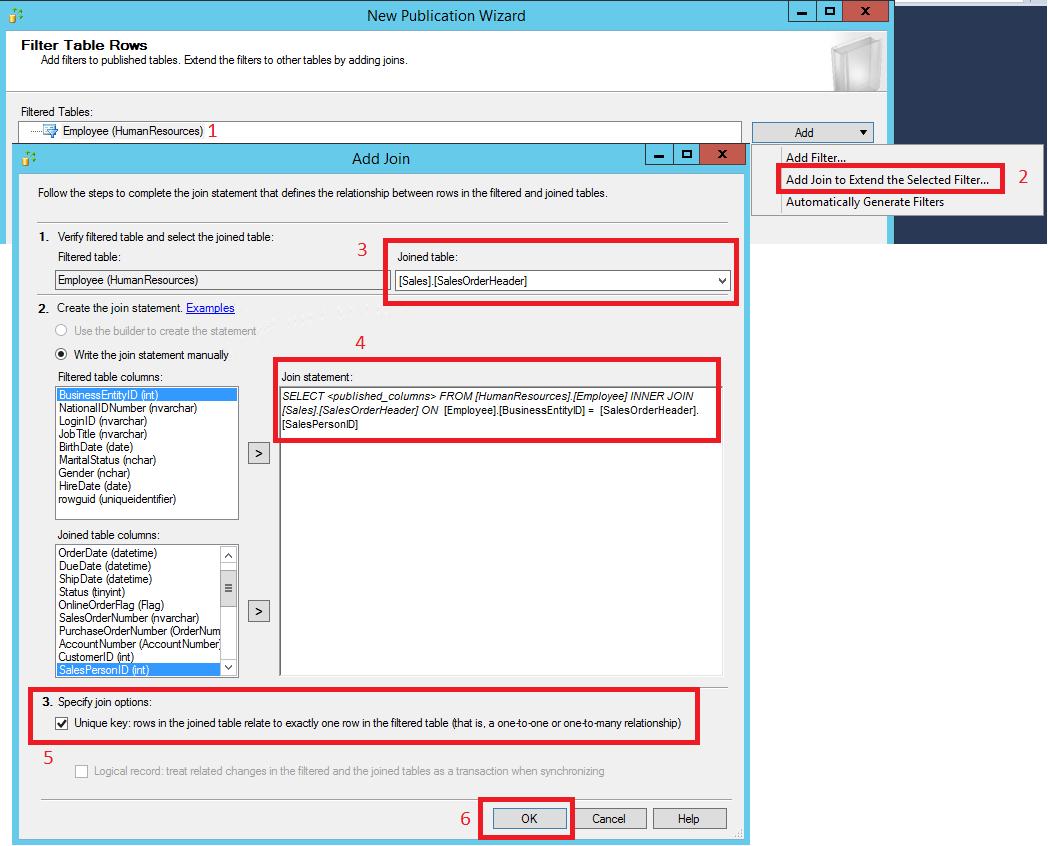
On the Filter Table Rows page, select Employee (Human Resources), select Add, and then select Add Join to Extend the Selected Filter.
a. In the Add Join dialog box, select Sales.SalesOrderHeader under Joined table. Select Write the join statement manually, and complete the join statement as follows:
ON [Employee].[BusinessEntityID] = [SalesOrderHeader].[SalesPersonID]
b. In Specify join options, select Unique key, and then select OK:
-
On the Filter Table Rows page, select SalesOrderHeader, select Add, and then select Add Join to Extend the Selected Filter.
a. In the Add Join dialog box, select Sales.SalesOrderDetail under Joined table.
b. Select Use the Builder to create the statement.
c. In the Preview box, confirm that the join statement is as follows:ON [SalesOrderHeader].[SalesOrderID] = [SalesOrderDetail].[SalesOrderID]
d. In Specify join options, select Unique key, and then select OK. Select Next:

-
Select Create a snapshot immediately, clear Schedule the snapshot agent to run at the following times, and select Next:

-
On the Agent Security page, select Security Settings, type <Publisher_Machine_Name>\repl_snapshot in the Process account box, supply the password for this account, and then select OK. Select Next:

-
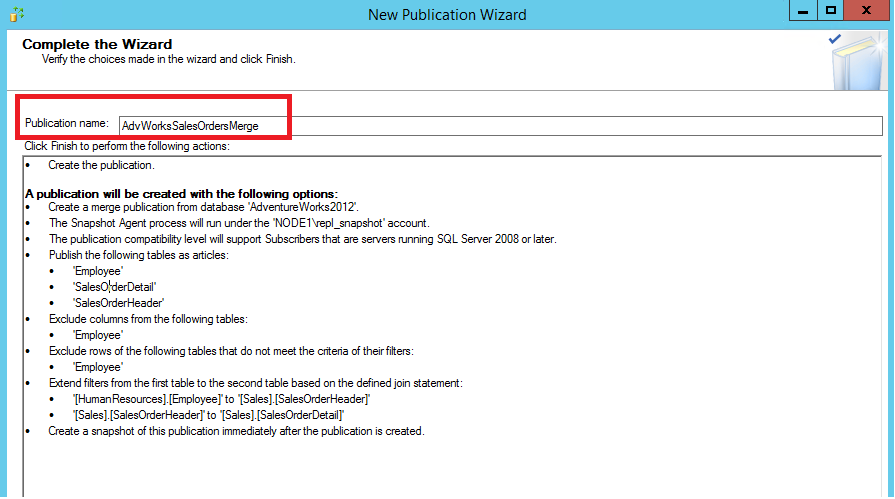
On the Complete the Wizard page, enter AdvWorksSalesOrdersMerge in the Publication name box and select Finish:
-
After the publication is created, select Close. Under the Replication node in Object Explorer, right-click Local Publications and Refresh to view your new Merge Replication.


-
Connect to the Publisher in [!INCLUDEssManStudioFull], expand the server node, and then expand the Replication folder.
-
In the Local Publications folder, right-click AdvWorksSalesOrdersMerge, and then select View Snapshot Agent Status:

-
The current status of the Snapshot Agent job for the publication is displayed. Ensure that the snapshot job has succeeded before you continue to the next lesson.

-
Connect to the Publisher in [!INCLUDEssManStudioFull], expand the server node, and then expand the Replication folder.
-
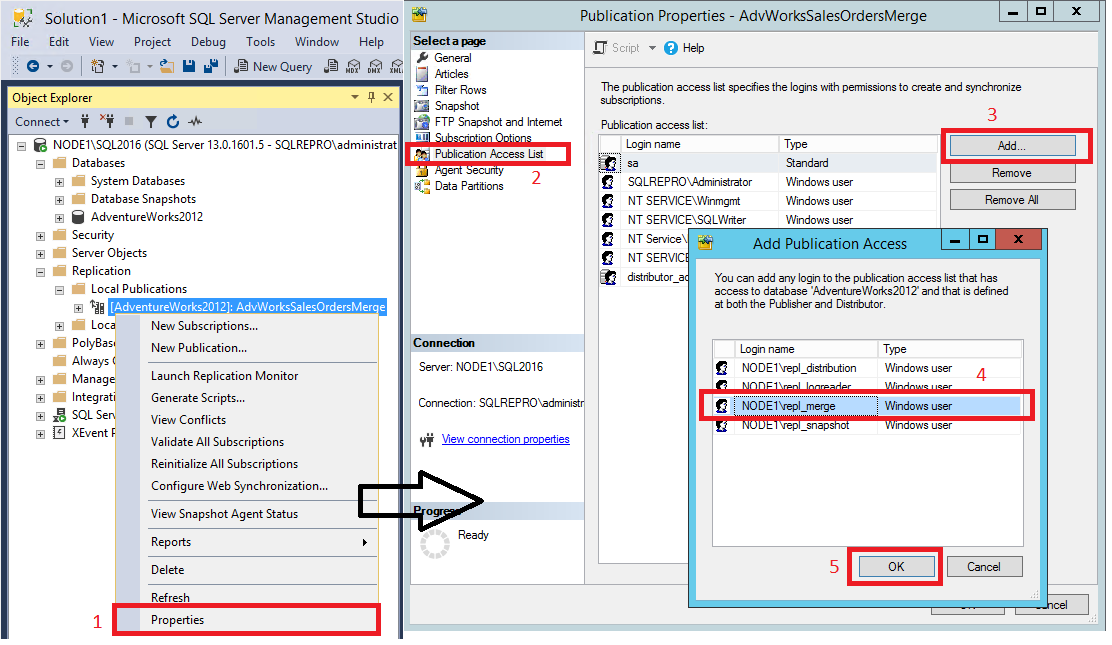
In the Local Publications folder, right-click AdvWorksSalesOrdersMerge, and then select Properties.
a. Select the Publication Access List page, and select Add.
b. In the Add Publication Access dialog box, select <Publisher_Machine_Name>\repl_merge and select OK. Select OK:

See Also:
Filter Published Data
Parameterized Row Filters
Define an Article
In this section, you will add a subscription to the Merge Publication you created previously. This tutorial uses the remote subscriber (NODE2\SQL2016). You will then set permissions on the subscription database and manually generate the filtered data snapshot for the new subscription.
-
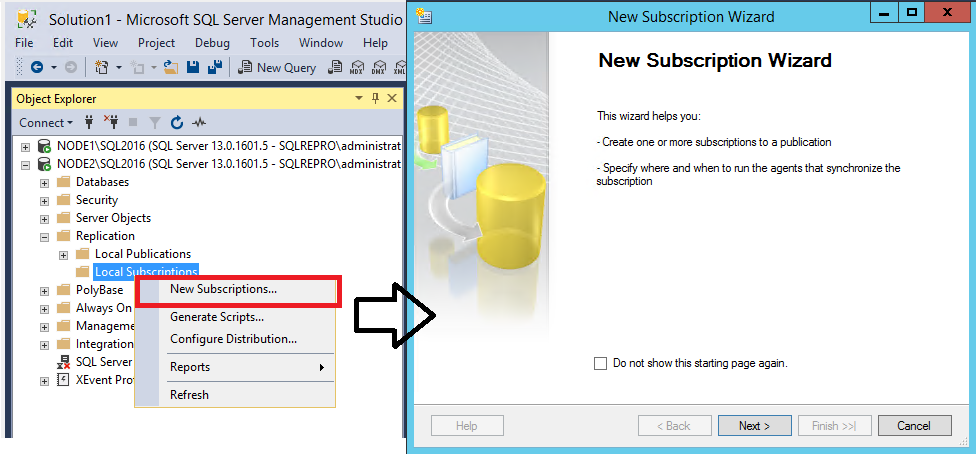
Connect to the Subscriber in [!INCLUDEssManStudioFull], expand the server node. Expand the Replication folder, right-click the Local Subscriptions folder, and then select New Subscriptions. The New Subscription Wizard launches:
-
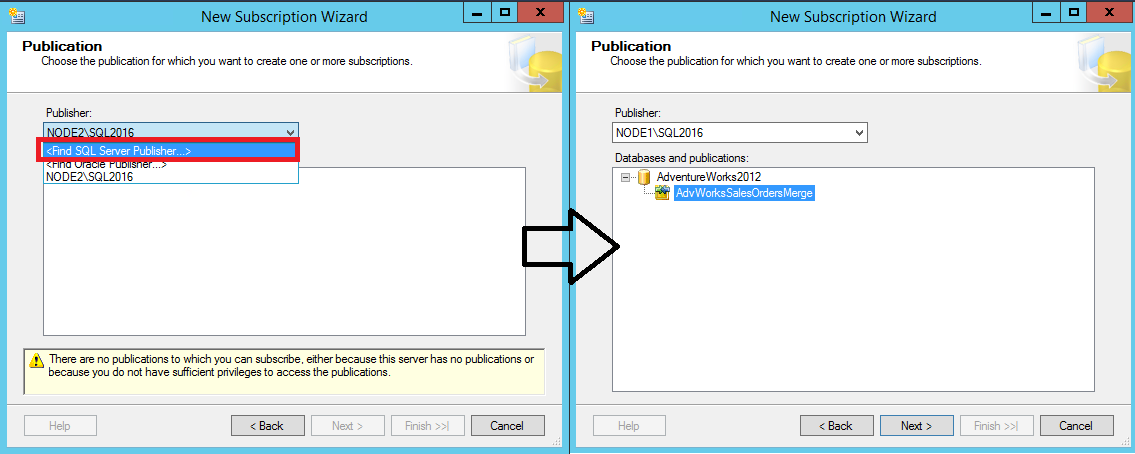
On the Publication page, select Find SQL Server Publisher in the Publisher list.
a. In the Connect to Server dialog box, enter the name of the Publisher instance in the Server name box, and select Connect:
-
Select AdvWorksSalesOrdersMerge, and select Next.
-
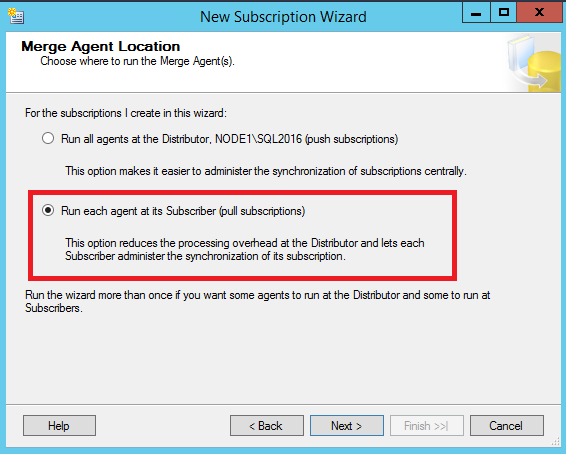
On the Merge Agent Location page, select Run each agent at its Subscriber, and then select Next:
-
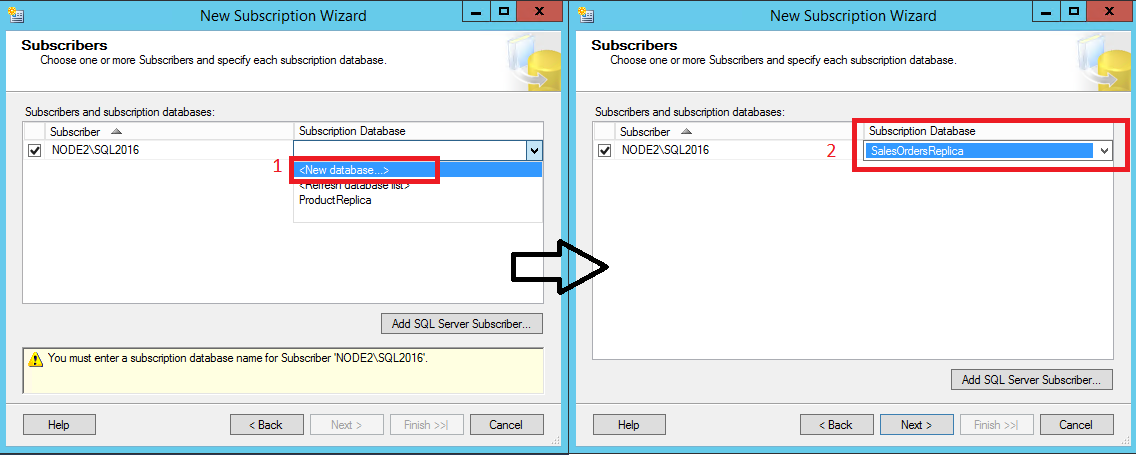
On the Subscribers page, select the instance name of the Subscriber server, and under Subscription Database, select New Database from the list.
a. In the New Database dialog box, enter SalesOrdersReplica in the Database name box, select OK, and then select Next:
-
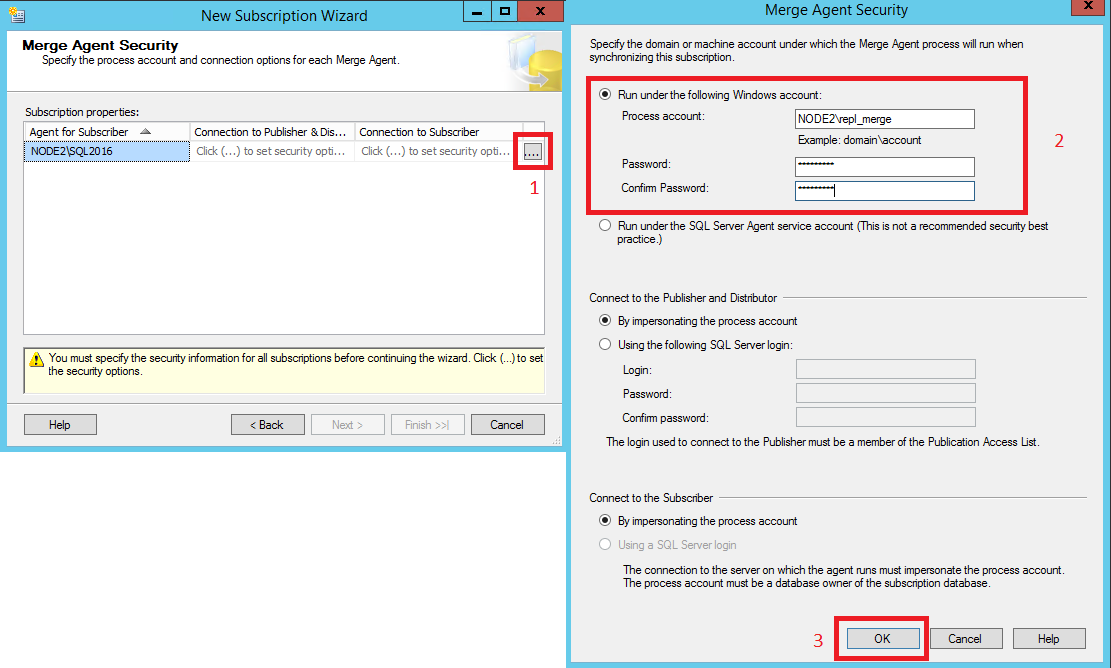
On the Merge Agent Security page, select the ellipsis (…) button, enter <Subscriber_Machine_Name>\repl_merge in the Process account box, supply the password for this account, select OK, select Next, and then select Next again:
-
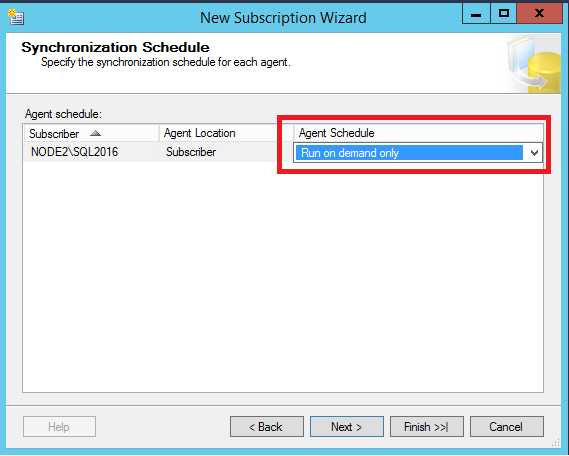
On the Synchronization Schedule, set the Agent Schedule to Run on demand only. Select Next:
-
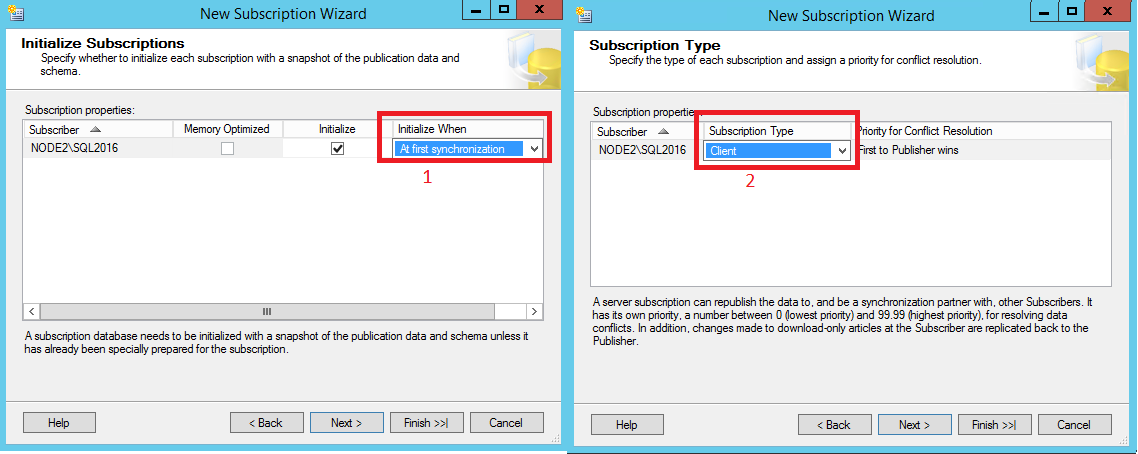
On the Initialize Subscriptions page, select At first synchronization from the Initialize When list, select Next, and then select Next again:
-
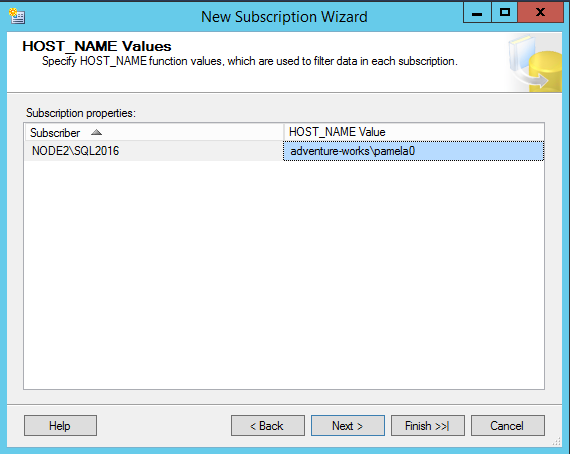
On the HOST_NAME Values page, enter a value of adventure-works\pamela0 in the HOST_NAME Value box, and then select Finish:
-
Select Finish again, and after the subscription is created, select Close.


-
Connect to the Subscriber in [!INCLUDEssManStudioFull], expand Security, right-click Logins, and then select New Login.
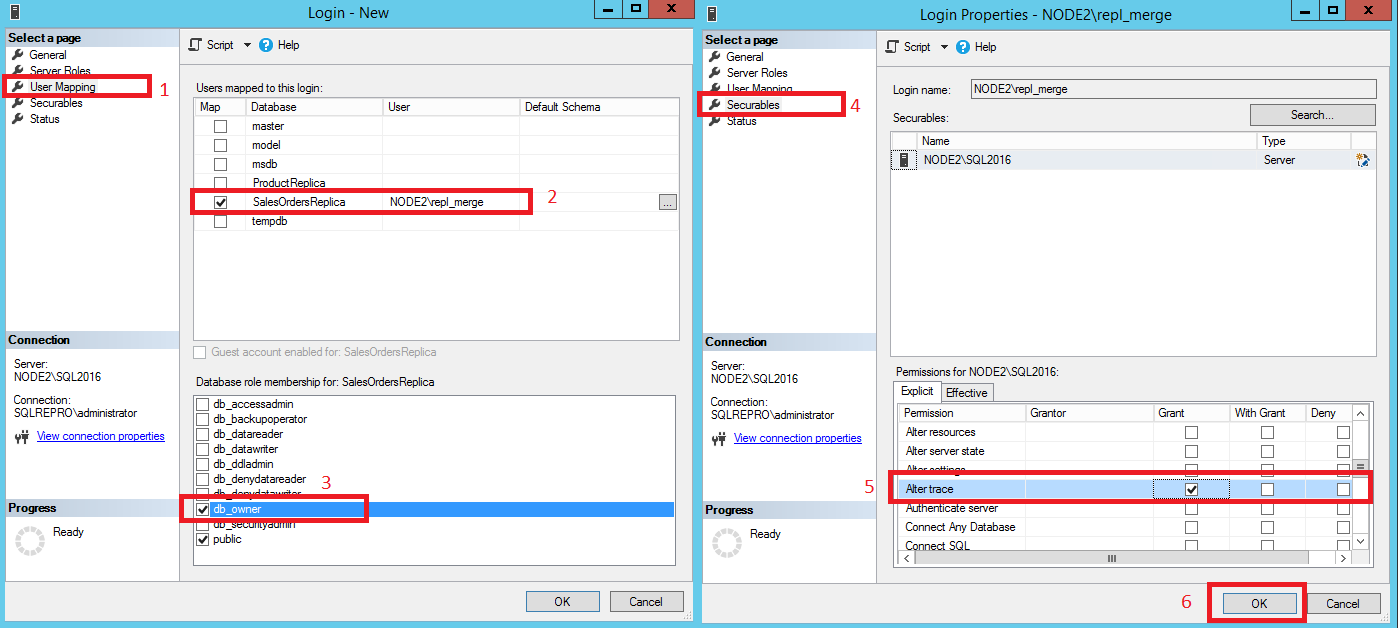
a. On the General page, select Search and then enter <Subscriber_ Machine_Name>\repl_merge in the Enter the Object Name field, select Check Names, select OK:

-
On the User Mapping page, select the SalesOrdersReplica database and select the db_owner role. On the Securables page, grant the 'Explicit' permission to Alter Trace. Select OK:


-
Connect to the Publisher in [!INCLUDEssManStudioFull], expand the server node, and then expand the Replication folder.
-
In the Local Publications folder, right-click the AdvWorksSalesOrdersMerge publication, and then select Properties.
a. Select the Data Partitions page, and select Add.
b. In the Add Data Partition dialog box, type adventure-works\pamela0 in the HOST_NAME Value box, and then select OK.
c. Select the newly added partition, select Generate the selected snapshots now, and then select OK: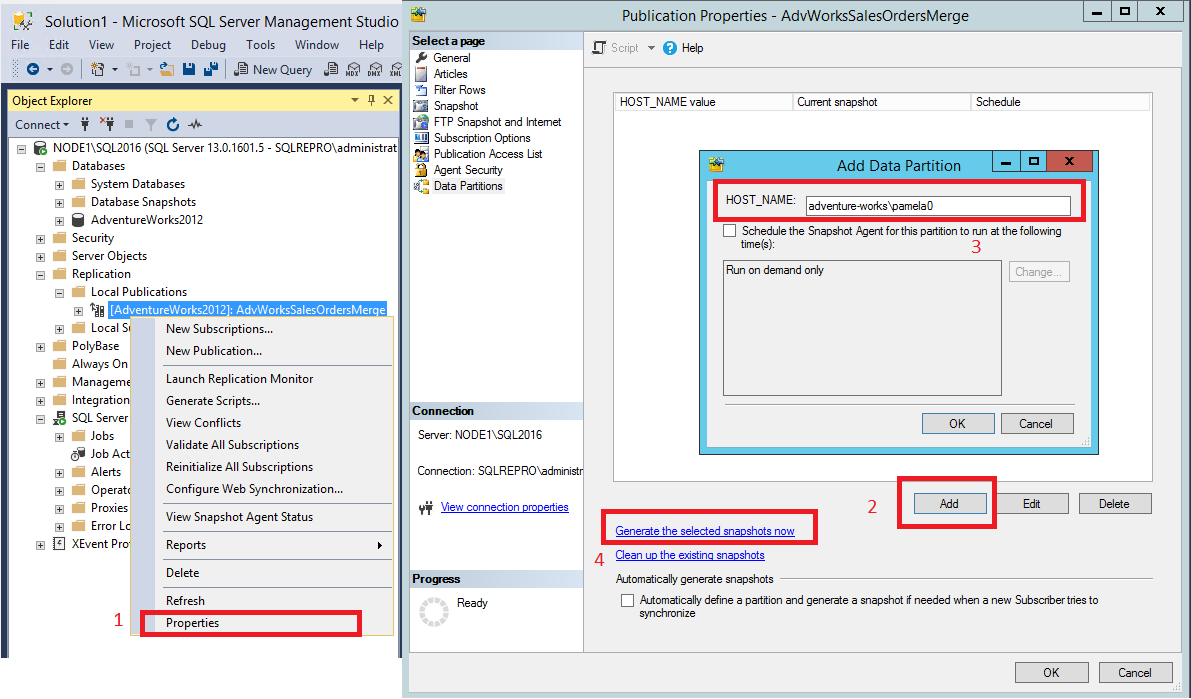

See Also:
Subscribe to Publications
Create a Pull Subscription
Snapshots for Merge Publications with Parameterized Filters
In this section, you will start the Merge Agent to initialize the subscription using [!INCLUDEssManStudioFull]. You also use this procedure to synchronize with the Publisher.
-
Connect to the Subscriber in [!INCLUDEssManStudioFull].
-
Make sure the SQL Server Agent is running. If it's not, right-click the SQL Server Agent in Object Explorer and select Start. If this fails to start your Agent, you'll need to do so manually using the SQL Server Configuration Manager.
-
Expand the Replication node. In the Local Subscriptions folder, right-click the subscription in the SalesOrdersReplica database, and then select View Synchronization Status.
a. Select Start to initialize the subscription:


You have successfully configured both your Publisher and your Subscriber for your Merge Replication. You can also insert, update, or delete data in the SalesOrderHeader or SalesOrderDetail tables at the Publisher or Subscriber, repeat this procedure when network connectivity is available to synchronize data between the Publisher and the Subscriber, and then query the SalesOrderHeader or SalesOrderDetail tables at the other server to view the replicated changes.
See Also:
Initialize a Subscription with a Snapshot
Synchronize Data
Synchronize a Pull Subscription