| title | Download NYC Taxi demo data and scripts for embedded R and Python (SQL Server Machine Learning) | Microsoft Docs |
|---|---|
| description | Instructions for downloading New York City taxi sample data and creating a database. Data is used in SQL Server tutorials showing how to embed R and Python in SQL Server stored procedures and T-SQL functions. |
| ms.prod | sql |
| ms.technology | machine-learning |
| ms.date | 08/22/2018 |
| ms.topic | tutorial |
| author | HeidiSteen |
| ms.author | heidist |
| manager | cgronlun |
[!INCLUDEappliesto-ss-xxxx-xxxx-xxx-md-winonly]
This article prepares your system for tutorials on how to use R and Python for in-database analytics in SQL Server.
In this exercise, you will download sample data, a PowerShell script for preparing the environment, and [!INCLUDEtsql] script files used in several tutorials. When you are finished, an NYCTaxi_Sample database is available on your local instance, providing demo data for hands-on learning.
You will need an internet connection, PowerShell, and local administrative rights on the computer. You should have SQL Server Management Studio or another tool to verify object creation.
-
Open a Windows PowerShell command console.
Use the Run as Administrator option to create the destination directory or to write files to the specified destination.
-
Run the following PowerShell commands, changing the value of the parameter DestDir to any local directory. The default we've used here is TempRSQL.
$source = ‘https://raw.githubusercontent.com/Azure/Azure-MachineLearning-DataScience/master/Misc/RSQL/Download_Scripts_SQL_Walkthrough.ps1’
$ps1_dest = “$pwd\Download_Scripts_SQL_Walkthrough.ps1”
$wc = New-Object System.Net.WebClient
$wc.DownloadFile($source, $ps1_dest)
.\Download_Scripts_SQL_Walkthrough.ps1 –DestDir ‘C:\tempRSQL’
If the folder you specify in DestDir does not exist, it will be created by the PowerShell script.
[!TIP] If you get an error, you can temporarily set the policy for execution of PowerShell scripts to unrestricted only for this walkthrough by using the Bypass argument and scoping the changes to the current session.
Set\-ExecutionPolicy Bypass \-Scope ProcessRunning this command does not result in a configuration change.
Depending on your Internet connection, the download might take a while.
-
When all files have been downloaded, the PowerShell script opens to the DestDir folder. In the PowerShell command prompt, run the following command and review the files that have been downloaded.
lsResults:
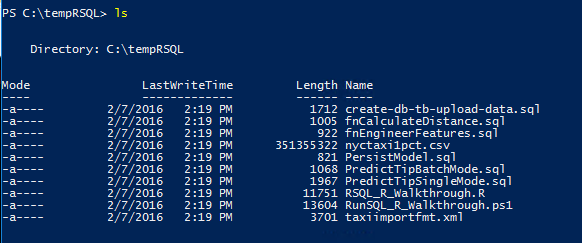

Among the downloaded files, you should see a PowerShell script (RunSQL_SQL_Walkthrough.ps1) that creates a database and bulk loads data. Actions performed by the script include:
-
Installs the SQL Native Client and SQL command-line utilities, if not already installed. These utilities are required for bulk-loading the data to the database using bcp.
-
Create a database and tables on the [!INCLUDEssNoVersion] instance, and bulk-insert data sourced from a .csv file.
-
Create multiple SQL functions and stored procedures used in several tutorials.
By default, the script assumes a SQL Server database user login and password. If you are db_owner under your Windows user account, you can use your Windows identity to create the objects. To do so, open RunSQL_SQL_Walkthrough.ps1 in a code editor and append -T to the bcp bulk insert command (line 238):
bcp $db_tb in $csvfilepath -t ',' -S $server -f taxiimportfmt.xml -F 2 -C "RAW" -b 200000 -U $u -P $p -T
Using an Administrator PowerShell command prompt at C:\tempRSQL, run the following command.
.\RunSQL_SQL_Walkthrough.ps1You are prompted to input the following information:
-
Server instance where [!INCLUDErsql_productname] has been installed. On a default instance, this can be as simple as the machine name.
-
Database name. For this tutorial, scripts assume
NYCTaxi_Sample. -
User name and user password. Enter a SQL Server database login for these values. Alternatively, if you modified the script to accept a trusted Windows identity, press Enter to leave these values blank. Your Windows identity is used on the connection.
-
Fully qualified file name for the sample data downloaded in the previous lesson. For example:
C:\tempRSQL\nyctaxi1pct.csv
After you provide these values, the script executes immediately. During script execution, all placeholder names in the [!INCLUDEtsql] scripts are updated to use the inputs you provide.
When script execution is finished, confirm the database objects exist on the [!INCLUDEssNoVersion] instance using [!INCLUDEssManStudioFull]. You should see the database, tables, functions, and stored procedures.

Note
If the database objects already exist, they cannot be created again.
If the table already exists, the data will be appended, not overwritten. Therefore, be sure to drop any existing objects before running the script.
The following table summarizes the objects created in the NYC Taxi demo database. Although you only run one PowerShell script (RunSQL_SQL_Walkthrough.ps1), that script calls other SQL scripts in turn to create the objects in your database. Scripts used to create each object are mentioned in the description.
| Object name | Object type | Description |
|---|---|---|
| NYCTaxi_Sample | database | Created by the create-db-tb-upload-data.sql script. Creates a database and two tables: dbo.nyctaxi_sample table: Contains the main NYC Taxi dataset. A clustered columnstore index is added to the table to improve storage and query performance. The 1% sample of the NYC Taxi dataset is inserted into this table. dbo.nyc_taxi_models table: Used to persist the trained advanced analytics model. |
| fnCalculateDistance | scalar-valued function | Created by the fnCalculateDistance.sql script. Calculates the direct distance between pickup and dropoff locations. This function is used in Create data features, Train and save a model and Operationalize the R model. |
| fnEngineerFeatures | table-valued function | Created by the fnEngineerFeatures.sql script. Creates new data features for model training. This function is used in Create data features and Operationalize the R model. |
| PlotHistogram | stored procedure | Created by the PlotHistogram.sql script. Calls an R function to plot the histogram of a variable and then returns the plot as a binary object. This stored procedure is used in Explore and visualize data. |
| PlotInOutputFiles | stored procedure | Created by the PlotInOutputFiles.sql script. Creates a graphic using an R function and then saves the output as a local PDF file. This stored procedure is used in Explore and visualize data. |
| PersistModel | stored procedure | Created by the PersistModel.sql script. Takes a model that has been serialized in a varbinary data type, and writes it to the specified table. |
| PredictTip | stored procedure | Created by the PredictTip.sql script. Calls the trained model to create predictions using the model. The stored procedure accepts a query as its input parameter and returns a column of numeric values containing the scores for the input rows. This stored procedure is used in Operationalize the R model. |
| PredictTipSingleMode | stored procedure | Created by the PredictTipSingleMode.sql script. Calls the trained model to create predictions using the model. This stored procedure accepts a new observation as input, with individual feature values passed as in-line parameters, and returns a value that predicts the outcome for the new observation. This stored procedure is used in Operationalize the R model. |
| TrainTipPredictionModel | stored procedure | Created by the TrainTipPredictionModel.sql script. Trains a logistic regression model by calling an R package. The model predicts the value of the tipped column, and is trained using a randomly selected 70% of the data. The output of the stored procedure is the trained model, which is saved in the table nyc_taxi_models. This stored procedure is used in Train and save a model. |
As a validation step, run a query to confirm the data was uploaded.
-
In Object Explorer, under Databases, expand the NYCTaxi_Sample datatabase, and then open the Tables folder.
-
Right-click the dbo.nyctaxi_sample and choose Select Top 1000 Rows to return some data.
NYC Taxi sample data is now available for hands-on learning.