---
title: Download NYC Taxi demo data and scripts for embedded R and Python (SQL Server Machine Learning) | Microsoft Docs
description: Instructions for downloading New York City taxi sample data and creating a database. Data is used in SQL Server tutorials showing how to embed R and Python in SQL Server stored procedures and T-SQL functions.
ms.prod: sql
ms.technology: machine-learning
ms.date: 08/22/2018
ms.topic: tutorial
author: HeidiSteen
ms.author: heidist
manager: cgronlun
---
# NYC Taxi demo data for SQL Server
[!INCLUDE[appliesto-ss-xxxx-xxxx-xxx-md-winonly](../../includes/appliesto-ss-xxxx-xxxx-xxx-md-winonly.md)]
This article prepares your system for tutorials on how to use R and Python for in-database analytics in SQL Server.
In this exercise, you will download sample data, a PowerShell script for preparing the environment, and [!INCLUDE[tsql](../../includes/tsql-md.md)] script files used in several tutorials. When you are finished, an **NYCTaxi_Sample** database is available on your local instance, providing demo data for hands-on learning.
## Prerequisites
You will need an internet connection, PowerShell, and local administrative rights on the computer. You should have [SQL Server Management Studio](https://docs.microsoft.com/sql/ssms/download-sql-server-management-studio-ssms) or another tool to verify object creation.
## Download NYC Taxi demo data and scripts from Github
1. Open a Windows PowerShell command console.
Use the **Run as Administrator** option to create the destination directory or to write files to the specified destination.
2. Run the following PowerShell commands, changing the value of the parameter *DestDir* to any local directory. The default we've used here is **TempRSQL**.
```ps
$source = ‘https://raw.githubusercontent.com/Azure/Azure-MachineLearning-DataScience/master/Misc/RSQL/Download_Scripts_SQL_Walkthrough.ps1’
$ps1_dest = “$pwd\Download_Scripts_SQL_Walkthrough.ps1”
$wc = New-Object System.Net.WebClient
$wc.DownloadFile($source, $ps1_dest)
.\Download_Scripts_SQL_Walkthrough.ps1 –DestDir ‘C:\tempRSQL’
```
If the folder you specify in *DestDir* does not exist, it will be created by the PowerShell script.
> [!TIP]
> If you get an error, you can temporarily set the policy for execution of PowerShell scripts to **unrestricted** only for this walkthrough by using the Bypass argument and scoping the changes to the current session.
>
>````
> Set\-ExecutionPolicy Bypass \-Scope Process
>````
> Running this command does not result in a configuration change.
Depending on your Internet connection, the download might take a while.
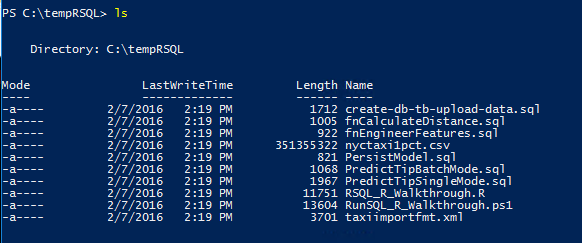
3. When all files have been downloaded, the PowerShell script opens to the *DestDir* folder. In the PowerShell command prompt, run the following command and review the files that have been downloaded.
```
ls
```
**Results:**
## Create NYCTaxi_Sample database
Among the downloaded files, you should see a PowerShell script (**RunSQL_SQL_Walkthrough.ps1**) that creates a database and bulk loads data. Actions performed by the script include:
+ Installs the SQL Native Client and SQL command-line utilities, if not already installed. These utilities are required for bulk-loading the data to the database using **bcp**.
+ Create a database and tables on the [!INCLUDE[ssNoVersion](../../includes/ssnoversion-md.md)] instance, and bulk-insert data sourced from a .csv file.
+ Create multiple SQL functions and stored procedures used in several tutorials.
### Modify the script to use a trusted Windows identity
By default, the script assumes a SQL Server database user login and password. If you are db_owner under your Windows user account, you can use your Windows identity to create the objects. To do so, open `RunSQL_SQL_Walkthrough.ps1` in a code editor and append **`-T`** to the bcp bulk insert command (line 238):
```text
bcp $db_tb in $csvfilepath -t ',' -S $server -f taxiimportfmt.xml -F 2 -C "RAW" -b 200000 -U $u -P $p -T
```
### Run the script to create objects
Using an Administrator PowerShell command prompt at C:\tempRSQL, run the following command.
```ps
.\RunSQL_SQL_Walkthrough.ps1
```
You are prompted to input the following information:
- Server instance where [!INCLUDE[rsql_productname](../../includes/rsql-productname-md.md)] has been installed. On a default instance, this can be as simple as the machine name.
- Database name. For this tutorial, scripts assume `NYCTaxi_Sample`.
- User name and user password. Enter a SQL Server database login for these values. Alternatively, if you modified the script to accept a trusted Windows identity, press Enter to leave these values blank. Your Windows identity is used on the connection.
- Fully qualified file name for the sample data downloaded in the previous lesson. For example: `C:\tempRSQL\nyctaxi1pct.csv`
After you provide these values, the script executes immediately. During script execution, all placeholder names in the [!INCLUDE[tsql](../../includes/tsql-md.md)] scripts are updated to use the inputs you provide.
## Review database objects
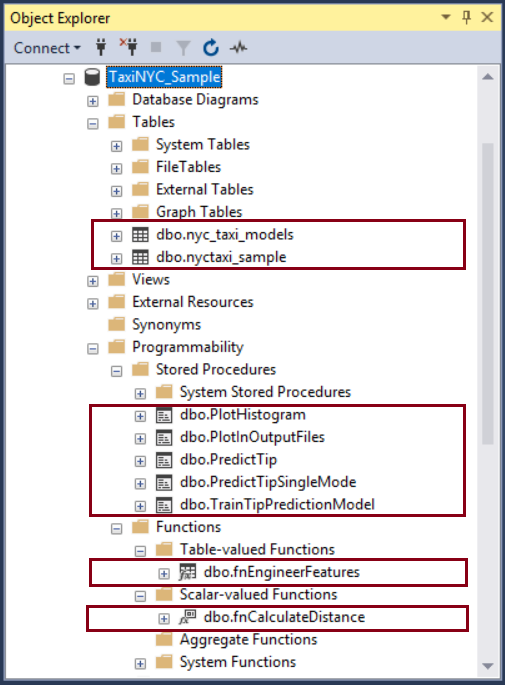
When script execution is finished, confirm the database objects exist on the [!INCLUDE[ssNoVersion](../../includes/ssnoversion-md.md)] instance using [!INCLUDE[ssManStudioFull](../../includes/ssmanstudiofull-md.md)]. You should see the database, tables, functions, and stored procedures.
> [!NOTE]
> If the database objects already exist, they cannot be created again.
>
> If the table already exists, the data will be appended, not overwritten. Therefore, be sure to drop any existing objects before running the script.
### Objects in NYCTaxi_Sample database
The following table summarizes the objects created in the NYC Taxi demo database. Although you only run one PowerShell script (`RunSQL_SQL_Walkthrough.ps1`), that script calls other SQL scripts in turn to create the objects in your database. Scripts used to create each object are mentioned in the description.
|**Object name**|**Object type**|**Description**|
|----------|------------------------|---------------|
|**NYCTaxi_Sample** | database |Created by the create-db-tb-upload-data.sql script. Creates a database and two tables:
dbo.nyctaxi_sample table: Contains the main NYC Taxi dataset. A clustered columnstore index is added to the table to improve storage and query performance. The 1% sample of the NYC Taxi dataset is inserted into this table.
dbo.nyc_taxi_models table: Used to persist the trained advanced analytics model.|
|**fnCalculateDistance** |scalar-valued function | Created by the fnCalculateDistance.sql script. Calculates the direct distance between pickup and dropoff locations. This function is used in [Create data features](sqldev-create-data-features-using-t-sql.md), [Train and save a model](../r/sqldev-train-and-save-a-model-using-t-sql.md) and [Operationalize the R model](sqldev-operationalize-the-model.md).|
|**fnEngineerFeatures** |table-valued function | Created by the fnEngineerFeatures.sql script. Creates new data features for model training. This function is used in [Create data features](sqldev-create-data-features-using-t-sql.md) and [Operationalize the R model](sqldev-operationalize-the-model.md).|
|**PlotHistogram** |stored procedure | Created by the PlotHistogram.sql script. Calls an R function to plot the histogram of a variable and then returns the plot as a binary object. This stored procedure is used in [Explore and visualize data](sqldev-explore-and-visualize-the-data.md).|
|**PlotInOutputFiles** |stored procedure| Created by the PlotInOutputFiles.sql script. Creates a graphic using an R function and then saves the output as a local PDF file. This stored procedure is used in [Explore and visualize data](sqldev-explore-and-visualize-the-data.md).|
|**PersistModel** |stored procedure | Created by the PersistModel.sql script. Takes a model that has been serialized in a varbinary data type, and writes it to the specified table. |
|**PredictTip** |stored procedure |Created by the PredictTip.sql script. Calls the trained model to create predictions using the model. The stored procedure accepts a query as its input parameter and returns a column of numeric values containing the scores for the input rows. This stored procedure is used in [Operationalize the R model](sqldev-operationalize-the-model.md).|
|**PredictTipSingleMode** |stored procedure| Created by the PredictTipSingleMode.sql script. Calls the trained model to create predictions using the model. This stored procedure accepts a new observation as input, with individual feature values passed as in-line parameters, and returns a value that predicts the outcome for the new observation. This stored procedure is used in [Operationalize the R model](sqldev-operationalize-the-model.md).|
|**TrainTipPredictionModel** |stored procedure|Created by the TrainTipPredictionModel.sql script. Trains a logistic regression model by calling an R package. The model predicts the value of the tipped column, and is trained using a randomly selected 70% of the data. The output of the stored procedure is the trained model, which is saved in the table nyc_taxi_models. This stored procedure is used in [Train and save a model](../r/sqldev-train-and-save-a-model-using-t-sql.md).|
## Query data for verification
As a validation step, run a query to confirm the data was uploaded.
1. In Object Explorer, under Databases, expand the **NYCTaxi_Sample** datatabase, and then open the Tables folder.
2. Right-click the **dbo.nyctaxi_sample** and choose **Select Top 1000 Rows** to return some data.
## Next steps
NYC Taxi sample data is now available for hands-on learning.
+ [Learn in-database analytics using R in SQL Server](sqldev-in-database-r-for-sql-developers.md)