---
title: "Tutorial: Adding a KPI to Your Report (Report Builder) | Microsoft Docs"
ms.date: 06/15/2016
ms.prod: reporting-services
ms.prod_service: "reporting-services-native"
ms.technology: reporting-services
ms.topic: conceptual
ms.assetid: 1bf77859-0b33-4f40-abaf-ebeeb6ebb1f8
author: maggiesMSFT
ms.author: maggies
---
# Tutorial: Adding a KPI to Your Report (Report Builder)
In this [!INCLUDE[ssRBnoversion_md](../includes/ssrbnoversion.md)] tutorial, you add a key performance indicator (KPI) to a [!INCLUDE[ssRSnoversion_md](../includes/ssrsnoversion-md.md)] paginated report.
KPIs are measurable values with business significance. In this scenario, the sales summary by product subcategories is the KPI. The current state of the KPI is shown with colors, gauges, and indicators.
The following illustration is similar to the report you will create.

> [!NOTE]
> In this tutorial, the steps for the wizard are consolidated into two procedures: one to create the dataset and one to create a table. For step-by-step instructions about how to browse to a report server, choose a data source, create a dataset, and run the wizard, see the first tutorial in this series: [Tutorial: Creating a Basic Table Report (Report Builder)](../reporting-services/tutorial-creating-a-basic-table-report-report-builder.md).
Estimated time to complete this tutorial: 15 minutes.
## Requirements
For information about requirements, see [Prerequisites for Tutorials (Report Builder)](../reporting-services/prerequisites-for-tutorials-report-builder.md).
## 1. Create a Table Report and Dataset from the Table or Matrix Wizard
In this section, you choose a shared data source, create an embedded dataset, and display the data in a table.
### To create a table with an embedded dataset
1. [Start Report Builder](../reporting-services/report-builder/start-report-builder.md) either from your computer, the [!INCLUDE[ssRSnoversion_md](../includes/ssrsnoversion-md.md)] web portal, or SharePoint integrated mode.
The **New Report or Dataset** dialog box opens.
If you don't see the **New Report or Dataset** dialog box, on the **File** menu > **New**.
2. In the left pane, verify that **New Report** is selected.
3. In the right pane, click **Table or Matrix Wizard**.
4. On the **Choose a dataset** page, click **Create a dataset**.
5. Click **Next**.
6. On the **Choose a connection to a data source** page, select an existing data source or browse to the report server and select a data source. If there no data source is available or you do not have access to a report server, you can use an embedded data source instead. For more information, see [Tutorial: Creating a Basic Table Report (Report Builder)](../reporting-services/tutorial-creating-a-basic-table-report-report-builder.md).
7. Click **Next**.
8. On the **Design a query** page, click **Edit as Text**.
9. Copy and paste the following query into the query pane:
> [!NOTE]
> In this tutorial, the query contains the data values, so that it does not need an external data source. This makes the query quite long. In a business environment, a query would not contain the data. This is for learning purposes only.
```
SELECT CAST('2015-01-05' AS date) as SalesDate, 'Accessories' as Subcategory,
'Carrying Case' as Product, CAST(16996.60 AS money) AS Sales, 68 as Quantity
UNION SELECT CAST('2015-01-06' AS date) as SalesDate, 'Accessories' as Subcategory,
'Tripod' as Product, CAST(1350.00 AS money) AS Sales, 18 as Quantity
UNION SELECT CAST('2015-01-11' AS date) as SalesDate, 'Accessories' as Subcategory,
'Lens Adapter' as Product, CAST(1147.50 AS money) AS Sales, 17 as Quantity
UNION SELECT CAST('2015-01-05' AS date) as SalesDate, 'Accessories' as Subcategory,
'Mini Battery Charger' as Product, CAST(1056.00 AS money) AS Sales, 44 as Quantity
UNION SELECT CAST('2015-01-06' AS date) as SalesDate, 'Accessories' as Subcategory,
'Telephoto Conversion Lens' as Product, CAST(1380.00 AS money) AS Sales, 18 as Quantity
UNION SELECT CAST('2015-01-06' AS date) as SalesDate,'Accessories' as Subcategory,
'USB Cable' as Product, CAST(780.00 AS money) AS Sales, 26 as Quantity
UNION SELECT CAST('2015-01-08' AS date) as SalesDate, 'Accessories' as Subcategory,
'Budget Movie-Maker' as Product, CAST(3798.00 AS money) AS Sales, 9 as Quantity
UNION SELECT CAST('2015-01-09' AS date) as SalesDate, 'Camcorders' as Subcategory,
'Business Videographer' as Product, CAST(10400.00 AS money) AS Sales, 13 as Quantity
UNION SELECT CAST('2015-01-10' AS date) as SalesDate, 'Camcorders' as Subcategory,
'Social Videographer' as Product, CAST(3000.00 AS money) AS Sales, 60 as Quantity
UNION SELECT CAST('2015-01-11' AS date) as SalesDate, 'Digital' as Subcategory,
'Advanced Digital' as Product, CAST(7234.50 AS money) AS Sales, 39 as Quantity
UNION SELECT CAST('2015-01-07' AS date) as SalesDate, 'Digital' as Subcategory,
'Compact Digital' as Product, CAST(10836.00 AS money) AS Sales, 84 as Quantity
UNION SELECT CAST('2015-01-08' AS date) as SalesDate, 'Digital' as Subcategory,
'Consumer Digital' as Product, CAST(2550.00 AS money) AS Sales, 17 as Quantity
UNION SELECT CAST('2015-01-05' AS date) as SalesDate, 'Digital' as Subcategory,
'Slim Digital' as Product, CAST(8357.80 AS money) AS Sales, 44 as Quantity
UNION SELECT CAST('2015-01-09' AS date) as SalesDate, 'Digital SLR' as Subcategory,
'SLR Camera 35mm' as Product, CAST(18530.00 AS money) AS Sales, 34 as Quantity
UNION SELECT CAST('2015-01-07' AS date) as SalesDate, 'Digital SLR' as Subcategory,
'SLR Camera' as Product, CAST(26576.00 AS money) AS Sales, 88 as Quantity
```
10. On the query designer toolbar, click Run (**!**).
11. Click **Next**.
## 2. Organize Data and Choose Layout in the Wizard
The Table or Matrix wizard provides a starting design in which to display data. The preview pane in the wizard helps you to visualize the result of grouping data before you complete the table or matrix design.
### To organize data into groups and choose a layout
1. On the Arrange fields page, drag Product to **Values**.
2. Drag Quantity to **Values** and place below Product.
Quantity is summarized with the Sum function, the default function to summarize numeric fields.
3. Drag Sales to **Values** and place below Quantity.
Steps 1, 2, and 3 specify the data to display in the table.
4. Drag SalesDate to **Row groups**.
5. Drag Subcategory to **Row groups** and place below SalesDate.
Steps 4 and 5 organize the values for the fields first by date, and then by all sales for that date.
6. Click **Next**.
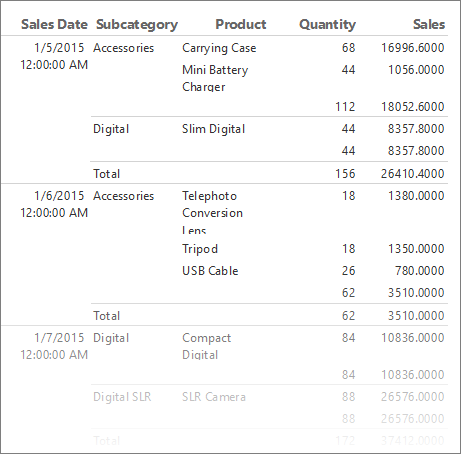
When you run the report, the table displays each date, all orders for each date, and all products, quantities, and sales totals for each order.
7. On the Choose the Layout page, under **Options**, verify that **Show subtotals and grand totals** is selected.
8. Verify that **Blocked, subtotal below** is selected.
9. Clear the option **Expand/collapse groups**.
In this tutorial, the report you create does not use the drilldown feature that lets a user expand a parent group hierarchy to display child group rows and detail rows.
10. Click **Next**.
11. Click **Finish**.
The table is added to the design surface. The table has five columns and five rows. The Row Groups pane shows three row groups: SalesDate, Subcategory, and Details. Detail data is all the data that is retrieved by the dataset query. The Column Groups pane is empty.

12. Click **Run** to preview the report.
For each product that is sold on a specific date, the table displays the product name, the quantity sold, and the sales total. The data is organized first by sales date and then by subcategory.
### Format dates and currency
Let's make the columns wider and set the format for the dates and currency.
1. Click **Design** to go back to Design view.
2. The Product names could use more space. To make the Product column wider, select the whole table and drag the right edge of the column handle at the top of the Product column.
3. Press the Ctrl key, then select the four cells that contain [Sum(Sales)].
4. On the **Home** tab > **Number** > **Currency**. The cells change to show the formatted currency.
If your regional setting is English (United States), the default sample text is [$12,345.00]. If you don't see an example currency value, in the **Numbers** group, click **Placeholder Styles** > **Sample Values**.

5. (Optional) On the **Home** tab, in the **Number** group, click the **Decrease Decimals** button twice to display dollar figures with no cents.
6. Click the cell that contains [SalesDate].
6. In the **Number** group > **Date**.
The cell displays the example date [1/31/2000].
12. Click **Run** to preview the report.

## 3. Use Background Colors to Display a KPI
Background colors can be set to an expression that is evaluated when you run the report.
### To display the present state of a KPI by using background colors
1. In the table, right-click the second `[Sum(Sales)]` cell (the subtotal row that displays the sales for a subcategory), then click **Text Box Properties**.
Make sure you've selected the cell, not the text in the cell, to view **Text Box Properties**.

2. On the **Fill** tab, click the **fx** button next to **Fill color** and enter the following expression in the **Set expression for: BackgroundColor** field:
`=IIF(Sum(Fields!Sales.Value) >= 5000 ,"Lime", IIF(Sum(Fields!Sales.Value) < 2500, "Red","Yellow"))`
This changes the background color to "Lime" green for each cell with an aggregated sum for `[Sum(Sales)]` greater than or equal to 5000. Values of `[Sum(Sales)]` between 2500 and 5000 are "Yellow". Values less than 2500 are "Red".
1. [!INCLUDE[clickOK](../includes/clickok-md.md)]
2. Click **Run** to preview the report.
In the subtotal row that displays the sales for a subcategory, the background color of the cell is red, yellow, or green depending on value of the sales sum.

## 4. Display a KPI by Using a Gauge
A gauge depicts a single value in a dataset. This tutorial uses a horizontal linear gauge because its shape and simplicity make it easy to read, even in when it is small and within a table cell. For more information, see [Gauges (Report Builder and SSRS)](../reporting-services/report-design/gauges-report-builder-and-ssrs.md).
### To display the present state of a KPI using a gauge
1. Switch back to Design view.
2. In the table, right-click the column handle for the Sales column > **Insert Column** > **Right**. A new column is added to the table.

3. Type **Linear KPI** in the column heading.
4. On the **Insert** tab > **Data Visualizations** > **Gauge**, and then click the design surface outside the table.
5. In the **Select Gauge Type** dialog box, select the first linear gauge type, **Horizontal**.
6. [!INCLUDE[clickOK](../includes/clickok-md.md)]
A gauge is added to the design surface.
7. From the dataset in the Report Data pane, drag the `Sales` field to the gauge. The **Gauge Data** pane opens.
When you drop the `Sales` field onto the gauge, it goes to the **Values** list and is aggregated by using the built-in Sum function.

9. In the **Gauge Data** pane, click the arrow next to **LinearPointer1** > **Pointer Properties**.
10. In the **Linear Pointer Properties** dialog box > **Pointer Options** tab > **Pointer Type**, make sure **Bar** is selected.
11. Click **OK**.
12. Right-click the scale in the gauge and click **Scale Properties**.
13. In the **Linear Scale Properties** dialog box > **General** tab, set **Maximum** to 25000.
> [!NOTE]
> Instead of a constant such as 25000, you can use an expression to dynamically calculate the value of the **Maximum** option. The expression would use the aggregate of aggregate feature and look similar to the expression `=Max(Sum(Fields!Sales.value), "Tablix1")`.
14. On the **Labels** tab, check **Hide scale labels**.
15. Click **OK**.
14. Drag the gauge inside the table to the second empty cell in the Linear KPI column, in the row that displays the subtotal sales for the `Subcategory` field, next to the field where you added the background color formula.
> [!NOTE]
> You might have to resize the column so the horizontal linear gauge fits into the cell. To resize the column, select the table and drag the column handles. The report design surface resizes to fit the table.
15. Click **Run** to preview the report.
The horizontal length of the green bar in the gauge changes depending on the value of the KPI.

## 5. Display a KPI by Using an Indicator
Indicators are small simple gauges that communicate data values at a glance. Because of their size and simplicity, indicators are often used in tables and matrices. For more information, see [Indicators (Report Builder and SSRS)](../reporting-services/report-design/indicators-report-builder-and-ssrs.md).
### To display the present state of a KPI using an indicator
1. Switch to Design view.
2. In the table, right-click the column handle for the Linear KPI column that you added in the last procedure > **Insert Column** > **Right**. A new column is added to the table.
3. Type **Stoplight KPI** in the column heading.
4. Click the cell for the subcategory subtotal, next to the linear gauge you added in the last procedure.
5. On the **Insert** tab > **Data Visualizations** > double-click **Indicator.**
6. In the **Select Indicator Type** dialog box, under **Shapes**, select the first shape type, **3 Traffic Lights (Unrimmed)**.
7. [!INCLUDE[clickOK](../includes/clickok-md.md)]
The indicator is added to the cell in the new Stoplight KPI column.
8. Right-click the indicator and click **Indicator Properties**.
9. On the **Values and States** tab, in the **Value** box, select **[Sum(Sales)]**. Don't change any other options.
By default, data synchronization occurs across the data region and you see the value **Tablix1**, the name of the table data region in the report, in the **Synchronization scope** box.
In this report, you can also change the scope of an indicator placed in the cell of the subcategory subtotal to synchronize across the SalesDate field.
11. Click **OK**.
11. Click **Run** to preview the report.

## 6. Add a Report Title
A report title appears at the top of the report. You can place the report title in a report header or if the report does not use one, in a text box at the top of the report body. In this section, you use the text box that is automatically placed at the top of the report body.
You can further enhance the text by applying different font styles, sizes, and colors to phrases and individual characters of the text. For more information, see [Format Text in a Text Box (Report Builder and SSRS)](../reporting-services/report-design/format-text-in-a-text-box-report-builder-and-ssrs.md).
### To add a report title
1. On the design surface, click **Click to add title**.
2. Type **Product Sales KPIs**, and then click outside the text box.
3. Optionally, right-click the text box that contains **Product Sales KPI**, click **Text Box Properties**, and then on the Font tab select different font styles, sizes and colors.
4. Click **Run** to preview the report.
## 7. Save the Report
Save the report to a report server or your computer. If you do not save the report to the report server, a number of [!INCLUDE[ssRSnoversion](../includes/ssrsnoversion-md.md)] features such as report parts and subreports are not available.
### To save the report on a report server
1. From the **Report Builder** button, click **Save As**.
2. Click **Recent Sites and Servers**.
3. Select or type the name of the report server where you have permission to save reports.
The message "Connecting to report server" appears. When the connection is complete, you see the contents of the report folder that the report server administrator specified as the default location for reports.
4. In **Name**, replace the default name with **Product Sales KPI**.
5. Click **Save**.
The report is saved to the report server. The name of report server that you are connected to appears in the status bar at the bottom of the window.
### To save the report on your computer
1. From the **Report Builder** button, click **Save As**.
2. Click **Desktop**, **My Documents**, or **My computer**, and browse to the folder where you want to save the report.
> [!NOTE]
> If you do not have access to a report server, click **Desktop**, **My Documents**, or **My computer** and save the report to your computer.
1. In **Name**, replace the default name with **Product Sales KPI**.
2. Click **Save**.
## Next Steps
You have successfully completed the Adding a KPI to Your Report tutorial. For more information, see:
* [Gauges](../reporting-services/report-design/gauges-report-builder-and-ssrs.md)
* [Indicators](../reporting-services/report-design/indicators-report-builder-and-ssrs.md)
## See Also
* [Report Builder Tutorials](../reporting-services/report-builder-tutorials.md)
* [Report Builder in SQL Server](../reporting-services/report-builder/report-builder-in-sql-server-2016.md)