---
title: "Tutorial: Add a Bar Chart to Your Report (Report Builder) | Microsoft Docs"
ms.date: 06/15/2016
ms.prod: reporting-services
ms.prod_service: "reporting-services-native"
ms.technology: reporting-services
ms.topic: conceptual
ms.assetid: 6956ebd6-0217-4087-a4fa-5cc1c3804691
author: maggiesMSFT
ms.author: maggies
---
# Tutorial: Add a Bar Chart to Your Report (Report Builder)
In this tutorial, you use a wizard in [!INCLUDE[ssRBnoversion_md](../includes/ssrbnoversion.md)] to create a bar chart in a [!INCLUDE[ssRSnoversion_md](../includes/ssrsnoversion-md.md)] paginated report. Then you add a filter and enhance the chart.
A bar chart displays category data horizontally. This can help to:
- Improve readability of long category names.
- Improve understandability of times plotted as values.
- Compare the relative value of multiple series.
The following illustration shows the bar chart that you will create, with sales for 2014 and 2015 for the top five salespeople, from most to least 2015 sales.

> [!NOTE]
> In this tutorial, the steps for the wizard are consolidated into one procedure. For step-by-step instructions about how to browse to a report server, create a dataset, and choose a data source, see the first tutorial in this series: [Tutorial: Creating a Basic Table Report (Report Builder)](../reporting-services/tutorial-creating-a-basic-table-report-report-builder.md).
Estimated time to complete this tutorial: 15 minutes.
## Requirements
For more information about requirements, see [Prerequisites for Tutorials (Report Builder)](../reporting-services/prerequisites-for-tutorials-report-builder.md).
## 1. Create a Chart Report from the Chart Wizard
In which you create an embedded dataset, choose a shared data source, and create a bar chart by using the Chart Wizard.
> [!NOTE]
> In this tutorial, the query contains the data values so that it does not need an external data source. This makes the query quite long. In a business environment, a query would not contain the data. This is for learning purposes only.
1. [Start Report Builder](../reporting-services/report-builder/start-report-builder.md) from the [!INCLUDE[ssRSnoversion](../includes/ssrsnoversion-md.md)] web portal, from the report server in SharePoint integrated mode, or from your computer.
The **Getting Started** dialog box appears.
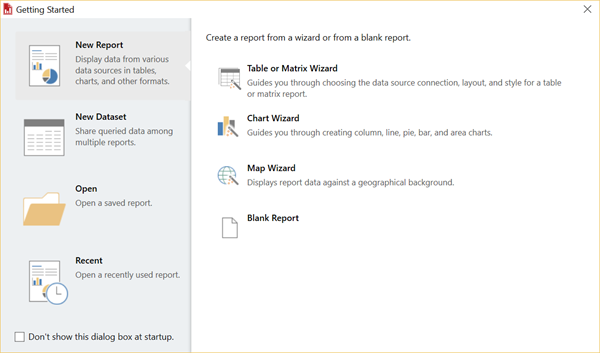
If you don't see the **Getting Started** dialog box, click **File** >**New**. The **New Report or Dataset** dialog box has most of the same contents as the **Getting Started** dialog box.
2. In the left pane, verify that **New Report** is selected.
3. In the right pane, click **Chart Wizard**.
4. On the **Choose a dataset** page, click **Create a dataset**, and then click **Next**.
5. On the **Choose a connection to a data source** page, select an existing data source or browse to the report server and select a data source, and then click **Next**. You may need to enter a user name and password.
> [!NOTE]
> The data source you choose is unimportant, as long as you have adequate permissions. You will not be getting data from the data source. For more information, see [Alternative Ways to Get a Data Connection (Report Builder)](../reporting-services/alternative-ways-to-get-a-data-connection-report-builder.md).
6. On the **Design a query** page, click **Edit as Text**.
7. Paste the following query into the query pane:
```
SELECT 'Luis' as FirstName, 'Alverca' as LastName, CAST(170000.00 AS money) AS SalesYear2015, CAST(150000. AS money) AS SalesYear2014
UNION SELECT 'Jeffrey' as FirstName, 'Zeng' as LastName, CAST(210000. AS money) AS SalesYear2015, CAST(190000. AS money) AS SalesYear2014
UNION SELECT 'Houman' as FirstName, 'Pournasseh' as LastName, CAST(150000. AS money) AS SalesYear2015, CAST(180000. AS money) AS SalesYear2014
UNION SELECT 'Robin' as FirstName, 'Wood' as LastName, CAST(75000. AS money) AS SalesYear2015, CAST(175000. AS money) AS SalesYear2014
UNION SELECT 'Daniela' as FirstName, 'Guaita' as LastName, CAST(170000. AS money) AS SalesYear2015, CAST(175000. AS money) AS SalesYear2014
UNION SELECT 'John' as FirstName, 'Yokim' as LastName, CAST(160000. AS money) AS SalesYear2015, CAST(195000. AS money) AS SalesYear2014
UNION SELECT 'Delphine' as FirstName, 'Ribaute' as LastName, CAST(180000. AS money) AS SalesYear2015, CAST(205000. AS money) AS SalesYear2014
UNION SELECT 'Robert' as FirstName, 'Hernady' as LastName, CAST(140000. AS money) AS SalesYear2015, CAST(180000. AS money) AS SalesYear2014
UNION SELECT 'Tanja' as FirstName, 'Plate' as LastName, CAST(150000. AS money) AS SalesYear2015, CAST(160000. AS money) AS SalesYear2014
UNION SELECT 'David' as FirstName, 'Bradley' as LastName, CAST(210000. AS money) AS SalesYear2015, CAST(180000. AS money) AS SalesYear2014
UNION SELECT 'Michal' as FirstName, 'Jaworski' as LastName, CAST(175000. AS money) AS SalesYear2015, CAST(220000. AS money) AS SalesYear2014
UNION SELECT 'Chris' as FirstName, 'Ashton' as LastName, CAST(195000. AS money) AS SalesYear2015, CAST(205000. AS money) AS SalesYear2014
UNION SELECT 'Pongsiri' as FirstName, 'Hirunyanitiwatna' as LastName, CAST(175000. AS money) AS SalesYear2015, CAST(215000. AS money) AS SalesYear2014
UNION SELECT 'Brian' as FirstName, 'Burke' as LastName, CAST(187000. AS money) AS SalesYear2015, CAST(207000. AS money) AS SalesYear2014
```
8. (Optional) Click the Run button (**!**) to see the data your chart will be based on.
9. Click **Next**.
## 2. Create a Bar Chart
1. On the **Choose a chart type** page, the column chart is the default chart type.
2. Click **Bar**, and then click **Next**.
On the **Arrange chart fields** page, there are four fields in the **Available fields** pane: FirstName, LastName, SalesYear2015, and SalesYear2014.
3. Drag LastName to the Categories pane.
4. Drag SalesYear2015 to the Values pane. SalesYear2015 represents the sales amount for each salesperson for the year 2015. The Values pane displays `[Sum(SalesYear2015)]` because the chart displays the aggregate for each product.
5. Drag SalesYear2014 to the Values pane under SalesYear2015. SalesYear2014 represents the sales amount for each salesperson for the year 2014.
6. Click **Next**.
7. Click **Finish**.
The chart is added to the design surface. Note that the new bar chart just shows representational data. The legend reads Last Name A, Last Name B, etc., rather than the people's names, just to give an idea of what your report will look like.
9. Click the chart to display the chart handles. Drag the bottom-right corner of the chart to increase the size of the chart. Notice the design surface gets larger as you drag.
10. Click **Run** to preview the report.
The bar chart displays sales for each sales person for the years 2014 and 2015. The length of the bar corresponds to the sales total.
## 3. Display All the Names on the Vertical Axis
By default, only some of the values on the vertical axis appear. You can change the chart to display all categories.
1. Switch to report design view.
2. Right-click the vertical axis, then click **Vertical Axis Properties**.
3. Under **Axis range and interval**, in the **Interval** box, type **1**.
4. [!INCLUDE[clickOK](../includes/clickok-md.md)]
5. Click **Run** to preview the report.
> [!NOTE]
> If you cannot read the salesperson names on the vertical axis, you can make your chart taller or change the formatting options for the axis labels.
### Display Last Name and First Name on Vertical Axis
You can change the category expression to include last name followed by first name of each sales person.
1. Switch to report design view.
2. Double-click the chart to display the **Chart Data** pane.
3. In the **Category Groups** area, right-click [LastName], and then click **Category Group Properties**.
4. In Label, click the expression (Fx) button.
5. Type the following expression: `=Fields!LastName.Value & ", " & Fields!FirstName.Value`
This expression concatenates the last name, a comma, and the first name.
6. [!INCLUDE[clickOK](../includes/clickok-md.md)]
7. [!INCLUDE[clickOK](../includes/clickok-md.md)]
8. Click **Run** to preview the report.
If the first names do not appear when you run the report, you can refresh the data manually. While still in preview mode, on the **Run** tab in the **Navigation** group, click **Refresh**.
> [!NOTE]
> If you cannot read the salesperson names on the vertical axis, you can make your chart taller or change the formatting options for the axis labels.
## 4. Change the Sort Order on the Vertical Axis
When you sort the data on a chart, you are changing the order of values on the category axis.
1. Switch to report design view.
2. Double-click the chart to display the **Chart Data** pane.
3. In the **Category Groups** area, right-click [LastName], and then click **Category Group Properties**.
4. Click **Sorting**. The **Change sorting options** page displays a list of sort expressions. By default, this list has one sort expression that is the same as the original category group expression.
5. In **Sort by**, click **[SalesYear2015]**.
6. in the **Order** list, select **A to Z** so that the names appear in order from largest to smallest 2015 sales.
7. [!INCLUDE[clickOK](../includes/clickok-md.md)]
10. Click **Run** to preview the report.
The names on the horizontal axis are sorted from largest to smallest 2015 sales, with **Zeng** at the top.
## 5. Move the Legend
To improve the readability of the chart values, you might want to move the chart legend. For example, in a bar chart where bars are shown horizontally, you can change the position of the legend so that it is above or below the chart area. This gives more horizontal space to the bars.
#### To display the legend below the chart area of a bar chart
1. Switch to report design view.
2. Right-click the legend on the chart.
3. Select **Legend Properties**.
4. For **Legend position**, select a different position. For example, set the position to the middle bottom option.
When the legend is placed at the top or bottom of a chart, the layout of the legend changes from vertical to horizontal. You can select a different layout from the **Layout** drop-down list.
5. [!INCLUDE[clickOK](../includes/clickok-md.md)]
6. Click **Run** to preview the report.
## 6. Title the Chart
1. Switch to report design view.
2. Select the words **Chart Title** at the top of the chart, then type: **Sales for 2014 and 2015**.
3. In the Properties pane, with the title selected, set **Color** to **Black** and **FontSize** to **12pt**.
4. Click **Run** to preview the report.
## 7. Format and Label the Horizontal Axis
By default, the horizontal axis displays values in a general format that is automatically scaled to fit the size of the chart. You can change it to the currency format.
1. Switch to report design view.
2. Click the horizontal axis along the bottom of the chart to select it.
3. On the **Home** tab > **Number** group > **Currency**. The horizontal axis labels change to currency.
3. (Optional) Remove the decimal digits. Near the **Currency** button, click the **Decrease Decimal** button twice.
4. Right-click the horizontal axis, and click **Horizontal Axis Properties**.
5. On the **Number** tab, select **Show values in Thousands**.
6. [!INCLUDE[clickOK](../includes/clickok-md.md)]
8. Right-click the horizontal axis, and select **Show Axis Title**.
7. In the **Axis Title** box, type **Sales in thousands** and press Enter.
>**Note:** While you're typing, the Axis Title box appears to be on the vertical axis. But when you press Enter, it goes to the horizontal axis.
9. Click **Run** to preview the report.
The report displays the sales amount on the horizontal axis as currency in thousands, with no decimal digits.
## 8. Add a Filter to Display the Top Five Values
You can add a filter to the chart to specify which data from the dataset to include or exclude in the chart.
1. Switch to report design view.
2. Double-click the chart to display the **Chart Data** pane.
3. In the **Category Groups** area, right-click the [LastName] field, and then click **Category Group Properties**.
4. Click **Filters**. The **Change filters** page can display a list of filter expressions. By default, this list is empty.
5. Click **Add**. A new blank filter appears.
6. In **Expression**, type **[Sum(SalesYear2015)]**. This creates the underlying expression `=Sum(Fields!SalesYear2015.Value)`, which you can see if you click the **fx** button.
7. Verify that the data type is **Text**.
8. In **Operator**, select **Top N** from the drop-down list.
9. In **Value**, type the following expression: **=5**
10. [!INCLUDE[clickOK](../includes/clickok-md.md)]
11. Click **Run** to preview the report.
If the results are not filtered when you run the report, you can refresh the data manually. On the **Run** tab in the **Navigation** group, click **Refresh**.
The chart shows the top five salesperson names from the 2015 sales data.
## 9. Add a Report Title
1. On the design surface, click **Click to add title**.
2. Type **Sales Bar Chart**, press ENTER, and then type **Top Five Sellers for 2015**, so it looks like this:
**Sales Bar Chart**
**Top Five Sellers for 2015**
3. Select **Sales Bar Chart**, and click the **Bold** button.
4. Select **Top Five Sellers for 2015**, and in the **Font** section on the **Home** tab, set the font size to **10**.
5. (Optional) You may need to make the Title text box taller, and bring down the top of the bar chart, to accommodate the two lines of text.
This title will appear at the top of the report. When there is no page header defined, items at the top of the report body are the equivalent of a report header.
6. Click **Run** to preview the report.
## 10. Save the Report
1. Switch to report design view.
2. Click **File** > **Save As**.
3. In **Name**, type **Sales Bar Chart**.
You can save it either to your computer or to the report server.
4. Click **Save**.
## Next Steps
You have successfully completed the Adding a Bar Chart to Your Report tutorial. To learn more about charts, see [Charts](../reporting-services/report-design/charts-report-builder-and-ssrs.md) and [Bar Charts](../reporting-services/report-design/bar-charts-report-builder-and-ssrs.md).
## See Also
[Report Builder Tutorials](../reporting-services/report-builder-tutorials.md)
[Report Builder in SQL Server](../reporting-services/report-builder/report-builder-in-sql-server-2016.md)