---
title: "Graphical Query Designer User Interface | Microsoft Docs"
ms.date: 03/14/2017
ms.prod: reporting-services
ms.prod_service: "reporting-services-native"
ms.technology: report-data
ms.topic: conceptual
f1_keywords:
- "10012"
- "sql13.rtp.rptdesigner.dataview.vdtquerydesigner.f1"
helpviewer_keywords:
- "graphical query designer [Reporting Services]"
- "data sources [Reporting Services], creating"
- "text-based query designer [Reporting Services]"
- "query designers [Reporting Services]"
- "Reporting Services, query designers"
ms.assetid: 5022ae33-03a3-48de-8ac1-82742f48cebe
author: maggiesMSFT
ms.author: maggies
---
# Graphical Query Designer User Interface
[!INCLUDE[ssRSnoversion](../../includes/ssrsnoversion-md.md)] provides both a graphical query designer and a text-based query designer for creating queries to retrieve data from a relational database for a report dataset in Report Designer. Use the graphical query designer to interactively build a query and view the results for data source types [!INCLUDE[ssNoVersion](../../includes/ssnoversion-md.md)], Oracle, OLE DB, and ODBC. Use the text-based query designer to specify multiple [!INCLUDE[tsql](../../includes/tsql-md.md)] statements, complex query or command syntax, and expression-based queries. For more information, see [Text-based Query Designer User Interface](https://msdn.microsoft.com/library/44b7c664-03aa-494e-a484-052b318e810c). For more information about working with specific data source types, see [Report Datasets (SSRS)](../../reporting-services/report-data/report-datasets-ssrs.md).
.
## Graphical Query Designer
This graphical query designer supports three types of query commands: **Text**, **StoredProcedure**, or **TableDirect**. Before you create a query for your dataset, you must select a command type option on the Query page of the [Dataset Properties](https://msdn.microsoft.com/library/1fa34a4b-7de0-4e92-99fa-bc28a206773f) dialog box.
The following options are available for query type:
- **Text** Supports standard [!INCLUDE[tsql](../../includes/tsql-md.md)] query text for relational database data sources, including data processing extensions for [!INCLUDE[msCoName](../../includes/msconame-md.md)] [!INCLUDE[ssNoVersion](../../includes/ssnoversion-md.md)] and Oracle.
- **TableDirect** Selects all the columns from the specified table. For example, for a table named Customers, this is the equivalent of the [!INCLUDE[tsql](../../includes/tsql-md.md)] statement `SELECT * FROM Customers`.
- **StoredProcedure** Supports calls to stored procedures on the data source. To use this option, you must have been granted Execute permissions on the stored procedure by the database administrator on the data source.
The default command type is **Text**.
> [!NOTE]
> Not all data processing extensions support all types. The underlying data provider must support a command type before the option is available.
### Command Type Text
In **Text** type, the graphical query designer presents four areas, or panes. You can specify columns, aliases, sort values, and filter values for a [!INCLUDE[tsql](../../includes/tsql-md.md)] query. You can view the query text generated from your selections, run the query, and view the result set. The following figure shows the four panes.
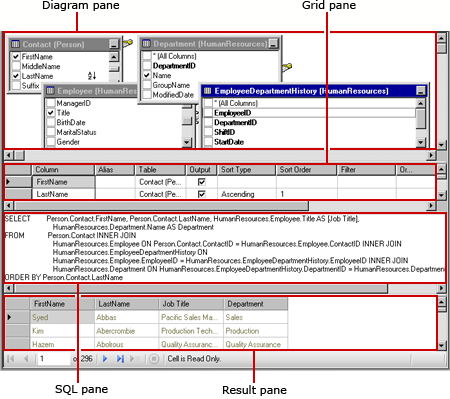
The following table describes the function of each pane.
|Pane|Function|
|----------|--------------|
|Diagram|Displays graphic representations of the tables in the query. Use this pane to select fields and define relationships between tables.|
|Grid|Displays a list of fields returned by the query. Use this pane to define aliases, sort order, filters, groups, and parameters.|
|SQL|Displays the [!INCLUDE[tsql](../../includes/tsql-md.md)] query represented by the diagram and Grid panes. Use this pane to write or update a query using [!INCLUDE[tsql](../../includes/tsql-md.md)].|
|Result|Displays the results of the query. To run the query, right-click in any pane, and then click **Run**, or click the **Run** button on the toolbar.|
When you change information in any one of the first three panes, those changes will appear in the other panes. For example, if you add a table in the Diagram pane, it will automatically be added to the [!INCLUDE[tsql](../../includes/tsql-md.md)] query in the SQL pane. Adding a field to the query in the SQL pane will automatically add the field to the list in the Grid pane and update the table in the Diagram pane.
For more information, see [Query and View Designer Tools (Visual Database Tools)](https://msdn.microsoft.com/library/12e4b5a5-b793-4b6c-a0e5-c450c49bf26f).
#### Toolbar for the Graphical Query Designer
The graphical query designer toolbar provides buttons to help you design [!INCLUDE[tsql](../../includes/tsql-md.md)] queries using the graphical interface.
|Button|Description|
|------------|-----------------|
|**Edit As Text**|Toggle between the text-based query designer and the graphical query designer.|
|**Import**|Import an existing query from a file or report. Only file types .sql and .rdl are supported. For more information, see [Report Embedded Datasets and Shared Datasets (Report Builder and SSRS)](../../reporting-services/report-data/report-embedded-datasets-and-shared-datasets-report-builder-and-ssrs.md).|
||Show or hide the Diagram pane.|
||Show or hide the Grid pane.|
||Show or hide the SQL pane.|
||Show or hide the Result pane.|
||Run the query.|
||Check that the syntax of the query text is correct.|
||Set the sort order to **Sort Ascending** for the selected column in the Diagram pane,|
||Set the sort order to **Sort Descending** for the selected column in the Diagram pane,|
||Remove the filter for the selected column in the Diagram pane that is marked as having a filter ().|
||Show or hide the **Group By** column in the Grid pane. When the **Group By** toggle is on, an extra column named **Group By** appears in the Grid pane, and each value for the selected columns in the query defaults to **Group By**, which causes the selected column to be included in a Group By clause in the SQL text. Use the Group By button to automatically add a GROUP BY clause that includes all columns in the SELECT clause. When your SELECT clause includes aggregate function calls (for example, SUM(ColumnName)), include each non-aggregate column in the GROUP BY clause if you want it to appear in the result set.
To appear in the Result pane, each column in the query must have an aggregate function defined for use in calculating the value to display in the Result pane, or the column in the query has to be specified in the GROUP BY clause of the SQL query.|
||Add a new table from the data source to the Diagram pane.
**Note** When you add a new table, the query designer tries to match up foreign key relationships from the data source. After you add a table, confirm that the foreign key relationships represented by linkages between the tables are correct.|
#### Example
The following query returns the list of last names from the [!INCLUDE[ssSampleDBobject](../../includes/sssampledbobject-md.md)] database **Person** table:
```
SELECT LastName FROM Person.Person;
```
You can also run stored procedures from the SQL pane. The following query runs the stored procedure **uspGetEmployeeManagers** in the [!INCLUDE[ssSampleDBobject](../../includes/sssampledbobject-md.md)] database:
```
EXEC uspGetEmployeeManagers '1';
```
### Command Type TableDirect
In **TableDirect** type, the graphical query designer displays a drop-down list of the available tables from the data source and a Result pane. If you select a table and click the **Run** button, all the columns for that table are returned.
> [!NOTE]
> the TableDirect feature is supported only by **OLE DB** and **ODBC** data source types.
The following table describes the function of each pane.
|Pane|Function|
|----------|--------------|
|Table drop-down list|Lists all the available tables from the data source. Select one from the list to make it active.|
|Result|Displays all columns from the selected table. To run the table query, click the **Run** button on the toolbar.|
#### Toolbar Buttons for the Command Type TableDirect
The graphical query designer toolbar provides a drop-down list of tables on the data source. The following table lists each button and its function.
|Button|Description|
|------------|-----------------|
|**Edit As Text**|Toggle between the text-based query designer and the graphical query designer.|
|**Import**|Import an existing query from a file or report. Only file types .sql and .rdl are supported. For more information, see [Report Embedded Datasets and Shared Datasets (Report Builder and SSRS)](../../reporting-services/report-data/report-embedded-datasets-and-shared-datasets-report-builder-and-ssrs.md).|
||Toggle between generic query designer and graphical query designer, preserving the query text or stored procedure view.|
||Select all columns from the selected table.|
### Command Type StoredProcedure
In **StoredProcedure** type, the graphical query designer displays a drop-down list of the available stored procedures from the data source and a Result pane. The following table describes the function of each pane.
|Pane|Function|
|----------|--------------|
|Stored procedure drop-down list|Lists all the available stored procedures from the data source. Select one from the list to make it active.|
|Result|Displays the result of running the stored procedure. To run the selected stored procedure, click the **Run** button on the toolbar.|
#### Toolbar Buttons for Command Type StoredProcedure
The graphical query designer toolbar provides a drop-down list of stored procedures on the data source. The following table lists each button and its function.
|Button|Description|
|------------|-----------------|
|**Edit As Text**|Toggle between the text-based query designer and the graphical query designer.|
|**Import**|Import an existing query from a file or report. Only file types .sql and .rdl are supported. For more information, see [Report Embedded Datasets and Shared Datasets (Report Builder and SSRS)](../../reporting-services/report-data/report-embedded-datasets-and-shared-datasets-report-builder-and-ssrs.md).|
||Run the selected stored procedure.|
|Stored procedure drop-down list|Click the down arrow to display a list of available stored procedures from the data source. Click any stored procedure from the list to select it.|
#### Example
The following stored procedure calls a chain-of-command list of managers from the [!INCLUDE[ssSampleDBobject](../../includes/sssampledbobject-md.md)] database. This stored procedure accepts *BusinessEntityID* as parameter. You can enter any small integer.
`uspGetEmployeeManagers '1';`
## See Also
[Query Design Tools (SSRS)](../../reporting-services/report-data/query-design-tools-ssrs.md)
[Report Datasets (SSRS)](../../reporting-services/report-data/report-datasets-ssrs.md)
[SQL Server Connection Type (SSRS)](../../reporting-services/report-data/sql-server-connection-type-ssrs.md)
[OLE DB Connection Type (SSRS)](../../reporting-services/report-data/ole-db-connection-type-ssrs.md)
[Report Datasets (SSRS)](../../reporting-services/report-data/report-datasets-ssrs.md)
[Oracle Connection Type (SSRS)](../../reporting-services/report-data/oracle-connection-type-ssrs.md)
[RSReportDesigner Configuration File](../../reporting-services/report-server/rsreportdesigner-configuration-file.md)
[Design Queries and Views How-to Topics (Visual Database Tools)](https://msdn.microsoft.com/library/200903f4-1208-4563-9dca-26aabaacfa20)