---
title: "Query columns using Always Encrypted with SQL Server Management Studio | Microsoft Docs"
ms.custom: ""
ms.date: 10/31/2019
ms.prod: sql
ms.reviewer: vanto
ms.technology: security
ms.topic: conceptual
helpviewer_keywords:
- "Always Encrypted, configure with SSMS"
ms.assetid: 29816a41-f105-4414-8be1-070675d62e84
author: jaszymas
ms.author: jaszymas
monikerRange: "=azuresqldb-current||>=sql-server-2016||=sqlallproducts-allversions||>=sql-server-linux-2017||=azuresqldb-mi-current"
---
# Query columns using Always Encrypted with SQL Server Management Studio
[!INCLUDE[appliesto-ss-asdb-xxxx-xxx-md](../../../includes/appliesto-ss-asdb-xxxx-xxx-md.md)]
This article describes how to query columns, encrypted with [Always Encrypted](../../../relational-databases/security/encryption/always-encrypted-database-engine.md) using [SQL Server Management Studio (SSMS)](../../../ssms/download-sql-server-management-studio-ssms.md). With SSMS, you can:
- Retrieve ciphertext values stored in encrypted columns.
- Retrieve plaintext values stored in encrypted columns.
- Send plaintext values targeting encrypted columns (for example, in `INSERT` or `UPDATE` statements and as a lookup parameter of the `WHERE` clauses in `SELECT` statements).
## Retrieving ciphertext values stored in encrypted columns
Running SELECT queries that retrieve ciphertext of data stored in encrypted columns (without decrypting the data) does not require you to have access to column master keys protecting the data. To retrieve values from an encrypted column as ciphertext in SSMS:
1. Make sure you can access the metadata about the keys protecting the columns, you are running your query against. Although you do not need to be able to access the actual column master keys, you do need database-level permissions to view the column master key and column encryption key metadata objects in the database. For details, see [Permissions for querying encrypted columns](#permissions-for-querying-encrypted-columns) below.
1. Make sure you have disabled Always Encrypted for the database connection for the Query Editor window, from which you will run a `SELECT` query retrieving ciphertext values. See [Enabling and disabling Always Encrypted for a database connection](#en-dis) below.
1. Run your `SELECT` query. Any data retrieved from encrypted columns will be returned as binary (encrypted) values.
### Example
Assuming `SSN` is an encrypted column in the `Patients` table, the query shown below will retrieve binary ciphertext values, if Always Encrypted is disabled for the database connection.
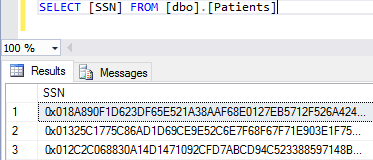
## Retrieving plaintext values stored in encrypted columns
To retrieve values from an encrypted column as plaintext (to decrypt the values):
1. Make sure you can access the column master keys and the metadata about the keys protecting the columns, you are running your query against. For details, see [Permissions for querying encrypted columns](#permissions-for-querying-encrypted-columns) below.
1. Make sure you have enabled Always Encrypted for the database connection for the Query Editor window, from which you will run a `SELECT` query retrieving and decrypting your data. This will instruct the .NET Framework Data Provider for SQL Server (used by SSMS) to decrypt the encrypted columns in the query result set. See [Enabling and disabling Always Encrypted for a database connection](#en-dis) below.
1. Run your `SELECT` query. Any data retrieved from encrypted columns will be returned as plaintext values of the original data types.
### Example
Assuming SSN is an encrypted `char(11)` column in the `Patients` table, the query, shown below, will return plaintext values, if Always Encrypted is enabled for the database connection and if you have access to the column master key configured for the `SSN` column.
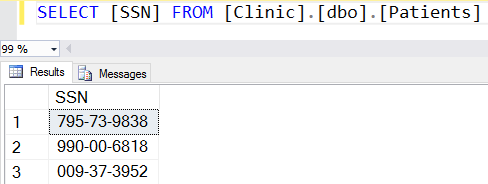
## Sending plaintext values targeting encrypted columns
To execute a query that sends a value that targets an encrypted column, for example a query that inserts, updates or filters by a value stored in an encrypted column:
1. Make sure you can access the column master keys and the metadata for the keys protecting the columns that your query runs against. For more information, see [Permissions for querying encrypted columns](#permissions-for-querying-encrypted-columns) below.
1. Make sure you have enabled Always Encrypted for the database connection for the Query Editor window, from which you will run a `SELECT` query retrieving and decrypting your data. This will instruct the .NET Framework Data Provider for SQL Server (used by SSMS) to decrypt the encrypted columns in the query result set. See [Enabling and disabling Always Encrypted for a database connection](#en-dis) below.
1. Ensure Parameterization for Always Encrypted is enabled for the Query Editor window. (Requires at least SSMS version 17.0.) Declare a Transact-SQL variable and initialize it with a value, you want to send (insert, update, or filter by) to the database. See [Parameterization for Always Encrypted](#param) below for details.
1. Run your query sending the value of the Transact-SQL variable to the database. SSMS will convert the variable to a query parameter and it will encrypt its value before sending it to the database.
### Example
Assuming `SSN` is an encrypted `char(11)` column in the `Patients` table, the below script will attempt to find a row containing `'795-73-9838'` in the SSN column and return the value of the `LastName` column, providing Always Encrypted is enabled for the database connection, Parameterization for Always Encrypted is enabled for the Query Editor window, and you have access to the column master key configured for the `SSN` column.

## Permissions for querying encrypted columns
To run any queries against encrypted columns, including queries that retrieve data in ciphertext, you need the `VIEW ANY COLUMN MASTER KEY DEFINITION` and `VIEW ANY COLUMN ENCRYPTION KEY DEFINITION` permissions in the database.
In addition to the above permissions, to decrypt any query results or to encrypt any query parameters (produced by parameterizing Transact-SQL variables), you also need access to the column master key protecting the target columns:
- **Certificate Store - Local computer** You must have `Read` access to the certificate that is used a column master key, or be the administrator on the computer.
- **Azure Key Vault** You need the `get`, `unwrapKey`, and `verify` permissions on the vault containing the column master key.
- **Key Store Provider (KSP)** The required permission and credentials, you might be prompted for when using a key store or a key, depend on the store and the KSP configuration.
- **Cryptographic Service Provider (CSP)** The required permission and credentials, you might be prompted for when using a key store or a key, depend on the store and the CSP configuration.
For more information, see [Create and Store Column Master Keys (Always Encrypted)](../../../relational-databases/security/encryption/create-and-store-column-master-keys-always-encrypted.md).
## Enabling and disabling Always Encrypted for a database connection
When you connect to a database in SSMS, you can either enable or disable Always Encrypted for the database connection. By default, Always Encrypted is disabled.
Enabling Always Encrypted for a database connection instructs the .NET Framework Data Provider for SQL Server, used by SQL Server Management Studio, to attempt to transparently:
- Decrypt any values that are retrieved from encrypted columns and returned in query results.
- Encrypt the values of the parameterized Transact-SQL variables that target encrypted database columns.
If you don't enable Always Encrypted for a connection, the .NET Framework Data Provider for SQL Server, SSMS uses, won't try to encrypt query parameters or decrypt results.
You can enable or disable Always Encrypted when you create a new connection or you change an existing connection using the **Connect to Server** dialog.
To enable (disable) Always Encrypted:
1. Open **Connect To Server** dialog (see [Connect to a SQL Server instance](../../../ssms/tutorials/connect-query-sql-server.md#connect-to-a-sql-server-instance) for details).
1. Click **Options >>**.
1. If you're using SSMS 18 or newer:
1. Select the **Always Encrypted** tab.
1. To enable Always Encrypted, select **Enable Always Encrypted (column encryption)**. To disable Always Encrypted, make sure **Enable Always Encrypted (column encryption)** isn't selected.
1. If you're using [!INCLUDE [sssqlv15-md](../../../includes/sssqlv15-md.md)] and your SQL Server instance is configured with a secure enclave, you can specify an enclave attestation url. If your SQL Server instance doesn't use a secure enclave, make sure you leave the **Enclave Attestation URL** textbox blank. For more information, see [Always Encrypted with secure enclaves](always-encrypted-enclaves.md).
1. If you are using SSMS 17 or older:
1. Select the **Additional Properties** tab.
1. To enable Always Encrypted, type `Column Encryption Setting = Enabled`. To disable Always Encrypted, specify `Column Encryption Setting = Disabled` or remove the setting of **Column Encryption Setting** from the **Additional Properties** tab (its default value is **Disabled**).
1. Click **Connect**.
> [!TIP]
> To toggle between Always Encrypted being enabled and disabled for an existing Query Editor window:
> 1. Right-click anywhere in the Query Editor window.
> 2. Select **Connection** > **Change Connection ...**. This will open the **Connect to Server** dialog for the current connection for the Query Editor window.
> 2. Enable or disable Always Encrypted, following the above steps and click **Connect**.
## Parameterization for Always Encrypted
Parameterization for Always Encrypted is a feature in SQL Server Management Studio that automatically converts Transact-SQL variables into query parameters (instances of [SqlParameter Class](https://msdn.microsoft.com/library/system.data.sqlclient.sqlparameter.aspx)). (Requires at least SSMS version 17.0.) This allows the underlying .NET Framework Data Provider for SQL Server to detect data targeting encrypted columns, and to encrypt such data before sending it to the database.
Without parameterization, the .NET Framework Data Provider passes each statement, you author in the Query Editor, as a non-parameterized query. If the query contains literals or Transact-SQL variables that target encrypted columns, the .NET Framework Data Provider for SQL Server won't be able to detect and encrypt them, before sending the query to the database. As a result, the query will fail due to type mismatch (between the plaintext literal Transact-SQL variable and the encrypted column). For example, the following query will fail without parameterization, assuming the `SSN` column is encrypted.
```sql
DECLARE @SSN NCHAR(11) = '795-73-9838'
SELECT * FROM [dbo].[Patients]
WHERE [SSN] = @SSN
```
### Enabling and disabling Parameterization for Always Encrypted
Parameterization for Always Encrypted is disabled by default.
To enable/disable Parameterization for Always Encrypted for the current Query Editor window:
1. Select **Query** from the main menu.
2. Select **Query Options...**.
3. Navigate to **Execution** > **Advanced**.
4. Select or unselect **Enable Parameterization for Always Encrypted**.
5. Click **OK**.
To enable/disable Parameterization for Always Encrypted for future Query Editor windows:
1. Select **Tools** from the main menu.
2. Select **Options...**.
3. Navigate to **Query Execution** > **SQL Server** > **Advanced**.
4. Select or unselect **Enable Parameterization for Always Encrypted**.
5. Click **OK**.
If you execute a query in a Query Editor window that uses a database connection with Always Encrypted enabled, but parameterization isn't enabled for the Query Editor window, you'll be prompted to enable it.
> [!NOTE]
> Parameterization for Always Encrypted works only in Query Editor windows that use database connections with Always Encrypted enabled (see [Enabling and disabling Parameterization for Always Encrypted](#enabling-and-disabling-parameterization-for-always-encrypted)). No Transact-SQL variables will be parameterized if the Query Editor window uses a database connection without Always Encrypted enabled.
### How Parameterization for Always Encrypted works
If both Parameterization for Always Encrypted and the Always Encrypted behavior in the database connection are enabled for a Query Editor window, SQL Server Management Studio will attempt parameterize Transact-SQL variables that meet the following pre-requisite conditions:
- Are declared and initialized in the same statement (inline initialization). Variables declared using separate `SET` statements won't be parameterized.
- Are initialized using a single literal. Variables initialized using expressions including any operators or functions won't be parameterized.
Below are examples of variables, SQL Server Management Studio will parameterize.
```sql
DECLARE @SSN char(11) = '795-73-9838';
DECLARE @BirthDate date = '19990104';
DECLARE @Salary money = $30000;
```
And, here are a few examples of variables SQL Server Management Studio won't attempt to parameterize:
```sql
DECLARE @Name nvarchar(50); --Initialization separate from declaration
SET @Name = 'Abel';
DECLARE @StartDate date = GETDATE(); -- a function used instead of a literal
DECLARE @NewSalary money = @Salary * 1.1; -- an expression used instead of a literal
```
For an attempted parameterization to succeed:
- The type of the literal used for the initialization of the variable to be parametrized, must match the type in the variable declaration.
- If the declared type of the variable is a date type or a time type, the variable must be initialized using a string using one of the following ISO 8601-compliant formats.
Here are the examples of Transact-SQL variable declarations that will result in parameterization errors:
```sql
DECLARE @BirthDate date = '01/04/1999' -- unsupported date format
DECLARE @Number int = 1.1 -- the type of the literal does not match the type of the variable
```
SQL Server Management Studio uses Intellisense to inform you which variables can be successfully parameterized and which parameterization attempts fail (and why).
A declaration of a variable that can be successfully parameterized is marked with a warning underline in the Query Editor. If you hover on a declaration statement that got marked with a warning underline, you'll see the results of the parameterization process, including the values of the key properties of the resulting [SqlParameter](https://msdn.microsoft.com/library/system.data.sqlclient.sqlparameter.aspx) object (the variable is mapped to): [SqlDbType](https://msdn.microsoft.com/library/system.data.sqlclient.sqlparameter.sqldbtype.aspx), [Size](https://msdn.microsoft.com/library/system.data.sqlclient.sqlparameter.size.aspx), [Precision](https://msdn.microsoft.com/library/system.data.sqlclient.sqlparameter.precision.aspx), [Scale](https://msdn.microsoft.com/library/system.data.sqlclient.sqlparameter.scale.aspx), [SqlValue](https://msdn.microsoft.com/library/system.data.sqlclient.sqlparameter.sqlvalue.aspx). You can also see the complete list of all variables that have been successfully parameterized in the **Warning** tab of the **Error List** view. To open the **Error List** view, select **View** from the main menu and then select **Error List**.
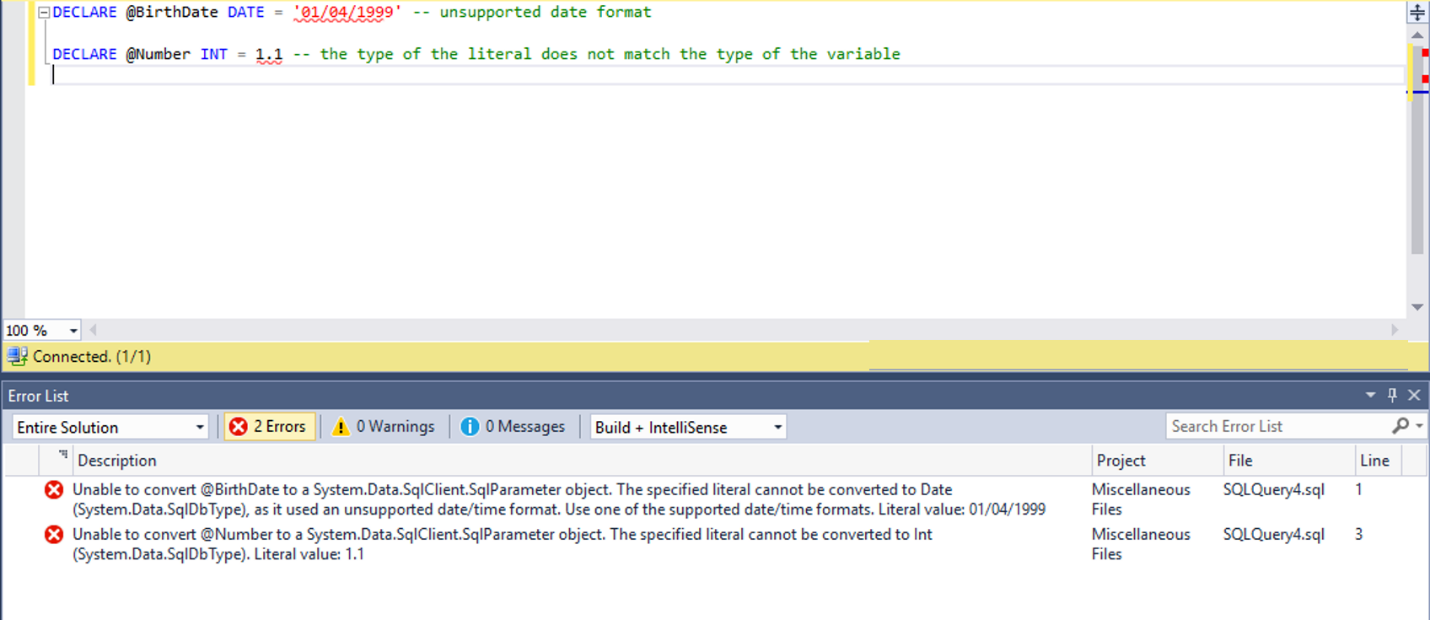
If SQL Server Management Studio has attempted to parameterize a variable, but the parameterization has failed, the declaration of the variable will be marked with an error underline. If you hover on the declaration statement that has been marked with an error underline, you'll get the results about the error. You can also see the complete list of parameterization errors for all variables in the **Error** tab of the **Error List** view. To open the **Error List** view, select **View** from the main menu and then select **Error List**.
The below screenshot shows an example of six variable declarations. SQL Server Management Studio successfully parameterized the first three variables. The last three variables didn't meet the pre-requisite conditions for parameterization, and therefore, SQL Server Management Studio didn't attempt to parameterize them (their declarations aren't marked in any way).
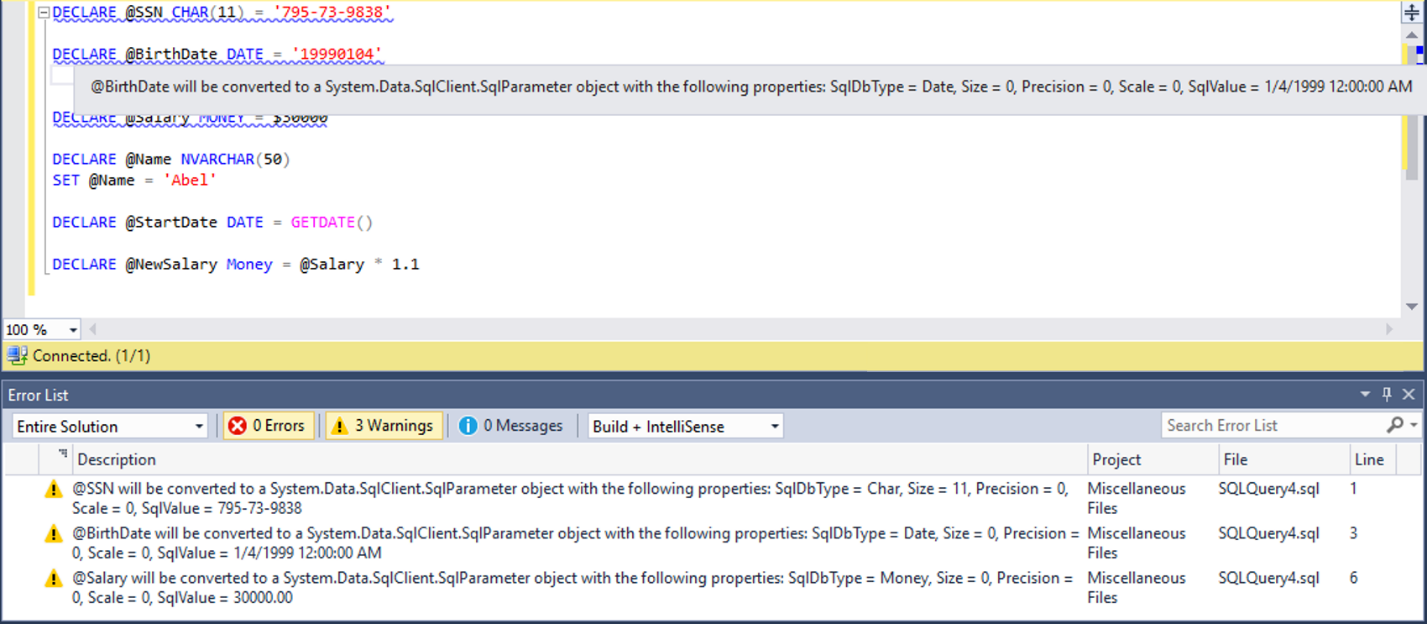
Another example below, shows two variables that meet pre-requisite conditions for parameterization, but the parameterization attempt has failed because the variables are incorrectly initialized.
> [!NOTE]
> As Always Encrypted supports a limited subset of type conversions, in many cases it is required that the data type of a Transact-SQL variable is the same as the type of the target database column, it targets. For example, assuming type of the `SSN` column in the `Patients` table is `char(11)`, the below query will fail, as the type of the `@SSN` variable, which is `nchar(11)`, does not match the type of the column.
```sql
DECLARE @SSN nchar(11) = '795-73-9838'
SELECT * FROM [dbo].[Patients]
WHERE [SSN] = @SSN;
```
Msg 402, Level 16, State 2, Line 5
The data types char(11) encrypted with (encryption_type = 'DETERMINISTIC',
encryption_algorithm_name = 'AEAD_AES_256_CBC_HMAC_SHA_256', column_encryption_key_name = 'CEK_Auto1',
column_encryption_key_database_name = 'Clinic') collation_name = 'Latin1_General_BIN2'
and nchar(11) encrypted with (encryption_type = 'DETERMINISTIC',
encryption_algorithm_name = 'AEAD_AES_256_CBC_HMAC_SHA_256', column_encryption_key_name = 'CEK_Auto1',
column_encryption_key_database_name = 'Clinic') are incompatible in the equal to operator.
> [!NOTE]
> Without parameterization, the entire query, including type conversions, is processed inside SQL Server/Azure SQL Database. With parameterization enabled, some type conversions are performed by .NET Framework inside SQL Server Management Studio. Due to differences between the .NET Framework type system and the SQL Server type system (e.g. different precision of some types, such as float), a query executed with parameterization enabled can produce different results than the query executed without parameterization enabled.
## Next Steps
- [Develop applications using Always Encrypted](always-encrypted-client-development.md)
## See Also
- [Always Encrypted](../../../relational-databases/security/encryption/always-encrypted-database-engine.md)