---
title: Connect to master and HDFS Big data clusters
description: Learn how to connect to the SQL Server master instance and the HDFS/Spark gateway for a SQL Server Big Data Cluster.
author: MikeRayMSFT
ms.author: mikeray
ms.reviewer: mihaelab
ms.date: 11/04/2019
ms.topic: conceptual
ms.prod: sql
ms.technology: big-data-cluster
---
# Connect to a SQL Server big data cluster with Azure Data Studio
[!INCLUDE[tsql-appliesto-ssver15-xxxx-xxxx-xxx](../includes/tsql-appliesto-ssver15-xxxx-xxxx-xxx.md)]
This article describes how to connect to a [!INCLUDE[big-data-clusters-2019](../includes/ssbigdataclusters-ver15.md)] from Azure Data Studio.
## Prerequisites
- A deployed [SQL Server 2019 big data cluster](deployment-guidance.md).
- [SQL Server 2019 big data tools](deploy-big-data-tools.md):
- **Azure Data Studio**
- **SQL Server 2019 extension**
- **kubectl**
- **azdata**
## Connect to the cluster
To connect to a big data cluster with Azure Data Studio, make a new connection to the SQL Server master instance in the cluster. Here's how.
1. Find the SQL Server master instance endpoint:
```
azdata bdc endpoint list -e sql-server-master
```
> [!TIP]
> For more information on how to retrieve endpoints see [Retrieve endpoints](deployment-guidance.md#endpoints).
1. In Azure Data Studio, press **F1** > **New Connection**.
1. In **Connection type**, select **Microsoft SQL Server**.
1. Type the endpoint name you found for SQL Server master instance in the **Server name** textbox (for example: **\,31433**).
1. Choose your authentication type. For the SQL Server master instance running in a big data cluster, only **Windows Authentication** and
**SQL login** are supported.
1. If you're using SQL Login, enter your SQL login **User name** and **Password**.
> [!TIP]
> By default, the user name **SA** is disabled during big data cluster deployment. A new sysadmin user is provisioned during deployment with the name and password corresponding to the **AZDATA_USERNAME** and **AZDATA_PASSWORD** environment variables, which were set either before or during deployment.
1. Change the target **Database name** to one of your relational databases.

1. Press **Connect**, and the **Server Dashboard** should appear.
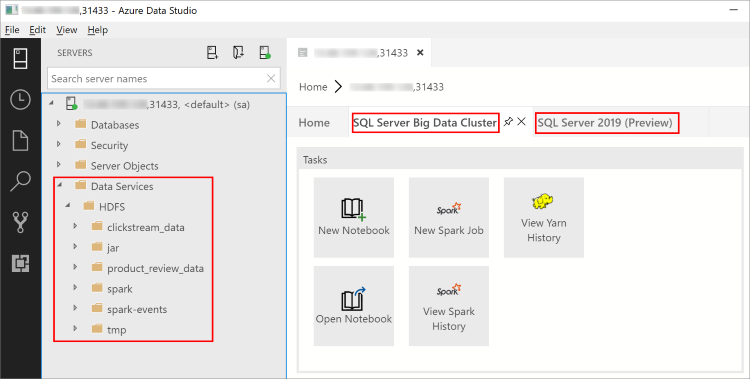
With the February 2019 release of Azure Data Studio, connecting to the SQL Server master instance also enables you to interact with the HDFS/Spark gateway. This means that you do not need to use a separate connection for HDFS and Spark that the next section describes.
- The Object Explorer now contains a new **Data Services** node with right-click support for big data cluster tasks, such as creating new notebooks or submitting spark jobs.
- The **Data Services** node also contains an **HDFS** folder to allow you to explore the contents of the HDFS and perform common tasks involving the HDFS (for example, creating an external table or opening a notebook to analyze the HDFS contents).
- The **Server Dashboard** for the connection also contains tabs for **SQL Server big data cluster** and **SQL Server 2019** when the extension is installed.
## Next steps
For more information about [!INCLUDE[big-data-clusters-2019](../includes/ssbigdataclusters-ver15.md)], see [What are [!INCLUDE[big-data-clusters-2019](../includes/ssbigdataclusters-ver15.md)]](big-data-cluster-overview.md).