---
title: "Install Reporting Services SharePoint Mode for SharePoint 2013 | Microsoft Docs"
ms.custom: ""
ms.date: "06/13/2017"
ms.prod: "sql-server-2014"
ms.reviewer: ""
ms.technology: "database-engine"
ms.topic: conceptual
ms.assetid: b29d0f45-0068-4c84-bd7e-5b8a9cd1b538
author: maggiesMSFT
ms.author: maggies
manager: craigg
---
# Install Reporting Services SharePoint Mode for SharePoint 2013
The procedures in this topic guide you through a single server installation of [!INCLUDE[ssRSnoversion](../../includes/ssrsnoversion-md.md)] in SharePoint mode. The steps include running the SQL Server installation wizard as well as configuration tasks that use SharePoint Central Administration. The topic can also be used for individual procedures for updating an existing installation, for example to create a [!INCLUDE[ssRSnoversion](../../includes/ssrsnoversion-md.md)] service application.
||
|-|
|**[!INCLUDE[applies](../../includes/applies-md.md)]** SharePoint 2013 | **Note:** [!INCLUDE[ssRSnoversion](../../includes/ssrsnoversion-md.md)] SharePoint mode does **not** support SharePoint Server multi-tenancy.|
For information on adding more [!INCLUDE[ssRSnoversion](../../includes/ssrsnoversion-md.md)] servers to an existing farm, see the following:
- [Add an Additional Report Server to a Farm (SSRS Scale-out)](../../reporting-services/install-windows/add-an-additional-report-server-to-a-farm-ssrs-scale-out.md)
- [Add an Additional Reporting Services Web Front-end to a Farm](../../reporting-services/install-windows/add-an-additional-reporting-services-web-front-end-to-a-farm.md)
A single server installation is useful for development and testing scenarios but it is not recommended for production environments.
**In this topic:**
- [Example Single-Server Deployment](#bkmk_singleserver)
- [Setup accounts](#bkmk_setupaccounts)
- [Step 1: Install Reporting Services Report Server in SharePoint mode](#bkmk_install_SSRS)
- [Step 2: Register and Start the Reporting Services SharePoint Service](#bkmk_install_SSRS_sharedservice)
- [Step 3: Create a Reporting Services Service Application](#bkmk_create_serrviceapplication)
- [Step 4: Activate the Power View Site Collection Feature.](#bkmk_powerview)
- [Windows PowerShell script for Steps 1-4](#bkmk_full_script)
- [Additional Configuration](#bkmk_additional_config) including provisioning for subscriptions and alerts, [!INCLUDE[ssRSnoversion](../../includes/ssrsnoversion-md.md)] content types, and configuring Excel Services to Use an Analysis Services Server.
- [Verify the installation](#bkmk_verify_installation)
## Example Single-Server Deployment
A single-server installation is useful for development and testing scenarios but a single-server is not recommended for a production environment. The single-server environment refers to a single computer that has SharePoint and [!INCLUDE[ssRSnoversion](../../includes/ssrsnoversion-md.md)] components installed on the same computer. The topic does not cover scale-out with multiple [!INCLUDE[ssRSnoversion](../../includes/ssrsnoversion-md.md)] servers.
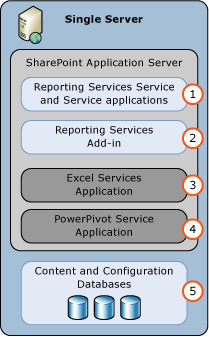
The following diagram illustrates the components that are part of a single server [!INCLUDE[ssRSnoversion](../../includes/ssrsnoversion-md.md)] deployment.
|||
|-|-|
|**(1)**|SharePoint service installed from SQL Server installation. You can create one or more [!INCLUDE[ssRSnoversion](../../includes/ssrsnoversion-md.md)] service applications.|
|**(2)**|[!INCLUDE[ssRSnoversion](../../includes/ssrsnoversion-md.md)] add-in for SharePoint products provides the user interface components on the SharePoint Servers.|
|**(3)**|The Excel Service Application used by Power View and PowerPivot.|
|**(4)**|PowerPivot service application.|
> [!TIP]
> For more complex deployment examples, see [Deployment Topologies for SQL Server BI Features in SharePoint](deployment-topologies-for-sql-server-bi-features-in-sharepoint.md).
## Setup accounts
This section describes the accounts and permissions used for the primary deployment steps of [!INCLUDE[ssRSnoversion](../../includes/ssrsnoversion-md.md)] in SharePoint mode.
**Installation and registering the [!INCLUDE[ssRSnoversion](../../includes/ssrsnoversion-md.md)] Service:**
- The current account during the installation (referred to as the 'setup' account) of [!INCLUDE[ssRSnoversion](../../includes/ssrsnoversion-md.md)] in SharePoint mode needs to have administrative rights in the local computer. If you are installing [!INCLUDE[ssRSnoversion](../../includes/ssrsnoversion-md.md)] after SharePoint is installed and the 'setup' account is also a member of the SharePoint farm administrators group, the [!INCLUDE[ssRSnoversion](../../includes/ssrsnoversion-md.md)] installation will register the [!INCLUDE[ssRSnoversion](../../includes/ssrsnoversion-md.md)] service for you. If you install [!INCLUDE[ssRSnoversion](../../includes/ssrsnoversion-md.md)] before SharePoint is installed or the 'setup' account is not a member of the farm administrators group, you register the service manually. See the section [Step 2: Register and Start the Reporting Services SharePoint Service](#bkmk_install_SSRS_sharedservice).
**Creating [!INCLUDE[ssRSnoversion](../../includes/ssrsnoversion-md.md)] Service Applications**
- Following installation and registering the [!INCLUDE[ssRSnoversion](../../includes/ssrsnoversion-md.md)] service, create one or more [!INCLUDE[ssRSnoversion](../../includes/ssrsnoversion-md.md)] service applications. The "SharePoint farm service account " needs to temporarily be a member of the local administrators group so the Reporting Services service application can be created. For more information on SharePoint 2013 account permissions, see [Account permissions and security settings in SharePoint 2013](https://technet.microsoft.com/library/cc678863.aspx) (https://technet.microsoft.com/library/cc678863.aspx).
It is security best practice that SharePoint farm administrator accounts are not also local operating system administrator accounts. If you add a farm admin account to the local administrators group as part of your installation process, it is recommended you remove the account from the local administrators group after installation is complete.
## Step 1: Install Reporting Services Report Server in SharePoint mode
This step installs a [!INCLUDE[ssRSnoversion](../../includes/ssrsnoversion-md.md)] report server in SharePoint mode and the [!INCLUDE[ssRSnoversion](../../includes/ssrsnoversion-md.md)] add-in for SharePoint products. Depending on what is already installed on your computer, you may not see some of the installation pages described in the following steps.
1. Run the SQL Server Installation Wizard (Setup.exe).
2. Click **Installation** in the left side of the wizard and then click **New SQL Server stand-alone installation or add features to an existing installation**.
3. Click **OK** on the **Setup Support Rules** page, assuming all rules passed.
4. Click **Install** on the **Setup Support Files** page. Depending on what is already installed on your computer, you might see the following message:
- "One or more affected files have operations pending. You must restart your computer after the setup process is completed."
- Click **Ok**.
5. Click **Next** after the support files have completed installing and the **Support Rules** pages show a status of **Passed**. Review any warnings or blocking issues.
6. On the **Installation Type** page, click **Add features to an existing instance of SQL Server 2014**. Select the correct instance in the drop-down list and click **Next**.
7. If you see the **Product Key** page, type your key or accept the default of the 'Enterprise Evaluation' edition.
Click **Next**.
8. If you see the License terms page, review and accept the license terms. Microsoft appreciates you clicking to agree to send feature usage data to help improve product features and support.
Click **Next**.
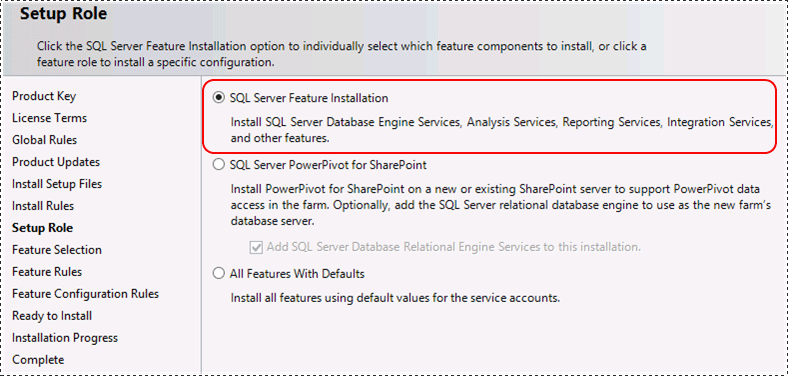
9. If you see the **Setup Role** page, select **SQL Server Feature Installation**
Click **Next**
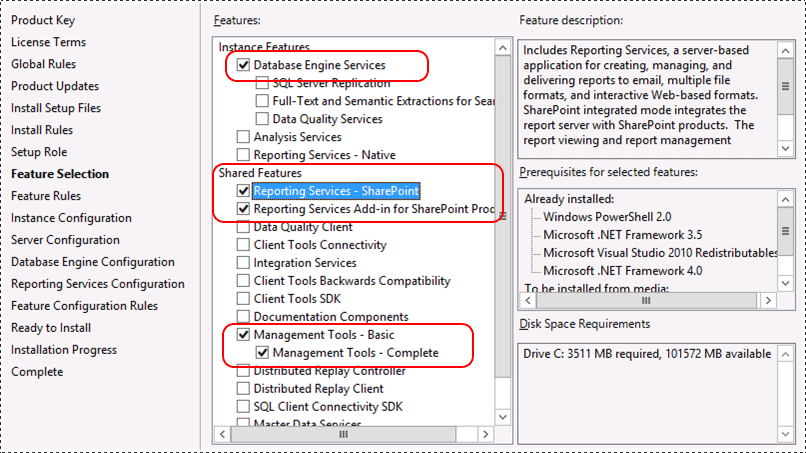
10. Select the following on the **Feature Selection** page:
- **Reporting Services - SharePoint**
- **Reporting Services add-in for SharePoint Products**.
 The installation wizard option for installing the add-in is new with the [!INCLUDE[ssCurrent](../../includes/sscurrent-md.md)] release.
- If you do not already have an instance of SQL Server [!INCLUDE[ssDE](../../includes/ssde-md.md)], you could also select **Database Engine Services** and **Management Tools Complete** for a complete environment.
Click **Next**.
11. If you see the **Installation Rules** page. Review any warnings or blocking issues. Then click **Next**
12. If you selected the Database Engine services, accept the default instance of **MSSQLSERVER** on the **Instance Configuration** page and click **Next**.
The Reporting Services SharePoint service architecture is not based on a SQL Server "instance" as was the previous Reporting Services architecture.
13. Review the **Disk Space Requirements** page and click **Next**.
14. If you see the **Server Configuration** page type appropriate credentials. If you want to use the [!INCLUDE[ssRSnoversion](../../includes/ssrsnoversion-md.md)] data alerting or subscription features, you need to change the **Startup Type** for SQL Server Agent to **Automatic**. You may not see the **Server Configuration** page, depending on what is already installed on the computer.
Click **Next**.
15. If you selected the Database Engine services, you will see the **Database Engine Configuration** page, add appropriate accounts to the list of SQL Administrators and click **Next**.
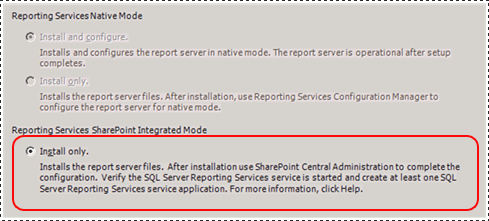
16. On the **Reporting Services Configuration** page you should see the **Install only** option is selected. This option installs the report server files, and does not configure the SharePoint environment for [!INCLUDE[ssRSnoversion](../../includes/ssrsnoversion-md.md)].
> [!NOTE]
> When the SQL Server installation is complete, follow the other sections of this topic to configure the SharePoint environment. This Includes installing the [!INCLUDE[ssRSnoversion](../../includes/ssrsnoversion-md.md)] shared service and creating [!INCLUDE[ssRSnoversion](../../includes/ssrsnoversion-md.md)] service applications.
17. Help Microsoft improve SQL Server features and services by clicking the check box to send error reports on the **Error Reporting** page.
Click **Next**.
18. Review any warnings and then click **Next** on the **Installation Configuration Rules** page.
19. On the **Ready to Install** page, review the installation summary and then click **Next**. The summary will include a **Reporting Services SharePoint Mode** child node that will show a value of **SharePointFilesOnlyMode**. Click **Install**.
20. The installation will take several minutes. You will see the **Complete** page with the features listed and the status of each feature. You may see an information dialog indicating the computer needs to be restarted.
## Step 2: Register and Start the Reporting Services SharePoint Service

> [!NOTE]
> If you are installing into an existing SharePoint farm, you do not need to complete the steps in this section. The [!INCLUDE[ssRSnoversion](../../includes/ssrsnoversion-md.md)] SharePoint service is installed and started when you ran the SQL Server installation wizard as part of the previous section of this document.
The following are the common reasons why you need to manually register the [!INCLUDE[ssRSnoversion](../../includes/ssrsnoversion-md.md)] service.
- You installed [!INCLUDE[ssRSnoversion](../../includes/ssrsnoversion-md.md)] SharePoint mode before SharePoint was installed.
- The account used to install [!INCLUDE[ssRSnoversion](../../includes/ssrsnoversion-md.md)] SharePoint mode, was not a member of the SharePoint farm administrators group. For more information, see the section [Setup accounts](#bkmk_setupaccounts).
The necessary files were installed as part of the SQL Server installation wizard, but the services need to be registered into the SharePoint farm. The [!INCLUDE[ssCurrent](../../includes/sscurrent-md.md)] release introduces PowerShell support for [!INCLUDE[ssRSnoversion](../../includes/ssrsnoversion-md.md)] in SharePoint mode.
The following steps guide you through opening the SharePoint Management Shell and running cmdlets:
1. Click the **Start** button
2. Click the **Microsoft SharePoint 2013 Products** group.
3. Right-click **SharePoint 2013 Management Shell** click **Run as administrator**. NOTE: the SharePoint commands are not recognized in the standard Windows PowerShell window. Use the **SharePoint 2013 Management Shell**.
4. Run the following PowerShell command to install the SharePoint service. A successful completion of the command displays a new line in the management shell. **No message is returned** to the management shell when the command completes successfully:
```powershell
Install-SPRSService
```
> [!IMPORTANT]
> If you see an error message similar to the following:
>
> Install-SPRSService : The term 'Install-SPRSService' **is not recognized** as the
> name of a cmdlet, function, script file, or operable program. Check the
> spelling of the name, or if a path was included, verify that the path is
> correct and try again.
5. Run the following PowerShell command to install the service proxy. A successful completion of the command displays a new line in the management shell. **No message is returned** to the management shell when the command completes successfully:
```powershell
Install-SPRSServiceProxy
```
6. Run the following PowerShell command to start the service or see the following notes for instructions on how to start the service from SharePoint Central administration:
```powershell
Get-SPServiceInstance -all |where {$_.TypeName -like "SQL Server Reporting*"} | Start-SPServiceInstance
```
Either you are in the Windows Powershell instead of the SharePoint Management Shell or [!INCLUDE[ssRSnoversion](../../includes/ssrsnoversion-md.md)] SharePoint mode is not installed. For more information on [!INCLUDE[ssRSnoversion](../../includes/ssrsnoversion-md.md)] and PowerShell, see [PowerShell cmdlets for Reporting Services SharePoint Mode](../../../2014/reporting-services/powershell-cmdlets-for-reporting-services-sharepoint-mode.md).
You can also start the service from SharePoint central Administration rather than running the third PowerShell command. The following steps are also useful to verify that the service is running.
1. In SharePoint Central Administration, click **Manage Services on Server** in the **System Settings** group.
2. Find **SQL Server Reporting Services Service** and click **Start** in the Action column.
3. The status of the Reporting Services service will change from **Stopped** to **Started**. If the Reporting Services service is not in the list, use PowerShell to install the service.
> [!NOTE]
> If the Reporting Services service stays in the **Starting** status and does not change to **Started**, verify the 'SharePoint 2013 Administration' service is started in Windows Server Manager.
## Step 3: Create a Reporting Services Service Application
This section provides the steps to create a service application and a description of the properties, if you are reviewing an existing service application.
1. In SharePoint Central Administration, in the **Application Management** group, click **Manage Service Applications**.
2. In the SharePoint ribbon, click the **New** button.
3. In the New menu, click **SQL Server Reporting Services Service Application.**.
> [!IMPORTANT]
> If the [!INCLUDE[ssRSnoversion](../../includes/ssrsnoversion-md.md)] option does not appear in the list, it is an **indication that the [!INCLUDE[ssRSnoversion](../../includes/ssrsnoversion-md.md)] shared service is not installed**. Review the previous section on how to use PowerShell cmdlts to install the [!INCLUDE[ssRSnoversion](../../includes/ssrsnoversion-md.md)] service.
4. In the **Create SQL Server Reporting Services Service Application** page, enter a name for the application. If you are creating multiple Reporting Services service applications, a descriptive name or naming convention will help you organize your administration and management operations.
5. In **Application Pool** section, create a new application pool for the application (recommended). If you use the same name for both the application pool and the services application, it can make ongoing administration easier. This can also be affected by how many service applications you will create and if you need to use several in a single application pool. See the SharePoint Server documentation on recommendations and best practices for application pool management.
Select or create a security account for the application pool. Be sure to specify a domain user account. A domain user account enables the use of the SharePoint managed account feature, which lets you update passwords and account information in one place. Domain accounts are also required if you plan to scale out the deployment to include additional service instances that run under the same identity.
6. In the **Database Server**, you can use the current server or choose a different SQL Server.
7. In **Database Name** the default value is `ReportingService_`, which is a unique database name. If you type a new value, type a unique value. This is the new database to be created specifically for the services application.
8. In **Database Authentication**, the default is Windows Authentication. If you choose **SQL Authentication**, refer to SharePoint documentation for best practices on how to use this authentication type in a SharePoint deployment.
9. In the **Web Application Association** section, select the Web Application to be provisioned for access by the current Reporting Services Service Application. You can associate one Reporting Services service application to one web application. If all of the current web applications are already associated with a Reporting Services service application, you see a warning message.
10. Click **OK**.
11. The process to create a service application could take several minutes to complete. When it is complete, you will see a confirmation message and a link to a **Provision Subscriptions and Alerts** page. Complete the provision step if you want to use the [!INCLUDE[ssRSnoversion](../../includes/ssrsnoversion-md.md)] subscriptions feature or the data alerts feature. For more information, see [Provision Subscriptions and Alerts for SSRS Service Applications](../../reporting-services/install-windows/provision-subscriptions-and-alerts-for-ssrs-service-applications.md).
 For information on using PowerShell to create a [!INCLUDE[ssRSnoversion](../../includes/ssrsnoversion-md.md)] service application, see:
- See the following section [Windows PowerShell script for Steps 1-4](#bkmk_full_script).
- Topic [To create a Reporting Services Service Application using PowerShell](../../../2014/reporting-services/reporting-services-sharepoint-service-and-service-applications.md#bkmk_powershell_create_ssrs_serviceapp).
## Step 4: Activate the Power View Site Collection Feature.
[!INCLUDE[ssCrescent](../../includes/sscrescent-md.md)], a feature of [!INCLUDE[ssCurrent](../../includes/sscurrent-md.md)][!INCLUDE[ssRSnoversion](../../includes/ssrsnoversion-md.md)] Add-in for [!INCLUDE[msCoName](../../includes/msconame-md.md)] SharePoint Products, is a site collection feature. The feature is activated automatically for root site collections and site collections created after the [!INCLUDE[ssRSnoversion](../../includes/ssrsnoversion-md.md)] add-in is installed. If you plan to use [!INCLUDE[ssCrescent](../../includes/sscrescent-md.md)], verify that the feature is activated.
If you install the [!INCLUDE[ssRSnoversion](../../includes/ssrsnoversion-md.md)] add-in for SharePoint Products after the installation of the SharePoint Server, then the Report Server integration feature and the Power View integration feature will only be activated for root site collections. For other site collections, manually activate the features.
#### To Activate or Verify the Power View Site Collection Feature
1. The following steps assume your SharePoint site is configured for the 2013 **experience version**.
Open your browser to the desired SharePoint site. For example http://\/sites/bi
2. Click **Settings**.
3. Click **Site settings**.
4. In the **Site Collection Administration** group Click **Site collection features**.
5. Find **Power View Integration Feature** in the list.
6. Click **Activate**. The feature status will change to **Active**.
This procedure is completed per site collection. For more information, see [Activate the Report Server and Power View Integration Features in SharePoint](../../../2014/reporting-services/activate-the-report-server-and-power-view-integration-features-in-sharepoint.md).
## Windows PowerShell script for Steps 1-4
The PowerShells script in this section are the equivalent of completing steps 1 to 4 in the previous sections. The script completes the following:
- Installs [!INCLUDE[ssRSnoversion](../../includes/ssrsnoversion-md.md)] service and service proxy, and starts the service.
- Creates a service proxy named "Reporting Services".
- Creates a [!INCLUDE[ssRSnoversion](../../includes/ssrsnoversion-md.md)] service application named "Reporting Services Application".
- Enables the [!INCLUDE[ssCrescent](../../includes/sscrescent-md.md)] feature for a site collection.
Parameters
- Update the **-Account** for the service proxy. The account needs to be a managed service account in the SharePoint farm. For more information, see the SharePoint topic [Plan for administrative and service accounts in SharePoint 2013](https://technet.microsoft.com/library/cc263445.aspx).
- Update the **-DatabaseServer** parameter for the service application. This parameter is the database engine instance
- Update the **-url** parameter of the site that you want the [!INCLUDE[ssCrescent](../../includes/sscrescent-md.md)] feature enabled.
**To use the script:**
1. Open Windows PowerShell with administrative privileges.
2. Copy the following code into the script window.
3. Update the three parameters described in the previous section, and then run the script.
```powershell
#This script Configures SQL Server Reporting Services SharePoint mode
$starttime = Get-Date
Write-Host -foregroundcolor DarkGray StartTime>> $starttime
Write-Host -ForegroundColor Green "Import the SharePoint PowerShell snappin"
Add-PSSnapin Microsoft.Sharepoint.Powershell -EA 0
Write-Host -ForegroundColor Green "Install SSRS Service and Service Proxy, and start the service"
Write-Host -ForegroundColor Green ">>>>>>>>>>>>>>>>>>>>>>>>>>>>>>>>>>>>>>>>>>>>>>>>>>>>>>>>>>>>>>>>>>>>>>>>>>>>>>>"
Write-Host -ForegroundColor Green "Install the Reporting Services Shared Service"
Install-SPRSService
Write-Host -ForegroundColor Green " Install the Reporting Services Service Proxy"
Install-SPRSServiceProxy
# Get the ID of the RS Service Instance and start the service
Write-Host -ForegroundColor Green "Start the Reporting Services Service"
$RS = Get-SPServiceInstance | Where {$_.TypeName -eq "SQL Server Reporting Services Service"}
Start-SPServiceInstance -Identity $RS.Id.ToString()
# Wait for the Reporting Services Service to start...
$Status = Get-SPServiceInstance $RS.Id.ToString()
While ($Status.Status -ne "Online")
{
Write-Host -ForegroundColor Green "SSRS Service Not Online...Current Status = " $Status.Status
Start-Sleep -Seconds 2
$Status = Get-SPServiceInstance $RS.Id.ToString()
}
$time = Get-Date
Write-Host -foregroundcolor DarkGray StartTime>> $starttime
Write-Host -foregroundcolor DarkGray $time
Write-Host -ForegroundColor Green "Create a new application pool and Reporting Services service application"
Write-Host -ForegroundColor Green ">>>>>>>>>>>>>>>>>>>>>>>>>>>>>>>>>>>>>>>>>>>>>>>>>>>>>>>>>>>>>>>>>>>>>>>>>>>>>>>"
Write-Host -ForegroundColor Green "Create a new application pool"
#!!!! update "-Account" with an existing Managed Service Account
New-SPServiceApplicationPool -Name "Reporting Services" -Account "\User name>"
$appPool = Get-SPServiceApplicationPool "Reporting Services"
Write-Host -ForegroundColor Green " Create the Reporting Services Service Application"
#!!!! Update "-DatabaseServer", an instance of the SQL Server database engine
$rsService = New-SPRSServiceApplication -Name "Reporting Services Application" -ApplicationPool $appPool -DatabaseName "Reporting_Services_Application" -DatabaseServer ""
Write-Host -ForegroundColor Green "Create the Reporting Services Service Application Proxy"
$rsServiceProxy = New-SPRSServiceApplicationProxy -Name "Reporting Services Application Proxy" -ServiceApplication $rsService
Write-Host -ForegroundColor Green "Associate service application proxy to default web site and grant web applications rights to SSRS application pool"
Write-Host -ForegroundColor Green ">>>>>>>>>>>>>>>>>>>>>>>>>>>>>>>>>>>>>>>>>>>>>>>>>>>>>>>>>>>>>>>>>>>>>>>>>>>>>>>"
# Associate the Reporting Services Service Applicatoin Proxy to the default web site...
Get-SPServiceApplicationProxyGroup -default | Add-SPServiceApplicationProxyGroupMember -Member $rsServiceProxy
$time=Get-Date
Write-Host -foregroundcolor DarkGray StartTime>> $starttime
Write-Host -foregroundcolor DarkGray $time
Write-Host -ForegroundColor Green "Enable the PowerView and reportserver site features"
Write-Host -ForegroundColor Green ">>>>>>>>>>>>>>>>>>>>>>>>>>>>>>>>>>>>>>>>>>>>>>>>>>>>>>>>>>>>>>>>>>>>>>>>>>>>>>>"
#!!!! update "-url" of the site where you want the features enabled
Enable-SPfeature -identity "powerview" -Url http://server/sites/bi
Enable-SPfeature -identity "reportserver" -Url http://server/sites/bi
####To Verify, you can run the following:
#Get-SPRSServiceApplication
#Get-SPServiceApplicationPool | where {$_.name -like "reporting*"}
#Get-SPRSServiceApplicationProxy
```
## Additional Configuration
This section describes additional configuration steps that are important in most SharePoint deployments.
### Configure Excel Services and PowerPivot
If you want to view [!INCLUDE[ssCrescent](../../includes/sscrescent-md.md)] Power View reports in an Excel 2013 workbook in SharePoint, an Excel Services Application on the farm needs to be configured to use an [!INCLUDE[ssASnoversion](../../includes/ssasnoversion-md.md)] Server in SharePoint mode. Also, the application pool security account used by the [!INCLUDE[ssRSnoversion](../../includes/ssrsnoversion-md.md)] service application, must be an administrator on the Analysis Services Server. For more information, see the following:
- The section "Configure Excel Services for Analysis Services integration" in [PowerPivot for SharePoint 2013 Installation](https://docs.microsoft.com/analysis-services/instances/install-windows/install-analysis-services-in-power-pivot-mode).
- [Manage Excel Services data model settings (SharePoint Server 2013)](https://technet.microsoft.com/library/jj219780.aspx).
### Provision Subscriptions and Alerts
The [!INCLUDE[ssRSnoversion](../../includes/ssrsnoversion-md.md)] subscription and data alert features may require the configuration of SQL Server Agent permissions. If you see an error message that indicates SQL Server Agent is required and you have verified SQL Server Agent is running, update the permissions. You can click the link **Provision Subscriptions and Alerts** on the create service application success page to go to another page for provisioning SQL Server Agent. The provision step is needed if your deployment crosses machine boundaries, for example when the SQL Server database instance is on a different machine. For more information, see [Provision Subscriptions and Alerts for SSRS Service Applications](../../reporting-services/install-windows/provision-subscriptions-and-alerts-for-ssrs-service-applications.md)
### Configure E-mail for SSRS Service Applications
The [!INCLUDE[ssRSnoversion](../../includes/ssrsnoversion-md.md)] data alerts feature sends alerts in e-mail messages. To send e-mail you may need to configure your [!INCLUDE[ssRSnoversion](../../includes/ssrsnoversion-md.md)] service application and you may need to modify the e-mail delivery extension for the service application. If you plan to use the e-mail delivery extension for the [!INCLUDE[ssRSnoversion](../../includes/ssrsnoversion-md.md)] subscription feature, the e-mail settings are required. For more information, see [Configure E-mail for a Reporting Services Service Application (SharePoint 2010 and SharePoint 2013)](../../reporting-services/install-windows/configure-e-mail-for-a-reporting-services-service-application.md)
### Add Reporting Services Content Types to Content Libraries
[!INCLUDE[ssRSnoversion](../../includes/ssrsnoversion-md.md)] provides predefined content types that are used to manage shared data source (.rsds) files, report models (.smdl), and Report Builder report definition (.rdl) files. Adding a **Report Builder Report**, **Report Model**, and **Report Data Source** content type to a library enables the **New** command so that you can create new documents of that type. For more information, see [Add Report Server Content Types to a Library (Reporting Services in SharePoint Integrated Mode)](../../../2014/reporting-services/add-reporting-services-content-types-to-a-sharepoint-library.md).
### Activate the Report Server File sync Feature
If users will frequently upload published report items directly to SharePoint document libraries, the **Report Server File Sync** site level feature will be beneficial. The file sync feature will synchronize the report server catalog with items in document libraries on a more frequent basis. For more information, see [Activate the Report Server File Sync Feature in SharePoint Central Administration](../../../2014/reporting-services/activate-report-server-file-sync-feature-sharepoint-central-administration.md).
## Verify the installation
The following are suggested steps and procedures to verify the [!INCLUDE[ssRSnoversion](../../includes/ssrsnoversion-md.md)] SharePoint mode deployment.
- See the SharePoint section in the verification topic [Verify a Reporting Services Installation](../../reporting-services/install-windows/verify-a-reporting-services-installation.md).
- In a SharePoint document library, create a basic [!INCLUDE[ssRSnoversion](../../includes/ssrsnoversion-md.md)] report that only contains a text box, for example a title. The report does not contain any data sources or datasets. The goal is to verify you can open Report Builder, build a basic report, and preview the report.
Save the report to the document library and the run the report from the library. For more information on creating reports with Report Builder, see [Start Report Builder (Report Builder)](https://technet.microsoft.com/library/ms159221.aspx).
## See Also
[PowerShell cmdlets for Reporting Services SharePoint Mode](../../../2014/reporting-services/powershell-cmdlets-for-reporting-services-sharepoint-mode.md)
[Upgrade and Migrate Reporting Services](../../reporting-services/install-windows/upgrade-and-migrate-reporting-services.md)
[Content Roadmap: Set up and configure SharePoint Server and SQL Server BI](https://technet.microsoft.com/library/dn205112.aspx)
[Features Supported by the Editions of SQL Server 2012](https://go.microsoft.com/fwlink/?linkid=232473)
[Reporting Services SharePoint Service and Service Applications](../../../2014/reporting-services/reporting-services-sharepoint-service-and-service-applications.md)