| title | Configure SQL Server container in Kubernetes for high availability | Microsoft Docs |
|---|---|
| description | This tutorial shows how to deploy a SQL Server high availability soluion with Kubernetes on Azure Container Service. |
| author | MikeRayMSFT |
| ms.author | mikeray |
| manager | jhubbard |
| ms.date | 01/02/2018 |
| ms.topic | tutorial |
| ms.prod | sql-non-specified |
| ms.prod_service | database-engine |
| ms.service | |
| ms.component | sql-linux |
| ms.suite | sql |
| ms.custom | mvc |
| ms.technology | database-engine |
| ms.workload | Inactive |
[!INCLUDEtsql-appliesto-sslinux-only]
Follow this article to configure a SQL Server instance on Kubernetes in Azure Container Service (AKS) with persistent storage for high availability.
This tutorial demonstrates how to configure a highly available SQL Server instance in containers using AKS.
[!div class="checklist"]
- Create storage
- Create SA password
- Create deployment
- Connect with SQL Server Management Studios (SSMS)
- Verify failure and recovery
Kubernetes 1.6+ has support for Storage Classes, Persistent Volume Claims, and the Azure disk volume driver. You can create and manage your SQL Server instances natively in Kubernetes. This article includes Kubernetes specs on how to deploy SQL Server on Kubernetes cluster running on Azure Container Service and how to use a deployment to achieve a high availability configuration similar to shared disk failover cluster instance. In this configuration, Kubernetes plays the role of the cluster orchestrator. Upon a failure of SQL Server instance running in a container, the orchestrator bootstraps another instance of the container that attaches to the same persistent storage, which maps to Azure disk.

The tutorial requires a Kubernetes cluster. The steps use kubectl, to connect to and manage the cluster.
You can follow the instructions at Deploy an Azure Container Service (AKS) cluster to create the cluster and connect to a Kubernetes cluster in AKS with kubectl.
Configure a [persistent volume]((http://kubernetes.io/docs/concepts/storage/persistent-volumes/), and persistent volume claim in the Kubernetes cluster. Complete the following steps:
-
Create a manifest to define the storage class and the persistent volume claim. The manifest specifies the storage provisioner, parameters, and the reclaim policy. The Kubernetes cluster uses this manifest to create the persistent storage.
The following yaml example defines a storage class and persistent volume claim. The storage class is named
azure-diskand the persistent volume claim is namedmssql-data. The persistent volume claim metadata includes an annotation connecting it back to the storage class.kind: StorageClass apiVersion: storage.k8s.io/v1beta1 metadata: name: azure-disk provisioner: kubernetes.io/azure-disk parameters: storageaccounttype: Standard_LRS kind: Managed --- kind: PersistentVolumeClaim apiVersion: v1 metadata: name: mssql-data annotations: volume.beta.kubernetes.io/storage-class: azure-disk spec: accessModes: - ReadWriteOnce resources: requests: storage: 8Gi
Save the file, for example pvc.yaml.
-
Create the persistent volume claim in Kubernetes.
kubectl apply -f <Path to pvc.yaml file><Path to pvc.yaml file>- The location where you saved the file.
The persistent volume is automatically created as an Azure storage account, and bound to the persistent volume claim.
-
Verify the persistent volume claim.
kubectl describe pvc <PersistentVolumeClaim><PersistentVolumeClaim>- The name of the persistent volume claim.

In the preceding step, the persistent volume claim is named
mssql-data. To see the metadata about the persistent volume claim, run the following command:kubectl describe pvc mssql-dataThe returned metadata includes a value called
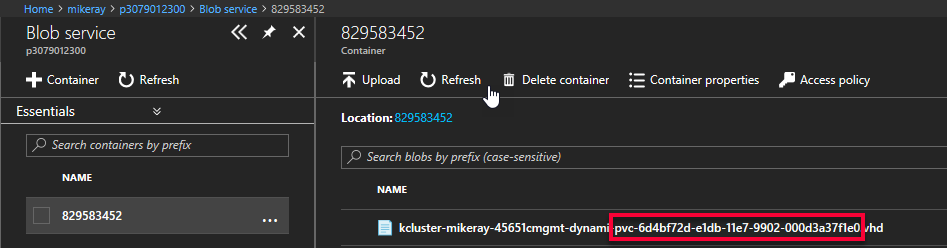
Volume. This value maps to the name of the blob.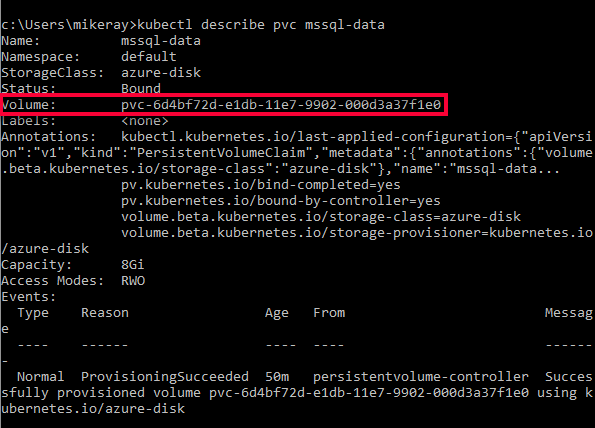
The value for volume, matches part of the name of the blob in the following image from Azure portal:
-
Verify the persistent volume.
kubectl describe pvkubectlreturns metadata about the persistent volume that was automatically created and bound to the persistent volume claim.


Kubernetes can manage sensitive configuration information like passwords as [secrets]((http://kubernetes.io/docs/concepts/configuration/secret/). Create a secret to store the SA password for SQL Server.
The following command creates a password for the SA account:
kubectl create secret generic mssql SA_PASSWORD=MyC0m9l&xP@ssw0rd
The preceding command creates a secret in Kubernetes named mssql that holds the value MyC0m9l&xP@ssw0rd for the SA_PASSWORD.
Replace MyC0m9l&xP@ssw0rd with a complex password
In this example, the SQL Server container is described as a Kubernetes deployment object. The deployment creates a replica set. The replica set creates the pod. In this step, create a manifest to describe the container based on the Microsoft SQL Server mssql-server-linux image. The manifest references the mssql-server persistent volume claim, and the mssql secret which you already applied to the Kubernetes cluster. The manifest also describes a service. This service is a load balancer. The load balancer guarantees that the IP address persists after SQL Server container is recovered.
-
Create a manifest - a yaml file - to describe the deployment. The following example describes a deployment including a container based on the SQL Server container image.
apiVersion: apps/v1beta1
kind: Deployment
metadata:
  name: mssql-deployment
spec:
  replicas: 1
  template:
    metadata:
      labels:
        app: mssql
    spec:
      terminationGracePeriodSeconds: 10
      containers:
      - name: mssql
        image: microsoft/mssql-server-linux
        ports:
        - containerPort: 1433
        env:
        - name: ACCEPT_EULA
          value: "Y"
        - name: SA_PASSWORD
          valueFrom:
            secretKeyRef:
              name: mssql
              key: SA_PASSWORD
        volumeMounts:
        - name: mssqldb
          mountPath: /var/opt/mssql
      volumes:
      - name: mssqldb
        persistentVolumeClaim:
          claimName: mssql-data
---
apiVersion: v1
kind: Service
metadata:
  name: mssql-deployment
spec:
  selector:
    app: mssql
  ports:
    - protocol: TCP
      port: 1433
      targetPort: 1433
  type: LoadBalancer
Copy the preceding code into a new file, named
sqldeployment.yaml. Update the following values:-
value: "Developer"- Sets the container to run SQL Server Developer edition. Developer edition is not licensed for production data. If the deployment is for production use, set the appropriate edition. Can be one of
Enterprise,Standard, orExpress.
[!NOTE] For more information, see How to license SQL Server.
- Sets the container to run SQL Server Developer edition. Developer edition is not licensed for production data. If the deployment is for production use, set the appropriate edition. Can be one of
-
persistentVolumeClaim- This value requires an entry for
claimName:that maps to the name used for the persistent volume claim. This article usesmssql-data.
- This value requires an entry for
-
name: SA_PASSWORD- Configures the container image to set SA password as defined in this section.
           valueFrom:
            secretKeyRef:
              name: mssql
              key: SA_PASSWORD
When Kubernetes deploys the container, it will refer to the secret named
mssqlto get the value for the password.
[!NOTE] By using the
LoadBalancerservice type, the SQL Server container is accessible remotely (via the internet) at port 1433.Save the file, for example sqldeployment.yaml.
-
-
Create the deployment.
kubectl apply -f <Path to sqldeployment.yaml file><Path to sqldeployment.yaml file>- The location where you saved the file.

The deployment and service are created, with SQL Server running as a pod in the kubernetes cluster with connection to persistent storage.
To view the status of the pod, type
kubectl get pod.
[!NOTE] After the deployment is created it may take a few minutes before the pod is visible. The delay is because the cluster needs to pull the mssql-server-linux image from the Docker hub. After it is pulled the first time, subsequent deployments may be faster - if the deployment is to a node that already has the image cached on it.
Learn more about Kubernetes Deployments.
-
Verify the services are running. Run the following command:
kubectl get servicesThis command returns services that are running, as well as the internal, and external IP addresses for the services. Note the external IP address for the
mssql-deploymentservice. Use this IP address to connect to SQL Server.
For additional information about the status of the objects in the Kubernetes cluster, run:
az aks browse --resource-group <MyResourceGroup> --name <MyKubernetesClustername>


If you configured the container as described, you can connect with an application from outside of the Azure virtual network. Use the sa account and the external IP address for the service. Use the password that you configured as the Kubernetes secret.
You can use the following applications to connect to SQL Server.
-
SSDT.
-
sqlcmd To connect with
sqlcmd, run the following command:sqlcmd -S <External IP Address> -U sa -P MyC0m9l&xP@ssw0rd
Replace the following values: -
<External IP Address>with the IP address for themssql-deploymentservice -MyC0m9l&xP@ssw0rdwith your password
To verify failure and recovery you can delete the pod. Do the following steps:
-
List the pod running SQL Server.
kubectl get podsNote the name of the pod running SQL Server.
-
Delete the pod.
kubectl delete pod mssql-deployment-0mssql-deployment-0is the value returned from the previous step for pod name.
Kubernetes automatically recreates the pod to recover a SQL Server container and connect to the persistent storage.
In this tutorial, you learned how to
[!div class="checklist"]
- Create storage
- Create SA password
- Create deployment
- Connect with SQL Server Management Studios (SSMS)
- Verify failure and recovery
[!div class="nextstepaction"] Intro - Kubernetes