| title | Connect and query SQL Server on Linux - SQL Server vNext CTP1 | Microsoft Docs |
|---|---|
| description | Provides an overview of how to connect to SQL Server on Linux. Also includes links to topics that show how to use client tools to connect and query SQL Server on Linux. |
| author | rothja |
| ms.author | jroth |
| manager | jhubbard |
| ms.date | 11/08/2016 |
| ms.topic | article |
| ms.prod | sql-linux |
| ms.technology | database-engine |
| ms.assetid | 2b5aa551-3ad7-4f0d-b69b-4fe692dbbcee |
This topic provides an overview of how to connect and run Transact-SQL (TSQL) queries on SQL Server vNext CTP1 running on Linux. In many ways the connection techniques and T-SQL commands do not differ between platforms. But this topic looks at the requirements and tools for Linux and then provides references to other resources.
To connect to SQL Server on Linux, you must use SQL Authentication (username and password). To connect remotely, you must ensure that the port SQL Server listens on is open. The default instance of SQL Server listens on TCP port 1433. Depending on your Linux distribution and configuration, you might have to open this port in the firewall.
If you are running Linux on an Azure virtual machine, you must also create a network security group rule.
The following sections describe several tools that connect to SQL Server and allow you to run queries.
Sqlcmd is a command line tool that can be run from any Windows or Linux machine that has the SQL Server tools installed. It has a basic interface but is good for quickly connecting and running T-SQL commands.
For a tutorial for Sqlcmd, see Connect and query SQL Server on Linux (Sqlcmd).
Visual Studio Code (VS Code) is a lightweight, cross-platform development tool for writing code. The MSSQL extension provides the ability to execute TSQL commands. This is especially useful in development scenarios where you need to write both application code and database functionality.
To see a tutorial for VS Code, see Connect and query SQL Server on Linux (VS Code).
SQL Server Management Studio (SSMS) is a Windows tool for both querying and managing SQL Server instances. This is best for when you are working with both Windows and Linux machines. You can connect SSMS running on Windows to SQL Server running on Linux. The advantage of SSMS is that it provide a graphical user interface for many server and database management tasks.
To see a tutorial for SSMS, see Connect and query SQL Server on Linux (SSMS).
If you are having difficulty connecting to your Linux SQL Server instance, there are a few things to check.
- Verify that the server name or IP address is reachable from your client machine.
- Verify that the user name and password do not contain any typos or extra spaces or incorrect casing.
- Try to explicitly set the protocol and port number with the server name like the following: tcp:servername,1433.
- Network connectivity issues can also cause connection errors and timeouts. After verifying your connection information and network connectivity, try the connection again.
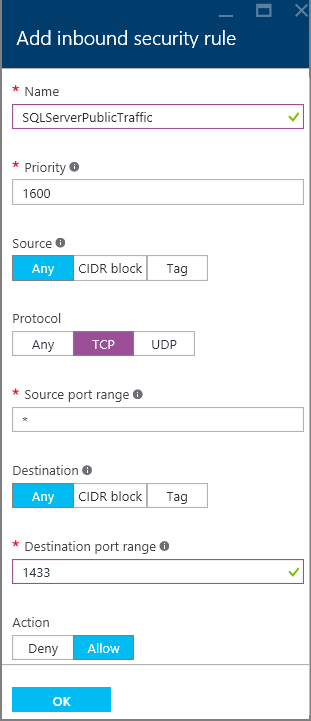
If you are running Linux in an Azure virtual machine (VM), you must also create a Network Security Group rule for port 1433 to connect to SQL Server remotely.
-
In the Azure portal, select your Linux VM, and then select the Network interfaces setting.
-
In the next blade, select your network interface to view its properties.
-
In the Network interface blade, click the Network security group link to manage the Network Security Group associated with your VM.
-
Create a Network Security Group rule. For step-by-step instructions, use the steps in Create rules in an existing NSG. These provide the steps for creating an NSG rule, but you must customize your rule for incoming TCP traffic on port 1433. This is shown in the following screenshot.

For more information on using SQL Server vNext on Linux, see SQL Server on Linux overview.