| title | Using templates in SQL Server Management Studio | |||||||
|---|---|---|---|---|---|---|---|---|
| description | A tutorial for using templates in SSMS. | |||||||
| keywords | SQL Server, SSMS, SQL Server Management Studio, Templates | |||||||
| author | MashaMSFT | |||||||
| ms.author | mathoma | |||||||
| ms.topic | tutorial | |||||||
| ms.prod | sql | |||||||
| ms.technology | ssms | |||||||
| ms.prod_service | sql-tools | |||||||
| ms.reviewer | sstein | |||||||
| helpviewer_keywords |
|
|||||||
| ms.custom | seo-lt-2019 | |||||||
| ms.date | 03/13/2018 |
This tutorial introduces you to the prebuilt Transact-SQL (T-SQL) templates that are available in SQL Server Management Studio (SSMS). In this article, you learn how to:
To complete this tutorial, you need SQL Server Management Studio and access to a SQL server.
-
Install SQL Server Management Studio.
-
Install SQL Server 2017 Developer Edition.
In this section, you learn how to locate and use Template Browser.
-
Open SQL Server Management Studio.
-
In the View menu, select Template Browser (Ctrl+Alt+T):

You can see recently used templates at the bottom of the template browser.
-
Expand the node you're interested in. Right-click the template, and then select Open:

You can also double-click the template name to open it.
-
A new query window opens. The T-SQL script is already populated.
-
Modify the template to suit your needs, and then select Execute to run the query:


You can also edit existing templates in Template Browser.
-
In Template Browser, go to the template you want to work with.
-
Right-click the template, and then select Edit:

-
In the query window that opens, make the changes that you want to make.
-
To save the template, select File > Save (Ctrl+S).
-
Close the query window.
-
Reopen the template. Your edits should appear.

When a template is open, you can locate the templates that are on disk.
-
In Template Browser, select a template, and then select Edit.
-
Right-click Query Title, and then select Open Containing Folder. The explorer should open where the templates are stored on disk:


You can also create a new template in Template Browser. The following steps show you how to create a new folder, and then create a new template in that folder. You can also use these steps to create a custom template in an existing folder.
-
Open Template Browser.
-
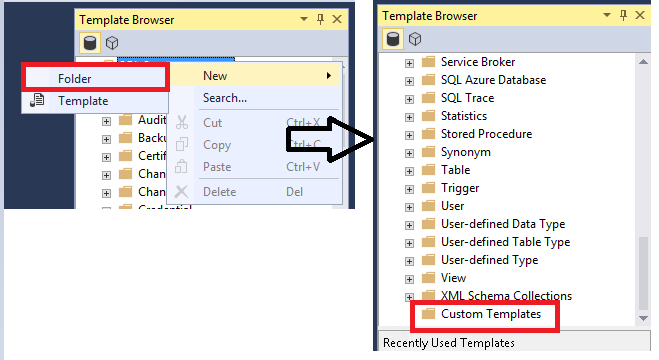
Right-click SQL Server Templates, and then select New > Folder.
-
Name this folder Custom Templates:
-
Right-click the newly created Custom Templates folder, and then select New > Template. Enter a name for your template:

-
Right-click the template you created, and then select Edit. The New Query Window opens.
-
Enter the T-SQL text that you want to save.
-
In the File menu, select Save.
-
Close the existing query window, and then open your new custom template.


The best way to get acquainted with SSMS is through hands-on practice. These tutorial and how-to articles help you with various features available within SSMS. These articles teach you how to manage the components of SSMS and how to find the features that you use regularly.