| title | Install SQL Server Language Extensions on Windows |
|---|---|
| titleSuffix | |
| description | Learn how to install SQL Server Language Extensions on Windows. |
| author | dphansen |
| ms.author | davidph |
| ms.date | 11/06/2019 |
| ms.topic | conceptual |
| ms.prod | sql |
| ms.technology | language-extensions |
| monikerRange | >=sql-server-ver15||=sqlallproducts-allversions |
[!INCLUDEappliesto-ss-xxxx-xxxx-xxx-md]
Learn how to install the Language Extensions component on SQL Server by running the [!INCLUDEssNoVersion] setup wizard.
Note
This article is for installation of SQL Server Language Extensions on Windows. For Linux, see Install SQL Server 2019 Language Extensions (Java) on Linux
-
SQL Server 2019 Setup is required if you want to install support for Language Extensions.
-
A database engine instance is required. You cannot install just the Language Extensions features, although you can add them incrementally to an existing instance.
-
For business continuity, Always On Availability Groups are supported for Language Extensions. You have to install language extensions, and configure packages, on each node.
-
Installing Language Extensions is supported on a failover cluster in SQL Server 2019.
-
Do not install SQL Server Language Extensions on a domain controller. The Language Extensions portion of setup will fail.
-
Language Extensions and Machine Learning Services are installed by default on SQL Server Big Data Clusters. If you use Big Data Clusters, you do not need to follow the steps in this article. For more information, see Use Machine Learning Services (Python and R) on Big Data Clusters.
Important
After setup is complete, be sure to complete the post-configuration steps described in this article. These steps include enabling SQL Server to use external code, and adding accounts required for SQL Server to run Java code on your behalf. Configuration changes generally require a restart of the instance, or a restart of the Launchpad service.
In SQL Server 2019 Release Candidate 1, there are two ways to install and use Java with SQL Server:
-
Use the default Java runtime, Zulu Open JRE version 11.0.3. This runtime is supported and included with the SQL Server installation.
-
Use your preferred Java distribution instead of the default Java runtime.
Java 11 is currently the supported version on Windows. The Java Runtime Environment (JRE) is the minimum requirement, but Java Development Kit (JDK) is useful if you need the Java compiler and development packages. Because the JDK is all inclusive, if you install the JDK, the JRE is not necessary. On Windows, we recommend installing the JDK under the default
/Program Files/folder if possible. Otherwise, extra configuration is required to grant permissions to executables. For more information, see the grant permissions (Windows) section in this document.[!NOTE] Given that Java is backwards compatible, earlier versions might work, but the supported and tested version for the Release Candidate 1 release is Java 11.
[!INCLUDEGetInstallationMedia]
For local installations, you must run Setup as an administrator. If you install [!INCLUDEssNoVersion] from a remote share, you must use a domain account that has read and execute permissions on the remote share.
-
Start the setup wizard for SQL Server 2019.
-
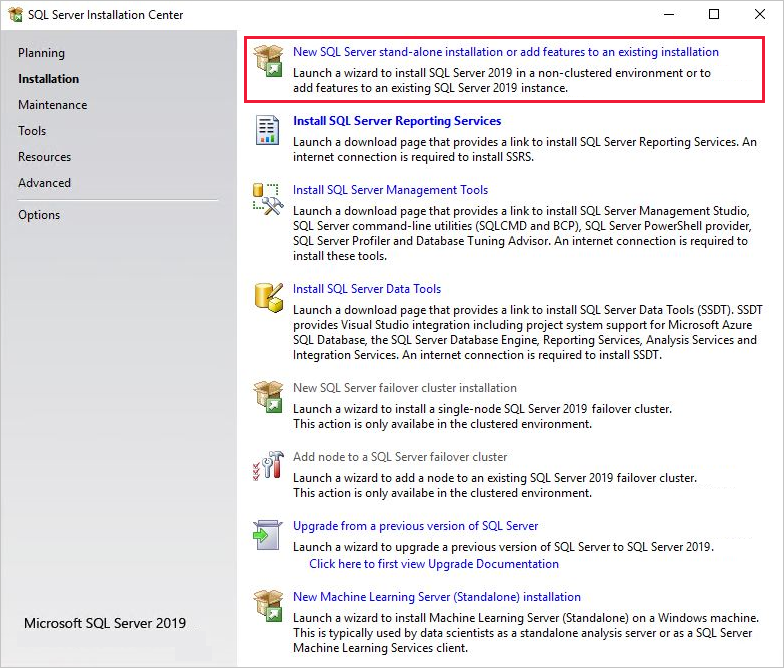
On the Installation tab, select New SQL Server stand-alone installation or add features to an existing installation.
-
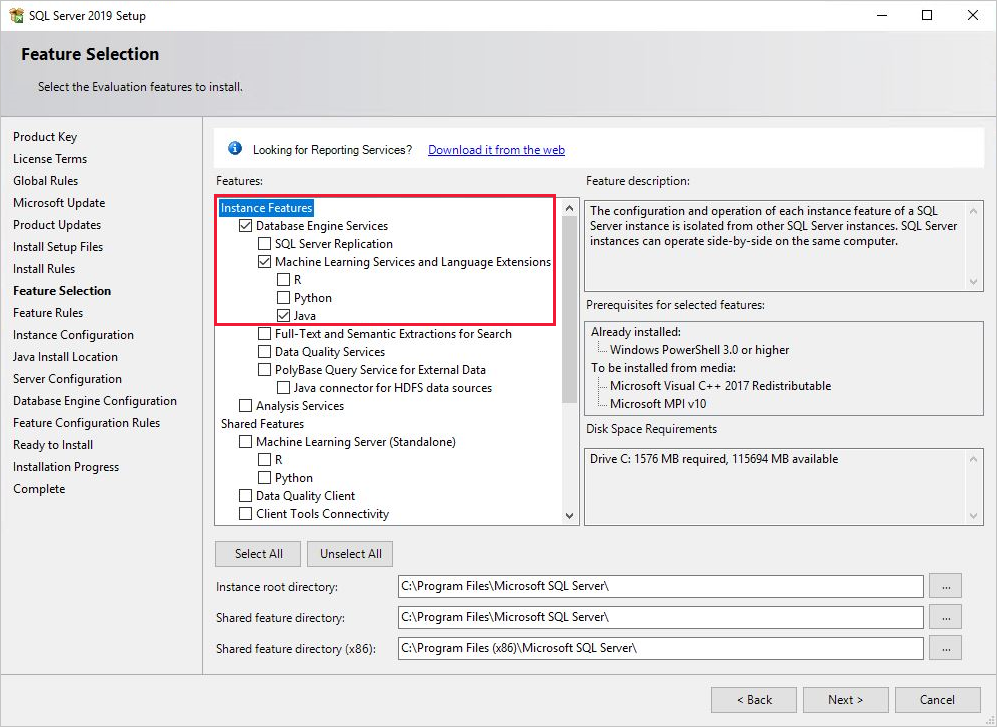
On the Feature Selection page, select these options:
-
Database Engine Services
To use Language Extensions with SQL Server, you must install an instance of the database engine. You can use either a default or a named instance.
-
Machine Learning Services and Language Extensions
This option installs the Language Extensions component that support Java code execution.
-
If you want to install the default Java runtime, Zulu Open JRE 11.0.3, select Machine Learning Services and Language Extensions and Java.
-
If you want to use your own Java runtime, select Machine Learning Services and Language Extensions. Do not select Java.
If you want to use R and Python, see Install SQL Server Machine Learning Services on Windows.
-
-
-
If you choose Java in the previous step to install the default Java runtime, the Java Install Location page will show up.
Select the Install Open JRE 11.0.3 included with this installation.
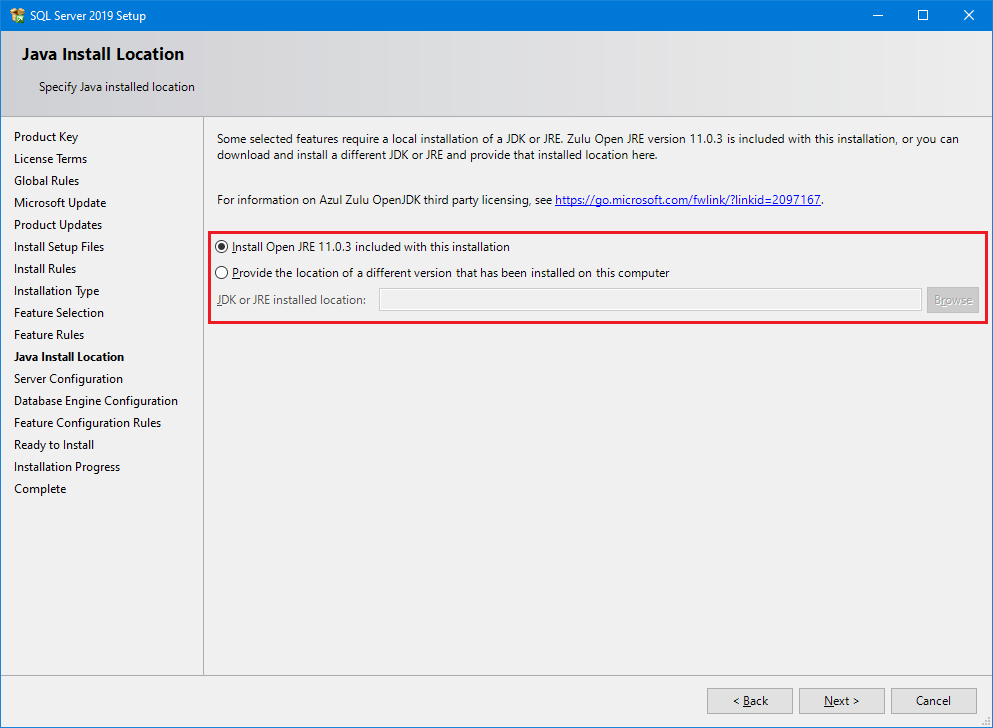
[!NOTE] The Provide the location of a different version that has been installed on this computer is not used for Language Extensions.
-
On the Ready to Install page, verify that these selections are included, and select Install.
- Database Engine Services
- Machine Learning Services and Language Extensions
Note of the location of the folder under the path
..\Setup Bootstrap\Logwhere the configuration files are stored. When setup is complete, you can review the installed components in the Summary file. -
After setup is complete, if you are instructed to restart the computer, do so now. It is important to read the message from the Installation Wizard when you have finished with Setup. For more information, see View and Read SQL Server Setup Log Files.


JRE_HOME is a system environment variable that specifies the location of the Java interpreter. In this step, create a system environment variable for it on Windows.
-
Find and copy the JRE home path.
For example, the JRE home path for the default Java runtime Zulu JRE 11.0.3 is
C:\Program Files\Microsoft SQL Server\MSSQL15.MSSQLSERVER\MSSQL\Binn\AZUL-OpenJDK-JRE\.Depending on your SQL Server installation path or if you chose another Java runtime, your location of the JDK or JRE might be different than the example path above. Even if you have a JDK installed, you often times will get a JRE sub folder as part of that installation, so point to the JRE folder in that case. The Java extension will attempt to load the
jvm.dllfrom the path%JRE_HOME%\bin\server. -
In Control Panel, open System and Security, open System, and click Advanced System Properties.
-
Click Environment Variables.
-
Create a new system variable for
JRE_HOMEwith the value of the JDK/JRE path (found in step 1). -
Restart Launchpad.
-
Under SQL Server Services, right-click SQL Server Launchpad and select Restart.
If you did not install the default Zulu Open JRE that was included with SQL Server and did not install the JDK or JRE under program files, you need to perform the following steps. Run the icacls commands from an elevated line to grant access to the SQLRUsergroup and SQL Server service accounts (in ALL_APPLICATION_PACKAGES) for accessing the JRE. The commands will recursively grant access to all files and folders under the given directory path.
-
Give SQLRUserGroup permissions
For a named instance, append the instance name to SQLRUsergroup (for example,
SQLRUsergroupINSTANCENAME).icacls "<PATH to JRE>" /grant "SQLRUsergroup":(OI)(CI)RX /T
You can skip this step if you installed the JDK/JRE in the default folder under program files on Windows.
-
Give AppContainer permissions
icacls "<PATH to JRE>" /grant "ALL APPLICATION PACKAGES":(OI)(CI)RX /T
-
Open [!INCLUDEssManStudioFull].
[!TIP] You can download and install the appropriate version from this page: Download SQL Server Management Studio (SSMS).
You can also use Azure Data Studio, which supports administrative tasks and queries against SQL Server.
-
Connect to the instance where you installed Language Extensions, click New Query to open a query window, and run the following command:
sp_configure
The value for the property,
external scripts enabled, should be 0 at this point. The feature is turned off by default and must be explicitly enabled by an administrator before you can run Java code. -
To enable the external scripting feature, run the following statement:
EXEC sp_configure  'external scripts enabled', 1
RECONFIGURE WITH OVERRIDE
If you have already enabled the feature for Machine Learning Services, don't run reconfigure a second time for Language Extensions. The underlying extensibility platform supports both.
When the installation is complete, restart the database engine before continuing to the next, enabling script execution.
Restarting the service also automatically restarts the related SQL Server Launchpad service.
You can restart the service using the right-click Restart command for the instance in SSMS, or by using the Services panel in Control Panel, or by using SQL Server Configuration Manager.
For each database you want to use language extensions in, you need to register the external language with CREATE EXTERNAL LANGUAGE.
The following example adds an external language called Java to a database on SQL Server on Windows.
CREATE EXTERNAL LANGUAGE Java
FROM (CONTENT = N'<path-to-zip>', FILE_NAME = 'javaextension.dll');
GO
For more information, see CREATE EXTERNAL LANGUAGE.
Check the installation status of the instance in the setup logs.
Use the following steps to verify that all components used to launch external script are running.
-
In SQL Server Management Studio or Azure Data Studio, open a new query window, and run the following statement:
EXEC sp_configure 'external scripts enabled'The run_value is now set to 1.
-
Open the Services panel or SQL Server Configuration Manager, and verify SQL Server Launchpad service is running. You should have one service for every database engine instance that has language extensions installed. For more information about the service, see Extensibility framework.
If the verification step was successful, you can run Java Code from SQL Server Management Studio, Azure Data Studio, Visual Studio Code, or any other client that can send T-SQL statements to the server.
If you got an error when running the command, review the additional configuration steps in this section. You might need to make additional appropriate configurations to the service or database.
At the instance level, additional configuration might include:
- Firewall configuration for SQL Server Machine Learning Services
- Enable additional network protocols
- Enable remote connections
- Create a login for SQLRUserGroup
On the database, you might need the following configuration updates:
- Give users permission to SQL Server Machine Learning Services
- Give users permission to execute a specific language
Note
Whether additional configuration is required depends on your security schema, where you installed SQL Server, and how you expect users to connect to the database and run external scripts.
Now that you have everything working, you might also want to optimize the server to support language extensions.
The default settings for [!INCLUDEssNoVersion] setup are intended to optimize the balance of the server for a variety of services that are supported by the database engine, which might include extract, transform, and load (ETL) processes, reporting, auditing, and applications that use [!INCLUDEssNoVersion] data. Therefore, under the default settings, you might find that resources for language extensions are sometimes restricted or throttled, particularly in memory-intensive operations.
To ensure that language extensions jobs are prioritized and resourced appropriately, we recommend that you use SQL Server Resource Governor to configure an external resource pool. You might also want to change the amount of memory that's allocated to the [!INCLUDEssNoVersion] database engine, or increase the number of accounts that run under the [!INCLUDErsql_launchpad] service.
-
To configure a resource pool for managing external resources, see Create an external resource pool.
-
To change the amount of memory reserved for the database, see Server memory configuration options.
If you are using Standard Edition and do not have Resource Governor, you can use Dynamic Management Views (DMVs) and Extended Events, as well as Windows event monitoring, to help manage the server resources.
Java developers can get started with some simple examples, and learn the basics of how Java works with SQL Server. For your next step, see the following link: