| title | Source control |
|---|---|
| titleSuffix | Azure Data Studio |
| description | Learn how to configure source control in Azure Data Studio |
| ms.prod | sql |
| ms.technology | azure-data-studio |
| ms.topic | conceptual |
| author | markingmyname |
| ms.author | maghan |
| ms.reviewer | alayu; sstein |
| ms.custom | seodec18 |
| ms.date | 09/24/2018 |
Using source control in [!INCLUDEname-sos]
[!INCLUDEname-sos] supports Git for version/source control.
Git support in [!INCLUDEname-sos]
[!INCLUDEname-sos] ships with a Git source control manager (SCM), but you still need to install Git (version 2.0.0 or later) before these features are available.
- Under the File menu, select Open Folder...
- Browse to the folder that contains your files tracked by git, and click Select Folder. Subfolders in your local repository are okay to select here.
-
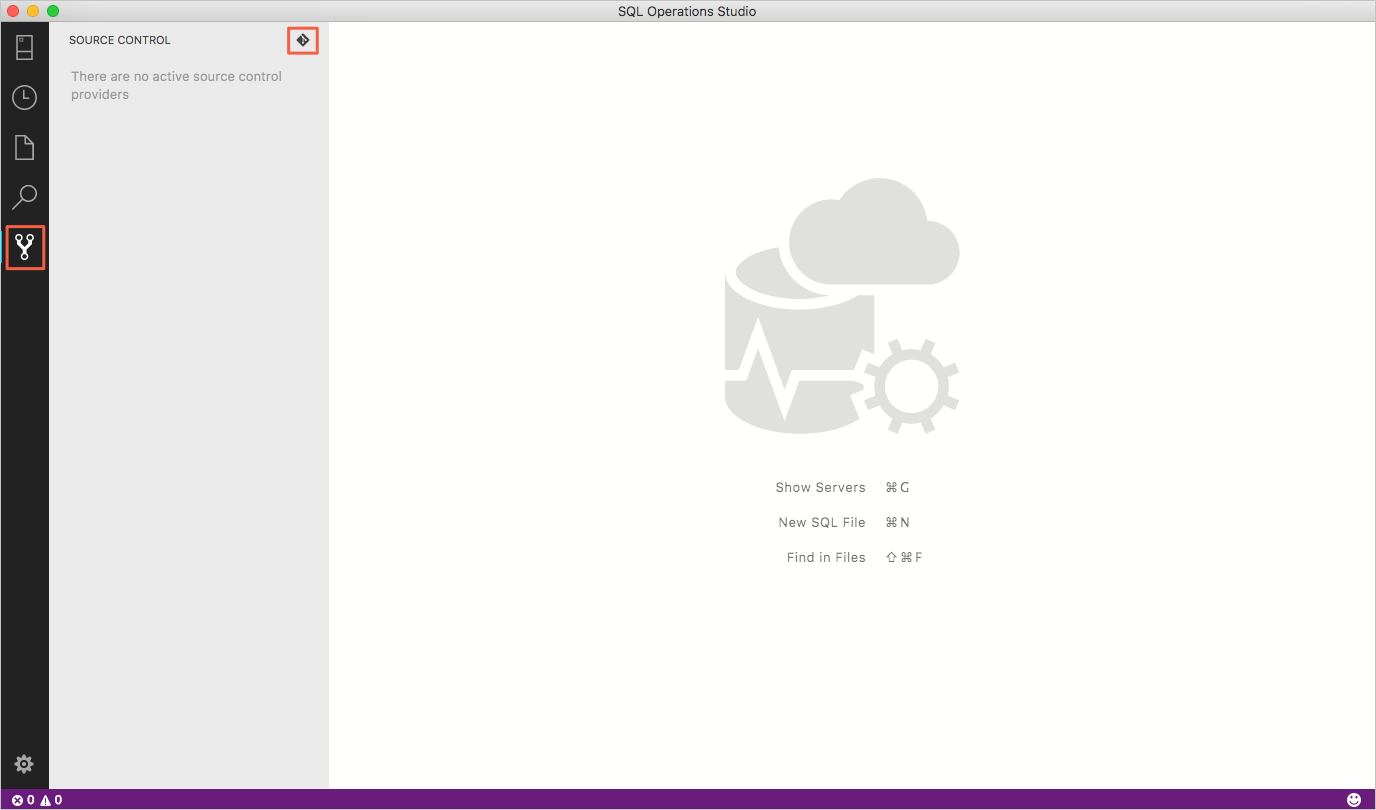
Select Source Control, then select the git icon.
-
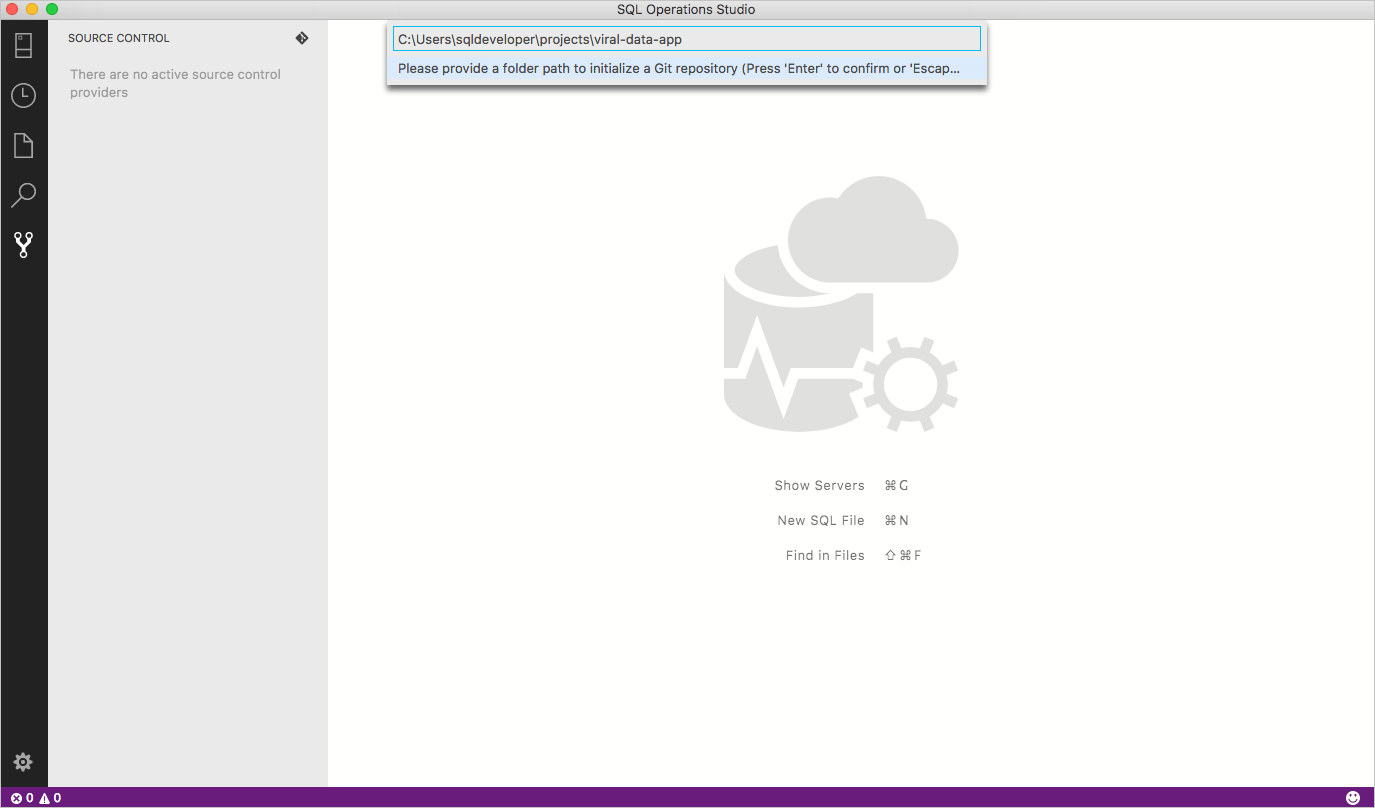
Enter the path to the folder you want to initialize as a Git repository and press Enter.


[!INCLUDEname-sos] inherits its Git implementation from VS Code, but does not currently support additional SCM providers. For the details about working with Git after you open or initialize a repository, see Git support in VS Code.