| title | Quickstart: Connect and query SQL Server |
|---|---|
| titleSuffix | Azure Data Studio |
| description | This quickstart shows how to use Azure Data Studio to connect to SQL Server and run a query |
| ms.prod | sql |
| ms.technology | azure-data-studio |
| ms.topic | quickstart |
| author | yualan |
| ms.author | alayu |
| ms.reviewer | alayu; sstein |
| ms.custom | seodec18, sqlfreshmay19 |
| ms.date | 08/02/2019 |
Quickstart: Connect and query SQL Server using [!INCLUDEname-sos]
This quickstart shows how to use [!INCLUDEname-sos] to connect to SQL Server, and then use Transact-SQL (T-SQL) statements to create the TutorialDB used in [!INCLUDEname-sos] tutorials.
To complete this quickstart, you need [!INCLUDEname-sos], and access to SQL Server.
- [Install [!INCLUDEname-sos]](download.md).
If you don't have access to a SQL Server, select your platform from the following links (make sure you remember your SQL Login and Password!):
- Windows - Download SQL Server 2017 Developer Edition
- macOS - Download SQL Server 2017 on Docker
- Linux - Download SQL Server 2017 Developer Edition - You only need to follow the steps up to Create and Query Data.
-
Start [!INCLUDEname-sos].
-
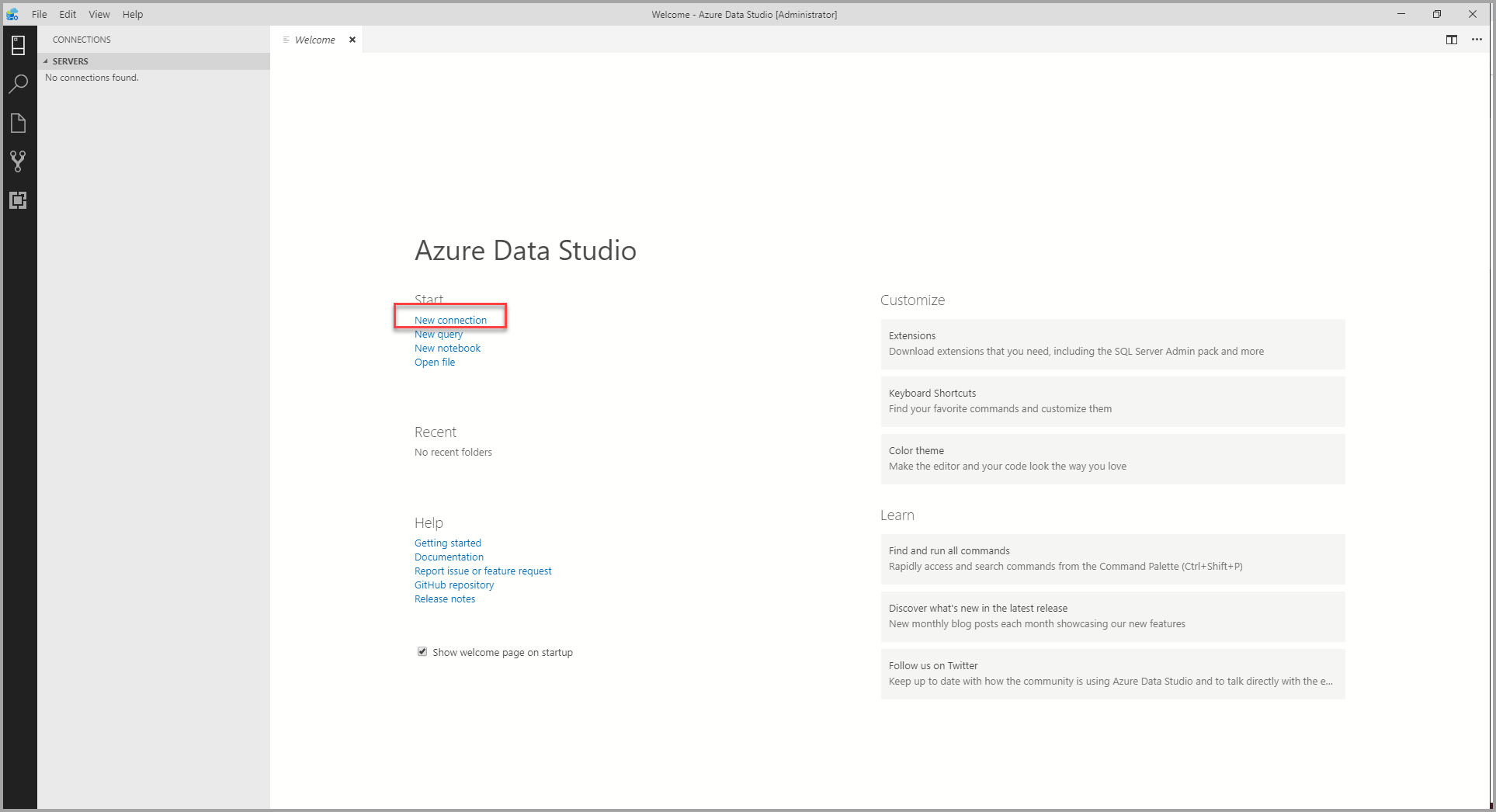
The first time you run [!INCLUDEname-sos] the Welcome page should open. If you don't see the Welcome page, select Help > Welcome. Select New Connection to open the Connection pane:
-
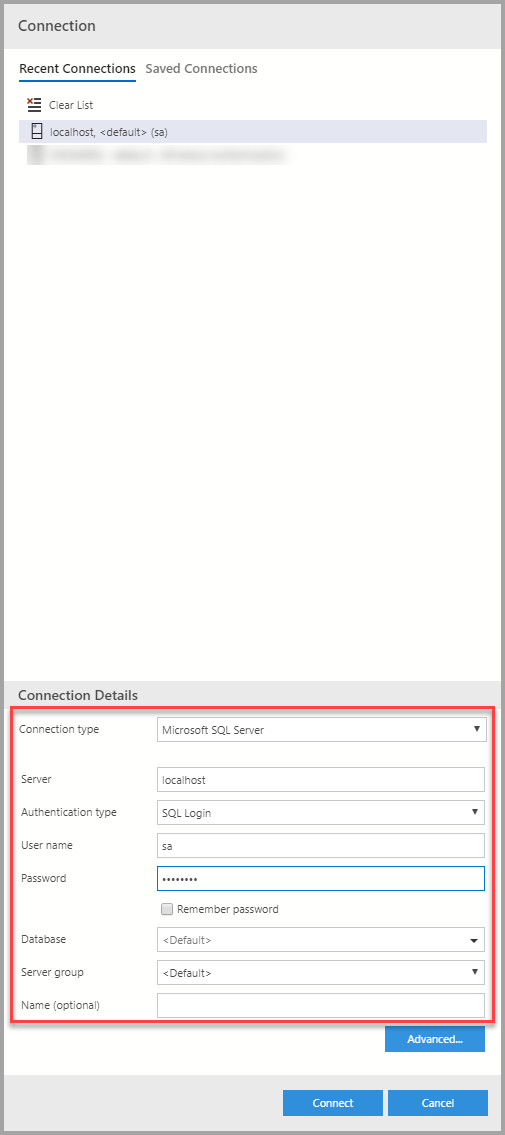
This article uses SQL Login, but Windows Authentication is supported. Fill in the fields as follows:

-
Server Name: Enter server name here. For example, localhost.
-
Authentication Type: SQL Login
-
User name: User name for the SQL Server
-
Password: Password for the SQL Server
-
Database Name: <Default>
-
Server Group: <Default>

The following steps create a database named TutorialDB:
-
Right-click on your server, localhost, and select New Query.
-
Paste the following snippet into the query window: and then select Run.
USE master
GO
IF NOT EXISTS (
 SELECT name
 FROM sys.databases
 WHERE name = N'TutorialDB'
)
 CREATE DATABASE [TutorialDB];
GO
IF SERVERPROPERTY('ProductVersion') > '12'
 ALTER DATABASE [TutorialDB] SET QUERY_STORE=ON;
GO
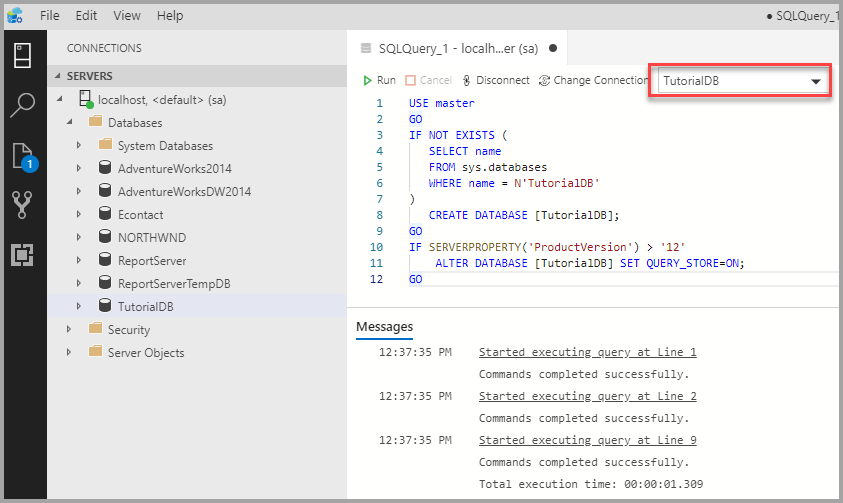
After the query completes, the new TutorialDB appears in the list of databases. If you don't see it, right-click the Databases node and select Refresh.

The query editor is still connected to the master database, but we want to create a table in the TutorialDB database.
-
Change the connection context to TutorialDB:
-
Paste the following snippet into the query window and click Run:
[!NOTE] You can append this too, or overwrite the previous query in the editor. Note that clicking Run executes only the query that is selected. If nothing is selected, clicking Run executes all queries in the editor.

-- Create a new table called 'Customers' in schema 'dbo'
-- Drop the table if it already exists
IF OBJECT_ID('dbo.Customers', 'U') IS NOT NULL
 DROP TABLE dbo.Customers;
GO
-- Create the table in the specified schema
CREATE TABLE dbo.Customers
(
 CustomerId int NOT NULL PRIMARY KEY, -- primary key column
 Name nvarchar(50) NOT NULL,
 Location nvarchar(50) NOT NULL,
 Email nvarchar(50) NOT NULL
);
GO
After the query completes, the new Customers table appears in the list of tables. You might need to right-click the TutorialDB > Tables node and select Refresh.
- Paste the following snippet into the query window and click Run:
-- Insert rows into table 'Customers'
INSERT INTO dbo.Customers
 ([CustomerId], [Name], [Location], [Email])
VALUES
 ( 1, N'Orlando', N'Australia', N''),
 ( 2, N'Keith', N'India', N'keith0@adventure-works.com'),
 ( 3, N'Donna', N'Germany', N'donna0@adventure-works.com'),
 ( 4, N'Janet', N'United States', N'janet1@adventure-works.com')
GO- Paste the following snippet into the query window and click Run:
-- Select rows from table 'Customers'
SELECT * FROM dbo.Customers;
Now that you've successfully connected to SQL Server and run a query try out the Code editor tutorial.