| title | Connect and query an Azure SQL Data Warehouse |
|---|---|
| titleSuffix | Azure Data Studio |
| description | This quickstart shows how to use Azure Data Studio to connect to an Azure SQL Data Warehouse and run a query |
| ms.prod | sql |
| ms.technology | azure-data-studio |
| ms.reviewer | alayu; sstein |
| ms.topic | quickstart |
| author | yualan |
| ms.author | alayu |
| ms.custom | seodec18; seo-lt-2019 |
| ms.date | 09/24/2018 |
Quickstart: Use [!INCLUDEname-sos] to connect and query data in Azure SQL Data Warehouse
This quickstart demonstrates how to use [!INCLUDEname-sos] to connect to Azure SQL data warehouse, and then use Transact-SQL statements to create, insert, and select data.
To complete this quickstart, you need [!INCLUDEname-sos], and an Azure SQL data warehouse.
- [Install [!INCLUDEname-sos]](download.md).
If you don't already have a SQL data warehouse, see Create a SQL Data Warehouse.
Remember the server name, and login credentials!
Use [!INCLUDEname-sos] to establish a connection to your Azure SQL Data Warehouse server.
-
The first time you run [!INCLUDEname-sos] the Connection page should open. If you don't see the Connection page, click Add Connection, or the New Connection icon in the SERVERS sidebar:

-
This article uses SQL Login, but Windows Authentication is also supported. Fill in the fields as follows using the server name, user name, and password for your Azure SQL server:
Setting Suggested value Description Server name The fully qualified server name The name should be something like this: sqldwsample.database.windows.net Authentication SQL Login SQL Authentication is used in this tutorial. User name The server admin account This is the account that you specified when you created the server. Password (SQL Login) The password for your server admin account This is the password that you specified when you created the server. Save Password? Yes or No Select Yes if you do not want to enter the password each time. Database name leave blank The name of the database to which to connect. Server Group Select If you created a server group, you can set to a specific server group. 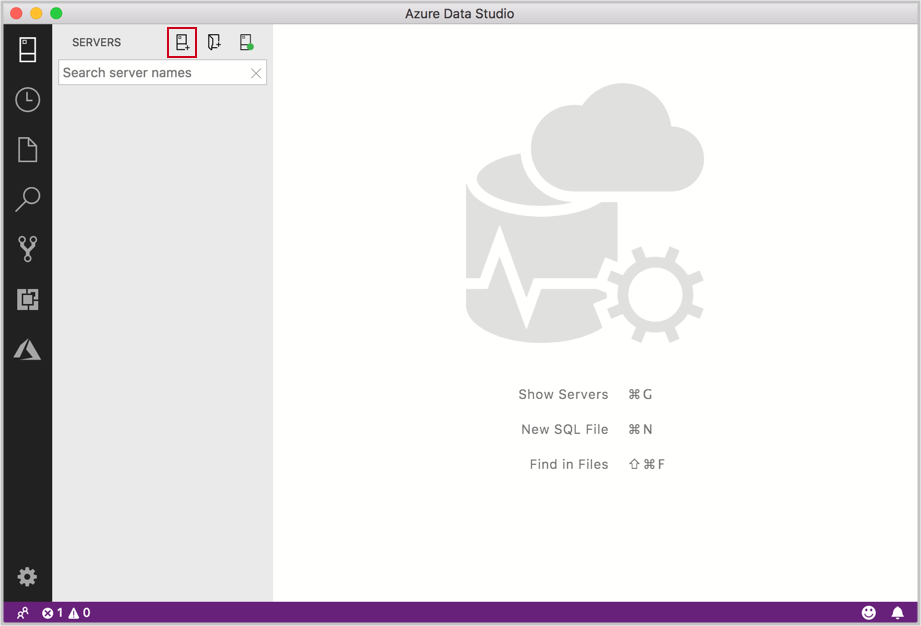
-
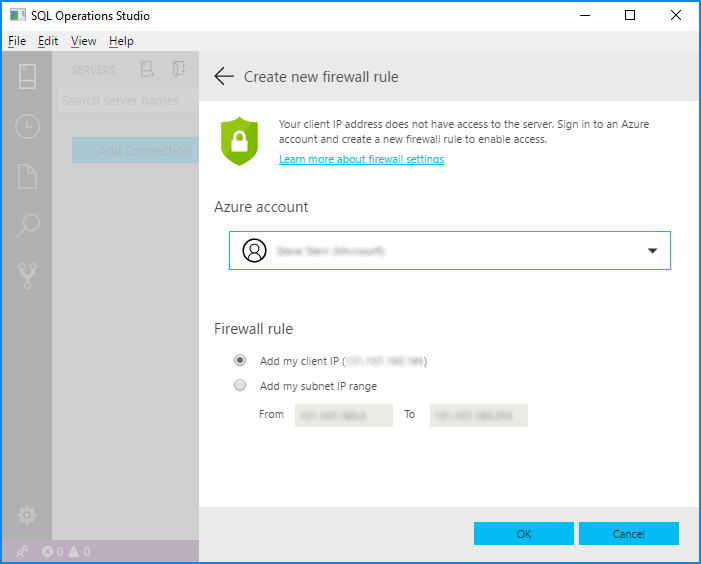
If your server doesn't have a firewall rule allowing Azure Data Studio to connect, the Create new firewall rule form opens. Complete the form to create a new firewall rule. For details, see Firewall rules.
-
After successfully connecting your server opens in the Servers sidebar.


-
Right click on your server, in the object explorer and select New Query.
-
Paste the following snippet into the query editor and click Run:
 IF NOT EXISTS (
    SELECT name
    FROM sys.databases
    WHERE name = N'TutorialDB'
 )
 CREATE DATABASE [TutorialDB] (EDITION = 'datawarehouse', SERVICE_OBJECTIVE='DW100');
 GO

 ALTER DATABASE [TutorialDB] SET QUERY_STORE=ON
 GO
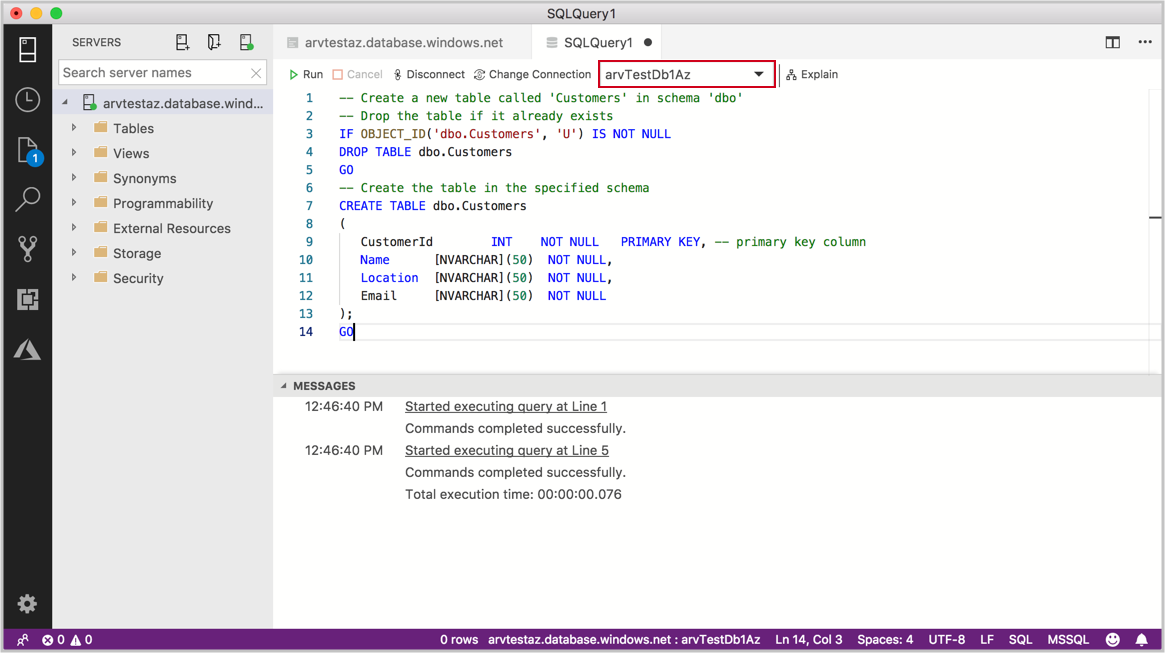
The query editor is still connected to the master database, but we want to create a table in the TutorialDB database.
-
Change the connection context to TutorialDB:
-
Paste the following snippet into the query editor and click Run:
[!NOTE] You can append this to, or overwrite the previous query in the editor. Note that clicking Run executes only the query that is selected. If nothing is selected, clicking Run executes all queries in the editor.
-- Create a new table called 'Customers' in schema 'dbo'
-- Drop the table if it already exists
IF OBJECT_ID('dbo.Customers', 'U') IS NOT NULL
DROP TABLE dbo.Customers
GO
-- Create the table in the specified schema
CREATE TABLE dbo.Customers
(
   CustomerId        INT     NOT NULL,
   Name      [NVARCHAR](50)  NOT NULL,
   Location  [NVARCHAR](50)  NOT NULL,
   Email     [NVARCHAR](50)  NOT NULL
);
GO

-
Paste the following snippet into the query editor and click Run:
-- Insert rows into table 'Customers'
INSERT INTO dbo.Customers
   ([CustomerId],[Name],[Location],[Email])
   SELECT 1, N'Orlando',N'Australia', N'' UNION ALL
   SELECT 2, N'Keith', N'India', N'keith0@adventure-works.com' UNION ALL
   SELECT 3, N'Donna', N'Germany', N'donna0@adventure-works.com' UNION ALL
   SELECT 4, N'Janet', N'United States', N'janet1@adventure-works.com'
-
Paste the following snippet into the query editor and click Run:
-- Select rows from table 'Customers'
SELECT * FROM dbo.Customers;
-
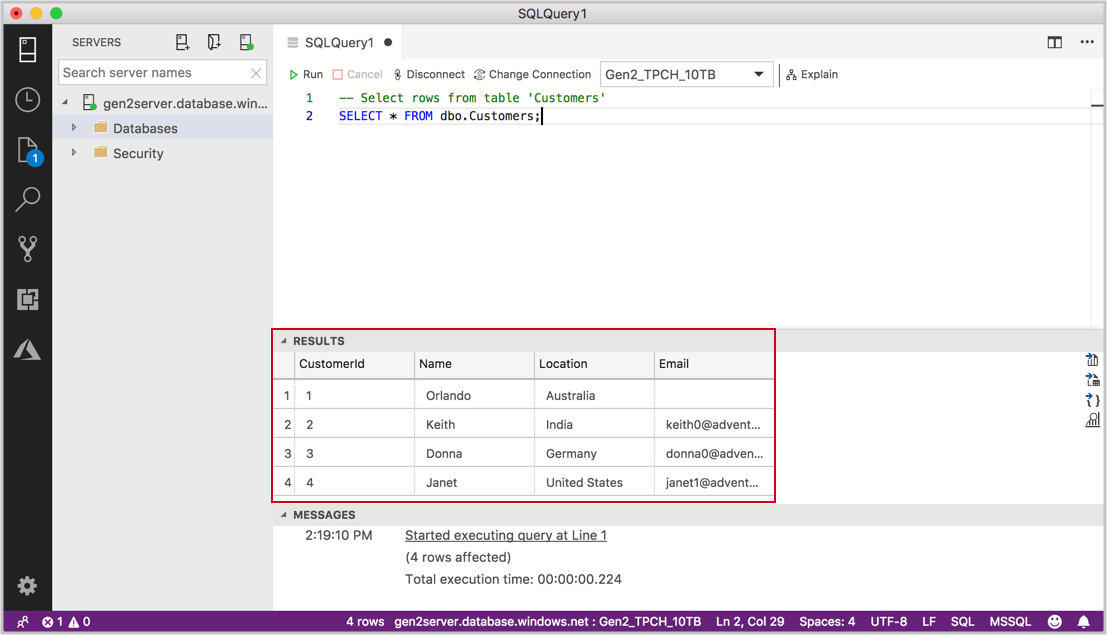
The results of the query are displayed:

Other articles in this collection build upon this quickstart. If you plan to continue on to work with subsequent quickstarts, do not clean up the resources created in this quickstart. If you do not plan to continue, use the following steps to delete resources created by this quickstart in the Azure portal. Clean up resources by deleting the resource groups you no longer need. For details, see Clean up resources.
Now that you've successfully connected to an Azure SQL data warehouse and ran a query, try out the Code editor tutorial.