| title | Task 8: Adding a New Value for State Entity in Excel | Microsoft Docs |
|---|---|
| ms.custom | |
| ms.date | 04/27/2017 |
| ms.prod | sql-server-2014 |
| ms.reviewer | |
| ms.technology | data-quality-services |
| ms.topic | conceptual |
| ms.assetid | a763d76b-06a3-4d51-9614-01fc9fb1c158 |
| author | lrtoyou1223 |
| ms.author | lle |
| manager | craigg |
In this task, you add a value for the State entity in Excel and publish the change to the MDS server.
-
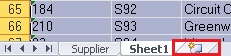
Add a work sheet in Excel by clicking the new tab at the bottom.
-
In Excel, click the Master Data tab on the menu, and then click Show Explorer on the ribbon.
-
In the Master Data Explorer, select Suppliers for Model. You should see two entities: Supplier and State in the entity list.
-
Double-click State in the list. All the members of the State entity from MDS should be displayed in the worksheet.
-
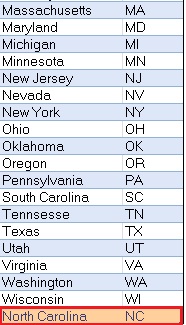
Now, add a row at the end with the following values: North Carolina for Name and NC for Code. The color coding differentiates any new/updated records from the other records.
-
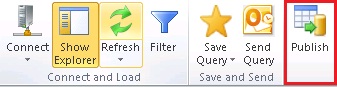
Click Publish on the ribbon to publish the change to MDS.
-
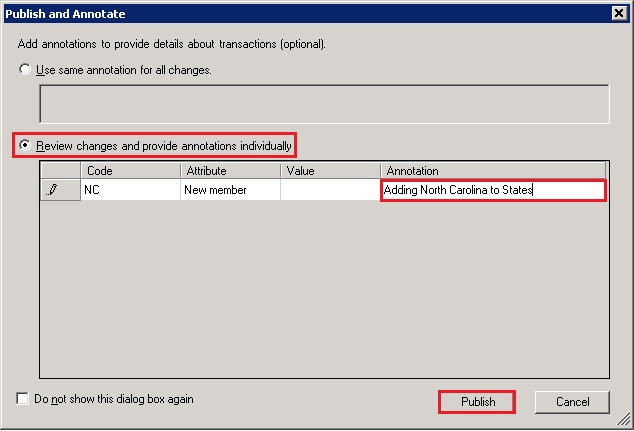
On the Publish and Annotate dialog box, notice that the Use same annotation for all changes is selected. You can enter a single annotation for all the changes here.
-
Select Review changes and provide annotations individually option to provide annotation for each change (in this case, only one).
-
Click Publish to publish data to MDS.
-
Notice that color coding for the row with North Carolina as the State is same as other records now.
-
Optional: Verify that the new member (NC) is added to the State entity by using the Explorer in Master Data Manager.
-
In Excel, right-click the State worksheet at the bottom, and click Delete to delete the worksheet. Deleting the worksheet does not delete any data from the MDS server.


Task 9: Creating a Derived Hierarchy using Master Data Manager