| title | Task 2: Mapping Excel Columns to DQS Domains | Microsoft Docs |
|---|---|
| ms.custom | |
| ms.date | 03/06/2017 |
| ms.prod | sql-server-2014 |
| ms.reviewer | |
| ms.technology | data-quality-services |
| ms.topic | conceptual |
| ms.assetid | f347cc92-950f-4021-b7af-393640dfe821 |
| author | lrtoyou1223 |
| ms.author | lle |
| manager | craigg |
-
In the Map page, select Excel File for Data Source.
-
Click Browse, select Suppliers.xlsx, and click Open.
-
Select IncomingSuppliers$ for the Worksheet.
-
Map columns as shown in the following table and screenshot. When creating mappings for the State domain, click Add a column mapping button on the toolbar located just above the list.
[!TIP]
You are not using Supplier ID column/domain for cleansing. You will use the Supplier ID domain later in the matching activity.Excel column DQS Domain Supplier Name Supplier Name ContactEmailAddress Contact Email Address Line Address Line City City State State Country (Click +(Add a column mapping) toolbar to add a row) Country Zip Code Zip 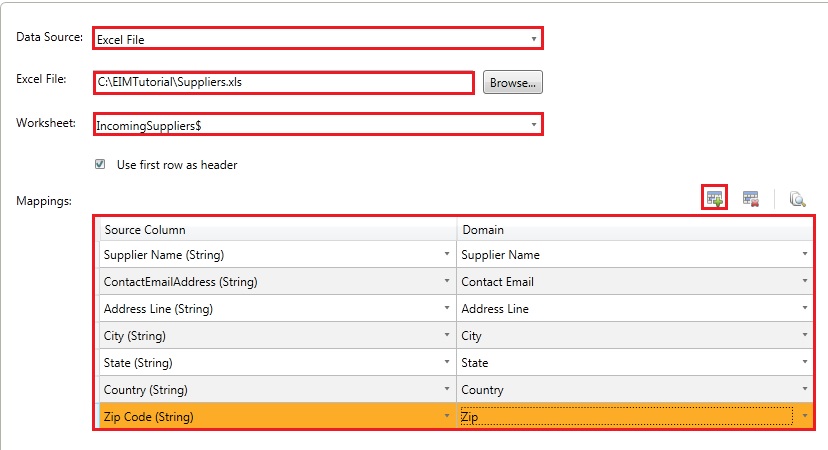
-
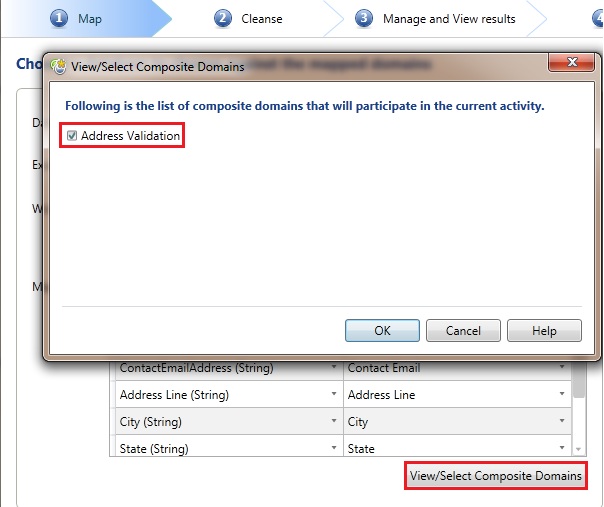
As you have mapped all the individual domains within the Address Validation composite domain, the composite domain automatically participates in the cleansing process. Click View/Select Composite Domains button to see that the Address Validation composite domain is automatically selected, and then click OK.
-
Click Next to switch to the Cleanse page.

