| title | Task 1: Creating Suppliers Model using Master Data Manager | Microsoft Docs |
|---|---|
| ms.custom | |
| ms.date | 03/06/2017 |
| ms.prod | sql-server-2014 |
| ms.reviewer | |
| ms.technology | data-quality-services |
| ms.topic | conceptual |
| ms.assetid | 6bbbcbff-1ecd-456c-947f-c445c8da673c |
| author | lrtoyou1223 |
| ms.author | lle |
| manager | craigg |
In this task, you create a model named Suppliers in MDS using Master Data Manager.
-
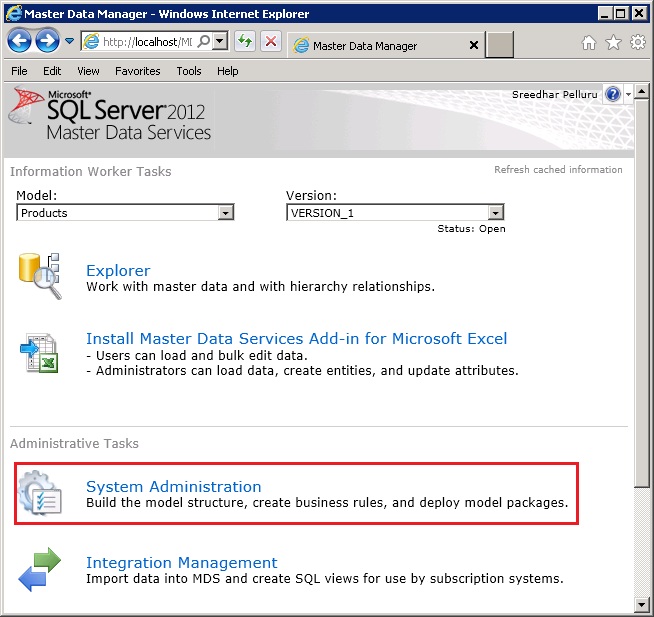
Navigate to http://localhost/mds to launch Master Data Manager. Replace the URL if you have configured Web Application with a different name or on a different a web site.
-
Click System Administration in the Administrative Tasks section.
-
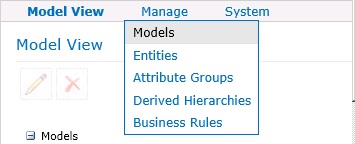
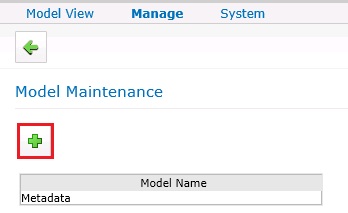
If you do not see the Add Model page, hover mouse over Manage on the menu bar, click Models, and then click Add Model (+) toolbar button to create a model.
-
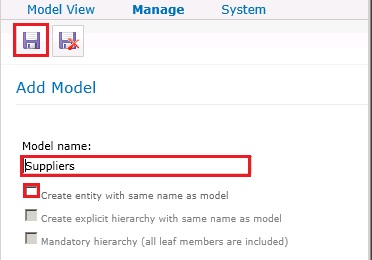
Enter Suppliers for Model name.
-
Clear Create entity with same name as model option. You will create an entity later using the MDS Add-in for Excel.
-
Click Save Model button on the toolbar.


Task 2: Uploading Supplier Data to MDS using MDS Add-in for Excel