| title | Adding Indentation | Microsoft Docs |
|---|---|
| ms.custom | |
| ms.date | 06/14/2017 |
| ms.prod | sql-server-2014 |
| ms.reviewer | |
| ms.technology | ssms |
| ms.topic | conceptual |
| ms.assetid | 9dce05c1-c52f-455d-8b8d-6f303e242760 |
| author | stevestein |
| ms.author | sstein |
| manager | craigg |
Query Editor allows you to indent large sections of code with a single step, and you can change the amount of the indentation.
-
On the toolbar, click New Query.
-
Create a second query that selects the BusinessEntityID, FirstName, MiddleName, and LastName columns from the Person table of the Person schema. Place each column on a separate line so the code looks like this:
-- Search for a contact SELECT BusinessEntityID, FirstName, MiddleName, LastName FROM Person.Person WHERE LastName = 'Sanchez'; GO -
Select all text from
BusinessEntityIDtoLastName. -
On the SQL Editor toolbar, click Increase Indent to indent all the lines at once.
-
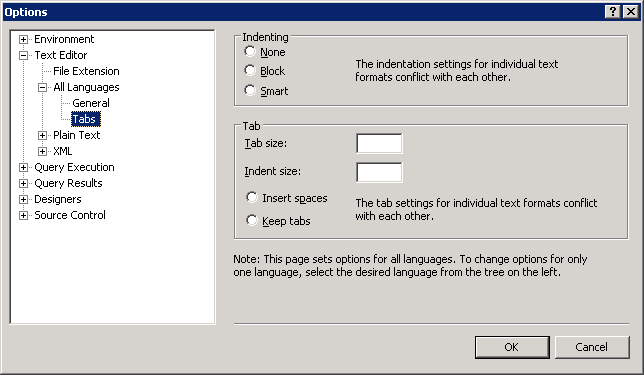
On the Tools menu, click Options.
-
Expand Text Editor, expand All Languages, and click Tabs , and set indentation values as appropriate. Note that you can change the size of the indent as well as the size of tabs, and whether tabs are converted to spaces.
-
Click OK.
