| title | Install SQL Server BI Features with SharePoint (PowerPivot and Reporting Services) | Microsoft Docs |
|---|---|
| ms.custom | |
| ms.date | 03/09/2017 |
| ms.prod | sql-server-2014 |
| ms.reviewer | |
| ms.technology | database-engine |
| ms.topic | conceptual |
| ms.assetid | 3166107c-30c2-468e-bb1b-bb42b79b37c3 |
| author | maggiesMSFT |
| ms.author | maggies |
| manager | craigg |
[!INCLUDEssASnoversion] and [!INCLUDEssRSnoversion] can be integrated with a Microsoft SharePoint farm to enable Business Intelligence (BI) features in SharePoint. The features include [!INCLUDEssGeminiShort], [!INCLUDEssCrescent], and [!INCLUDEssRSnoversion]. [!INCLUDEssGeminiShort] is used for [!INCLUDEssGemini] data access in a SharePoint farm. [!INCLUDEssGeminiShort] is the data engine for workbooks created in [!INCLUDEssGemini] for Excel and accessed from a SharePoint library. Once you save a [!INCLUDEssGemini] workbook to SharePoint, you can use it as a data source for [!INCLUDEssCrescent] reports.
Some of the installation and configuration steps required for SharePoint 2010 are different than the steps required for SharePoint 2013. Some of the topics in this section apply to both versions of SharePoint.
| [!INCLUDEapplies] SharePoint 2013 | SharePoint 2010 |
 For the current release notes, see SQL server 2014 Release Notes.
In addition to the information in this topic, the following related topics are in this section of content.
Deployment Topologies for SQL Server BI Features in SharePoint
Guidance for Using SQL Server BI Features in a SharePoint 2010 Farm
Checklists for Installing BI Features with SharePoint
Reporting Services SharePoint Mode Installation (SharePoint 2010 and SharePoint 2013)
PowerPivot for SharePoint 2013 Installation
PowerPivot for SharePoint 2010 Installation
This section summarizes the different levels of BI features you can choose to install and configure.
Excel Services in SharePoint 2013 includes data model functionality to enable interaction with a [!INCLUDEssGemini] workbook in the browser. For basic data model functionality you do not need to deploy the [!INCLUDEssGeminiShort] 2013 add-in into the farm. You only need to install an [!INCLUDEssASnoversion] server in SharePoint mode and register the server within the Excel Services Data Model settings.
Deploying the [!INCLUDEssGeminiShort] 2013 add-in enables additional functionality and features in your SharePoint farm. The additional features include [!INCLUDEssGemini] Gallery, Schedule Data Refresh, and the PowerPivot Management Dashboard. See the table for additional information.
| Level | Features | Install or Configure | |
|---|---|---|---|
| 1 | SharePoint Only | Native Excel Services Features | Excel Services and other services included with SharePoint Server 2013. |
| 2 | SharePoint with Analysis Services in SharePoint Mode | Interactive PowerPivot workbooks in the browser | Install [!INCLUDEssASnoversion] in SharePoint mode. Register Analysis Services Server in Excel Services. |
| 3 | SharePoint with Reporting Services in SharePoint Mode | Power View | Install [!INCLUDEssRSnoversion] in SharePoint mode. Install [!INCLUDEssRSnoversion] add-in (rsSharePoint.msi) for SharePoint. For more information, see Install or Uninstall the Reporting Services Add-in for SharePoint (SharePoint 2010 and SharePoint 2013) |
| 4 | All PowerPivot Features | Access to workbooks as a data source from outside the farm. Schedule Data refresh. PowerPivot Gallery. Management Dashboard. BISM link file content type. |
Deploy PowerPivot for SharePoint 2013 add-in (spPowerPivot.msi). For more information, see the following: Install or Uninstall the PowerPivot for SharePoint Add-in (SharePoint 2013) For information see on how to download spPowerPivot.msi, see Download SQL Server 2014 PowerPivot for SharePoint. |
For additional information on enabling [!INCLUDEssASnoversion] features, see The SQL Server BI Light-Up Story for SharePoint 2013 (https://blogs.msdn.com/b/analysisservices/archive/2012/07/27/introducing-the-bi-light-up-story-for-sharepoint-2013.aspx).
If you want to use both [!INCLUDEssGeminiShort] and [!INCLUDEssRSnoversion], run SQL Server Installation Wizard twice. [!INCLUDEssRSnoversion] and [!INCLUDEssGemini] are separate choices on the Setup Role page of the SQL Server setup wizard.
[!INCLUDEssGeminiShort] supports both SharePoint 2010 and SharePoint 2013; however a different architecture and installation process is used depending on the version of SharePoint.
The following is a summary of the installation steps to deploy [!INCLUDEssCurrent] BI Features on a single server:
[!INCLUDEssGeminiShort] 2013
For SharePoint 2013, the [!INCLUDEssGeminiShort] installation can be run on a server that does not have a SharePoint product installed. The [!INCLUDEssGemini] architecture used for SharePoint 2013, runs outside the SharePoint farm and can either be installed on a server that also contains a SharePoint installation or it can be installed a server that does NOT contains a SharePoint installation.
-
Install SharePoint Server 2013 and enable Excel Services.
-
Install [!INCLUDEssASnoversion] in SharePoint mode, and grant the SharePoint farm and services accounts server administrator rights in [!INCLUDEssASnoversion].
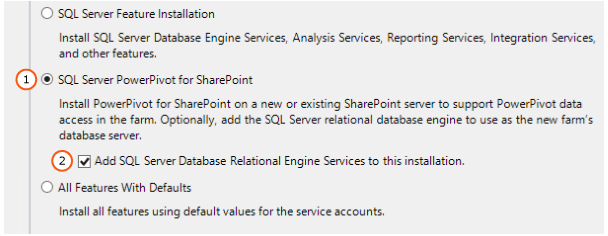
For both versions of SharePoint, the [!INCLUDEssGemini] installation process starts by selecting the setup role of SQL Server PowerPivot for SharePoint in the SQL Server Installation wizard or use a SQL Server command prompt installation.
-
For SharePoint 2013, you can extend the [!INCLUDEssGemini] features and experience. Download and run spPowerPivot.msi to add server-side data refresh processing, collaboration, and management support for [!INCLUDEssGemini] workbook. For more information, see Microsoft SQL Server 2014 PowerPivot for Microsoft® SharePoint.
Run the [!INCLUDEssGeminiShort] 2013 installation package spPowerPivot.msi on each server in the SharePoint farm to ensure the correct version of the data providers are installed.
-
To configure [!INCLUDEssGemini] for SharePoint 2013, use PowerPivot for SharePoint 2013 Configuration tool.
The SQL Server installation wizard installs two [!INCLUDEssGemini] Configurations tools. One of the configuration tools supports SharePoint 2013 and the other tool supports SharePoint 2010.

-
Configure Excel Services in SharePoint Server 2013 to use the [!INCLUDEssASnoversion] instance. For more information, see the section "Configure Basic Analysis Services SharePoint Integration" in PowerPivot for SharePoint 2013 Installation.and Manage Excel Services data model settings (SharePoint Server 2013) (https://technet.microsoft.com/library/jj219780.aspx).
-
For more information, see PowerPivot for SharePoint 2013 Installation.


[!INCLUDEssGeminiShort] 2010
For SharePoint 2010, it is required that the [!INCLUDEssGemini] for SharePoint Installation is run on a server that already has SharePoint 2010 installed or will be installed. The [!INCLUDEssGemini] architecture for SharePoint 2010 runs inside the farm and requires SharePoint on the server that [!INCLUDEssGemini] for SharePoint is installed.
-
Install [!INCLUDEssASnoversion] in SharePoint mode, and grant the SharePoint farm and services accounts server administrator rights in [!INCLUDEssASnoversion].
A SharePoint 2010 deployment does not support spPowerPivot.msi, and the .msi is not required with SharePoint 2010.
For both versions of SharePoint, the [!INCLUDEssGemini] installation process starts by selecting the setup role of SQL Server PowerPivot for SharePoint in the SQL Server Installation wizard or use a SQL Server command prompt installation.
-
The SQL Server installation wizard installs two [!INCLUDEssGemini] Configurations tools. One of the configuration tools supports SharePoint 2013 and the other tool supports SharePoint 2010.
To configure [!INCLUDEssGemini] for SharePoint 2010, use the PowerPivot Configuration Tool .
-
For more information, see PowerPivot for SharePoint 2010 Installation.
[!INCLUDEssRSnoversion] for SharePoint 2010 and 2013
-
The installation for [!INCLUDEssRSnoversion] in SharePoint mode is unchanged from the previous release.
The [!INCLUDEssRSnoversion] installation steps for SharePoint 2010 and SharePoint 2013 are very similar. Important notes regarding SharePoint versions are:
-
See the supported combinations of the following:
-
The version of [!INCLUDEssRSnoversion].
-
The [!INCLUDEssRSnoversion] add-in for SharePoint Products.
-
The version of the SharePoint product.
Supported Combinations of SharePoint and Reporting Services Server and Add-in (SQL Server 2014)
-
-
[!INCLUDEssRSnoversion] on SharePoint 2010 requires the SharePoint 2010 Service Pack 2 (SP2).
-
Install [!INCLUDEssRSnoversion] in SharePoint mode. Reporting Services SharePoint Mode Installation (SharePoint 2010 and SharePoint 2013) and Install Reporting Services SharePoint Mode for SharePoint 2010.
-
Install the [!INCLUDEssRSnoversion] add-in for SharePoint products (rsSharePoint.msi). See Install or Uninstall the Reporting Services Add-in for SharePoint (SharePoint 2010 and SharePoint 2013). For the current version of the [!INCLUDEssRSnoversion] add-in for SharePoint, see Where to find the Reporting Services add-in for SharePoint Products.
-
Configure the [!INCLUDEssRSnoversion] SharePoint service and at least one [!INCLUDEssRSnoversion] service application. For more information, see the section "Create a Reporting Services Service Application" in Install Reporting Services SharePoint Mode for SharePoint 2013.
-
SharePoint 2013 does not support in-place upgrade. However database-attach upgrade is supported.
If you have an existing PowerPivot installation integrated with SharePoint 2010, you cannot in-place upgrade the SharePoint server. However, you can complete the following steps as part of a SharePoint database-attach upgrade:
-
Install a new SharePoint Server 2013 farm.
-
Complete a SharePoint database-attach upgrade, and migrate your PowerPivot related content databases to the SharePoint 2013 farm.
-
Install an instance of SQL Server Analysis Services in SharePoint mode and grant the SharePoint farm and services accounts, server administrator rights in [!INCLUDEssASnoversion].
-
Install the PowerPivot for SharePoint 2013 installation package spPowerPivot.msi on each server in the SharePoint farm.
-
In SharePoint 2013 Central Administration, configure Excel Services to use the Analysis Services server running in SharePoint mode created in step 3.
To migrate refresh schedules, configure the PowerPivot service application.
Note
For more information on PowerPivot and SharePoint database-attach upgrade, see the following:
Where to find the Reporting Services add-in for SharePoint Products Supported Combinations of SharePoint and Reporting Services Server and Add-in (SQL Server 2014) Install or Uninstall the Reporting Services Add-in for SharePoint (SharePoint 2010 and SharePoint 2013)