| title | Lesson 8. Restore a database to Azure Storage | Microsoft Docs |
|---|---|
| ms.custom | |
| ms.date | 03/06/2017 |
| ms.prod | sql-server-2014 |
| ms.reviewer | |
| ms.technology | database-engine |
| ms.topic | conceptual |
| ms.assetid | a9f99670-e1de-441e-972c-69faffcac17a |
| author | MikeRayMSFT |
| ms.author | mikeray |
| manager | craigg |
In this lesson, you will learn how to create a backup file locally and then restore it to Azure Storage. Note that you can have your database either on either on-premises or in a virtual machine in Azure. To follow this lesson, you do not need to complete Lesson 4, 5, 6, and 7.
This lesson assumes that you already completed the following steps:
-
You have an Azure Storage account.
-
You have created a container under your Azure Storage account.
-
You have created a policy on a container with read, write, and list rights. You also generated a SAS key.
-
You have created a SQL Server credential on the source machine based on Shared Access Signature.
-
You have created a database in the source machine.
To restore a database to Azure Storage, you can follow these steps:
-
In the source machine, start SQL Server Management Studio.
-
When connected to the newly created database, open the query window. Run the following statement:
USE TestDB3Restore;
GO
BACKUP DATABASE TestDB3Restore
TO DISK = 'C:\BACKUP\TestDB3Restore.Bak'
   WITH FORMAT,
   NAME = 'Full Backup of TestDB3Restore'
GO
-
Next, copy and run the following statements in the Query window.
USE master;
GO
RESTORE DATABASE TestDB3Restore
FROM DISK = 'C:\BACKUP\TestDB3Restore.bak'
WITH REPLACE,
MOVE 'TestDB3Restore' TO 'https://teststorageaccnt.blob.core.windows.net/testcontainrestore/TestDB3Restore.mdf',
MOVE 'TestDB3Restore_log' TO 'https://teststorageaccnt.blob.core.windows.net/testcontainrestore/TestDB3Restore_log.ldf';
GO
At the end of this step, your container should list data (.mdf) and (.ldf) files on the Management Portal.
To restore a database with data and log files pointing to Azure Storage using SQL Server Management Studio user interface, perform these steps:
-
In Object Explorer, click the server name to expand the server tree.
-
Expand Databases, and, select your database.
-
Right-click the database, point to Tasks, and then click Restore.
-
On the General page, in the Restore source section, click Source device.
-
Click the browse button for the Source device text box, which opens the Select Backup Devices dialog box.
-
In the Backup media text box, select File, and click the Add button to locate the backup (.bak) file. Click OK.
-
Click Files on the first page.
-
In the Restore Database Files as section, under Restore As field, type the followings:
For data file, type:
https://teststorageaccnt.blob.core.windows.net/testrestoressms/TestRESSMS.mdf. For log file, type:https://teststorageaccnt.blob.core.windows.net/testrestoressms/TestRESSMS_log.ldf.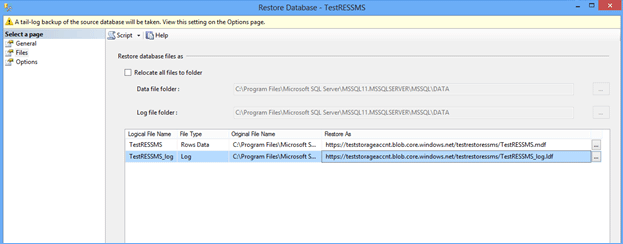
-
Click OK.

When the restore is done, log in to the Management Portal. You should be able to see the .mdf and .ldf files in the container as follows:

Next Lesson: