title: "Analysis Services tutorial lesson 2: Get data | Microsoft Docs" description: Describes how to get and import data in the Analysis Services tutorial project. ms.prod_service: "analysis-services, azure-analysis-services" services: analysis-services ms.suite: "pro-bi" documentationcenter: '' author: Minewiskan manager: kfile editor: '' tags: ''
ms.assetid: ms.service: analysis-services ms.devlang: NA ms.topic: get-started-article ms.tgt_pltfrm: NA ms.workload: na ms.date: 02/20/2018 ms.author: owend monikerRange: ">= sql-analysis-services-2017 || = sqlallproducts-allversions"
[!INCLUDEssas-appliesto-sql2017-later-aas]
In this lesson, you use Get Data to connect to the AdventureWorksDW sample database, select data, preview and filter, and then import into your model workspace.
By using Get Data, you can import data from a wide variety of sources. Data can also be queried using a Power Query M formula expression or a native SQL query expression.
Note
Tasks and images in this tutorial show connecting to an AdventureWorksDW2014 database on an on-premises server. In some cases, an AdventureWorksDW database on Azure SQL Data Warehouse may show different objects; however, they are fundamentally the same.
Estimated time to complete this lesson: 10 minutes
This article is part of a tabular modeling tutorial, which should be completed in order. Before performing the tasks in this lesson, you should have completed the previous lesson: Lesson 1: Create a new tabular model project.
-
In Tabular Model Explorer, right-click Data Sources > Import from Data Source.
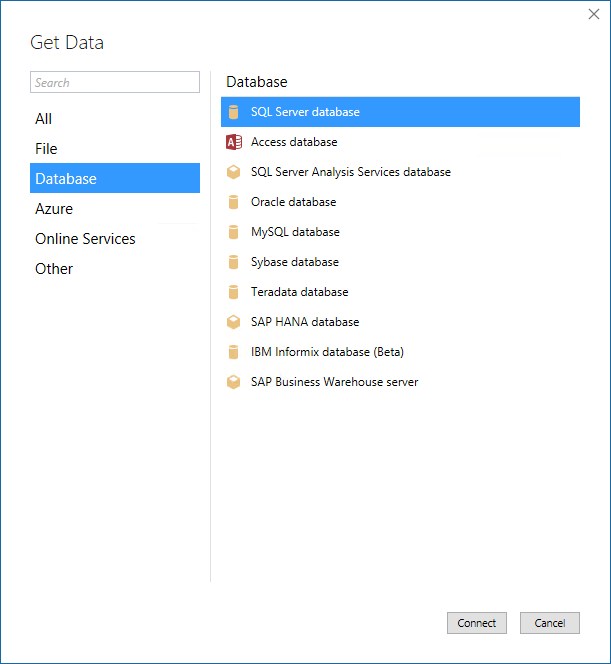
This launches Get Data, which guides you through connecting to a data source. If you don't see Tabular Model Explorer, in Solution Explorer, double-click Model.bim to open the model in the designer.
-
In Get Data, click Database > SQL Server Database > Connect.
-
In the SQL Server Database dialog, in Server, type the name of the server where you installed the AdventureWorksDW database, and then click Connect.
-
When prompted to enter credentials, you need to specify the credentials Analysis Services uses to connect to the data source when importing and processing data. In Impersonation Mode, select Impersonate Account, then enter credentials, and then click Connect. It's recommended you use an account where the password doesn't expire.

[!NOTE]
Using a Windows user account and password provides the most secure method of connecting to a data source. -
In Navigator, select the AdventureWorksDW database, and then click OK.This creates the connection to the database.
-
In Navigator, select the check box for the following tables: DimCustomer, DimDate, DimGeography, DimProduct, DimProductCategory, DimProductSubcategory, and FactInternetSales.


After you click OK, Query Editor opens. In the next section, you select only the data you want to import.
Tables in the AdventureWorksDW sample database have data that isn't necessary to include in your model. When possible, you want to filter out unnecessary data to save in-memory space used by the model. You filter out some of the columns from tables so they're not imported into the workspace database, or the model database after it has been deployed.
-
In Query Editor, select the DimCustomer table. A view of the DimCustomer table at the datasource (your AdventureWorksDW sample database) appears.
-
Multi-select (Ctrl + click) SpanishEducation, FrenchEducation, SpanishOccupation, FrenchOccupation, then right-click, and then click Remove Columns.

Since the values for these columns are not relevant to Internet sales analysis, there is no need to import these columns. Eliminating unnecessary columns makes your model smaller and more efficient.
[!TIP] If you make a mistake, you can backup by deleting a step in APPLIED STEPS.

-
Filter the remaining tables by removing the following columns in each table:
DimDate
Column DateKey SpanishDayNameOfWeek FrenchDayNameOfWeek SpanishMonthName FrenchMonthName DimGeography
Column SpanishCountryRegionName FrenchCountryRegionName IpAddressLocator DimProduct
Column SpanishProductName FrenchProductName FrenchDescription ChineseDescription ArabicDescription HebrewDescription ThaiDescription GermanDescription JapaneseDescription TurkishDescription DimProductCategory
Column SpanishProductCategoryName FrenchProductCategoryName DimProductSubcategory
Column SpanishProductSubcategoryName FrenchProductSubcategoryName FactInternetSales
No columns removed.


Now that you've previewed and filtered out unnecessary data, you can import the rest of the data you do want. The wizard imports the table data along with any relationships between tables. New tables and columns are created in the model and data that you filtered out is not be imported.
-
Review your selections. If everything looks okay, click Import. The Data Processing dialog shows the status of data being imported from your datasource into your workspace database.

-
Click Close.

It's important to frequently save your model project.
- Click File > Save All.