| title | Tutorial: Enable the table space usage insight widget in SQL Operations Studio (preview) | Microsoft Docs |
|---|---|
| description | This tutorial demonstrates how to enable the table space usage widget on the SQL Operations Studio (preview) database dashboard. |
| keywords | |
| ms.custom | tools|sos |
| ms.date | 11/08/2017 |
| ms.prod | sql-non-specified |
| ms.reviewer | alayu; erickang; sstein |
| ms.suite | sql |
| ms.tgt_pltfrm | |
| ms.topic | tutorial |
| author | erickangMSFT |
| ms.author | erickang |
| manager | craigg |
| ms.workload | Inactive |
Tutorial: Enable the built-in table space usage insight widget using [!INCLUDEname-sos]
This tutorial demonstrates how to enable an insight widget on the database dashboard, providing an at-a-glance view about the space usage for all tables in a database. During this tutorial, you learn how to:
[!div class="checklist"]
- Quickly turn on an insight widget using a built-in insight widget sample.
- View the details of table space usage.
- Filter data and view label detail on an insight chart
This tutorial requires the TutorialDB database. To create the TutorialDB database, complete one of the following quickstarts:
- [Connect and query SQL Server using [!INCLUDEname-sos-short]](quickstart-sql-server.md)
- [Connect and query Azure SQL Database using [!INCLUDEname-sos-short]](quickstart-sql-database.md)
- [Connect and query SQL Data Warehouse using [!INCLUDEname-sos-short]](quickstart-sql-dw.md)
Turn on a management insight on [!INCLUDEname-sos]'s database Manage dashboard
[!INCLUDEname-sos] has a built-in sample widget to monitor the space used by tables in a database.
-
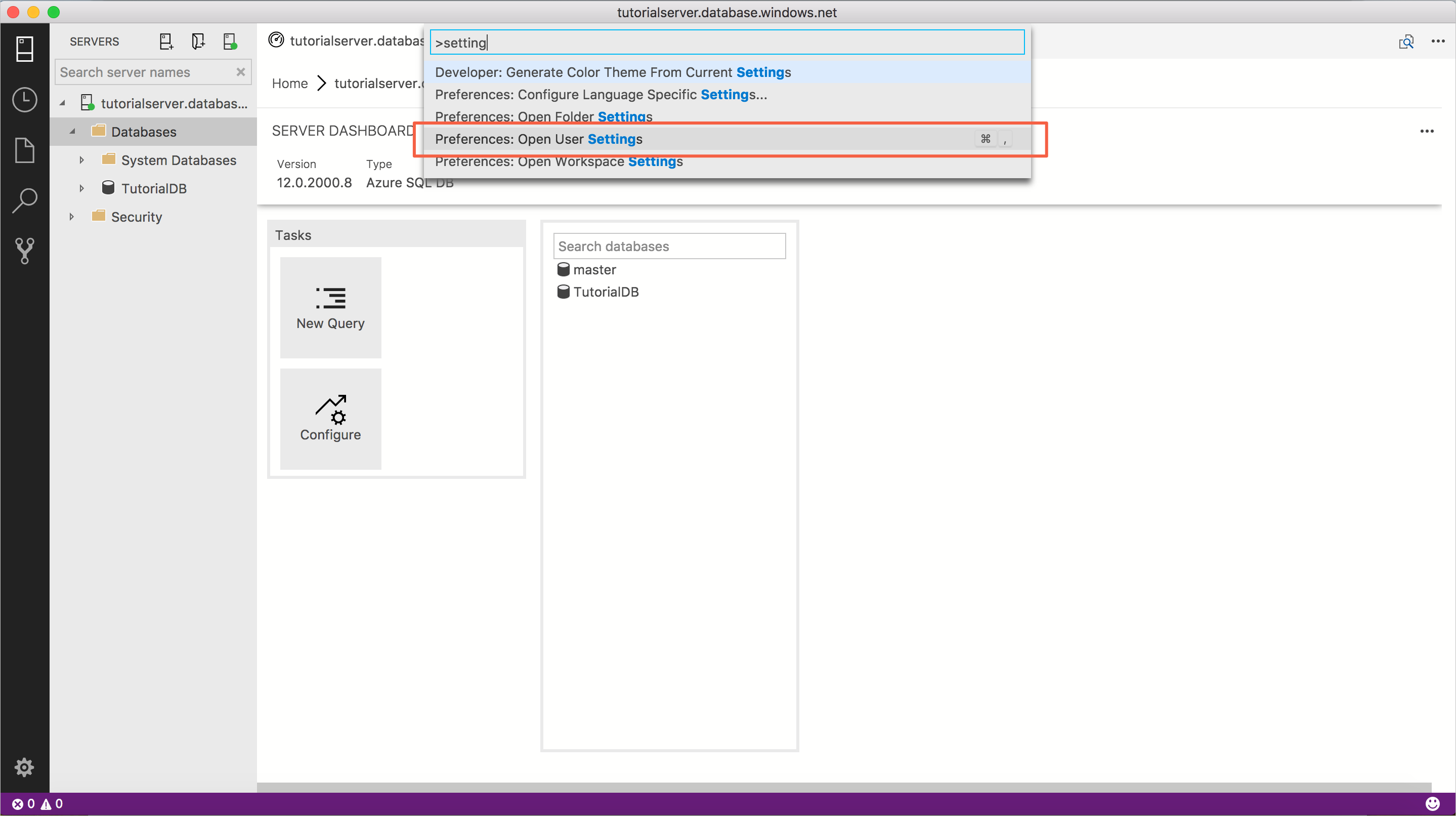
Open User Settings by pressing 'F1' to open Command Palette, type in 'settings' in the command search input box and select 'Preferences: Open User Settings' command.
-
Type 'dashboard' in Settings Search input box to search "dashboard.database.widgets" in Settings.

-
Click 'Copy to Settings' to copy "dashboard.database.widgets" settings to customize.
-
Using [!INCLUDEname-sos]'s insight settings IntelliSense, configure 'name' for the widget title, 'gridItemConfig' for the widget size, and 'widget' by selecting 'table-space-database-insight' from the drop-down list as shown in the screenshot below:

-
Press 'CTRL + S' to save the user's settings file.
-
Open Database dashboard by navigate to 'TutorialDB' in Servers viewlet, and click 'Manage' in the context menu.

-
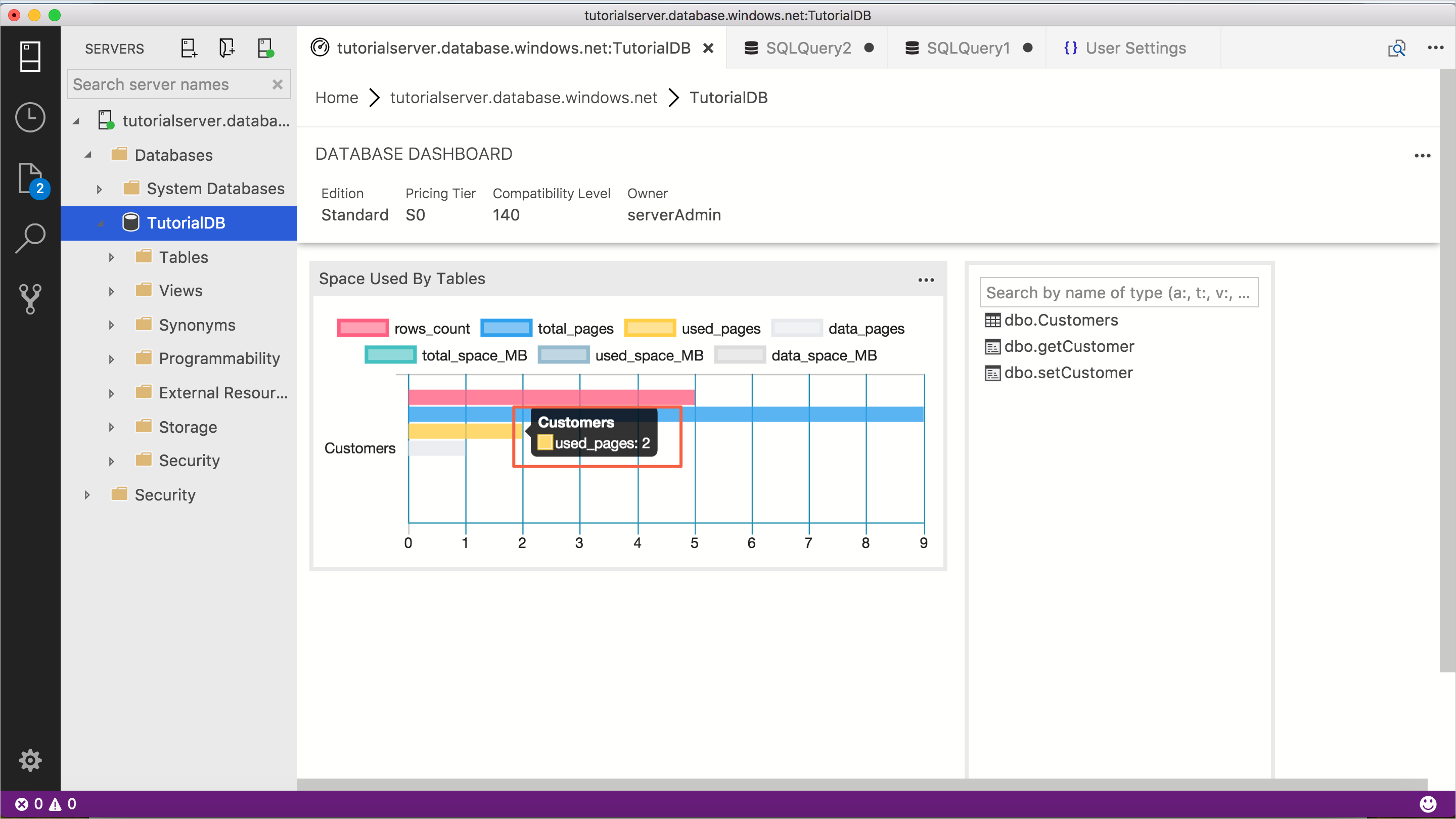
View 'Space used by tables' as shown in the screen shot below:


[!INCLUDEname-sos]'s insight chart provides filtering and mouse-hover detail view functionality. To try out follow the steps below:
-
Click and toggle 'row_count' legend on the chart. [!INCLUDEname-sos] shows and hides data series as user toggle on or off a legend.
-
Hover the mouse pointer over a chart. [!INCLUDEname-sos] shows more information about the data series label and its value as shown on the screenshot.

In this tutorial, you learned how to:
[!div class="checklist"]
- Quickly turn on an insight widget using a built-in insight widget sample.
- View the details of table space usage.
- Filter data and view label detail on an insight chart
To learn how to build a custom insight widget, see [Build a custom insight widget]](tutorial-build-custom-insight-sql-server.md).