| title | Export an Azure SQL Database to a BACPAC file (the Azure portal) |
|---|---|
| titleSuffix | Azure SQL Database & Azure SQL Managed Instance |
| description | Export a database to a BACPAC file using the Azure portal. |
| services | sql-database |
| ms.service | sql-db-mi |
| ms.subservice | data-movement |
| author | stevestein |
| ms.custom | sqldbrb=2 |
| ms.author | sstein |
| ms.reviewer | |
| ms.date | 07/16/2019 |
| ms.topic | conceptual |
[!INCLUDEappliesto-sqldb-sqlmi]
When you need to export a database for archiving or for moving to another platform, you can export the database schema and data to a BACPAC file. A BACPAC file is a ZIP file with an extension of BACPAC containing the metadata and data from the database. A BACPAC file can be stored in Azure Blob storage or in local storage in an on-premises location and later imported back into Azure SQL Database, Azure SQL Managed Instance, or a SQL Server instance.
-
For an export to be transactionally consistent, you must ensure either that no write activity is occurring during the export, or that you are exporting from a transactionally consistent copy of your database.
-
If you are exporting to blob storage, the maximum size of a BACPAC file is 200 GB. To archive a larger BACPAC file, export to local storage.
-
Exporting a BACPAC file to Azure premium storage using the methods discussed in this article is not supported.
-
Storage behind a firewall is currently not supported.
-
If the export operation exceeds 20 hours, it may be canceled. To increase performance during export, you can:
- Temporarily increase your compute size.
- Cease all read and write activity during the export.
- Use a clustered index with non-null values on all large tables. Without clustered indexes, an export may fail if it takes longer than 6-12 hours. This is because the export service needs to complete a table scan to try to export entire table. A good way to determine if your tables are optimized for export is to run DBCC SHOW_STATISTICS and make sure that the RANGE_HI_KEY is not null and its value has good distribution. For details, see DBCC SHOW_STATISTICS.
Note
BACPACs are not intended to be used for backup and restore operations. Azure automatically creates backups for every user database. For details, see business continuity overview and SQL Database backups.
Exporting a BACPAC of a database from Azure SQL Managed Instance using the Azure portal is not currently supported. Use SQL Server Management Studio or SQLPackage instead.
Note
Machines processing import/export requests submitted through the Azure portal or PowerShell need to store the BACPAC file as well as temporary files generated by the Data-Tier Application Framework (DacFX). The disk space required varies significantly among databases with the same size and can require disk space up to 3 times the size of the database. Machines running the import/export request only have 450GB local disk space. As a result, some requests may fail with the error There is not enough space on the disk. In this case, the workaround is to run sqlpackage.exe on a machine with enough local disk space. We encourage using SqlPackage to import/export databases larger than 150GB to avoid this issue.
-
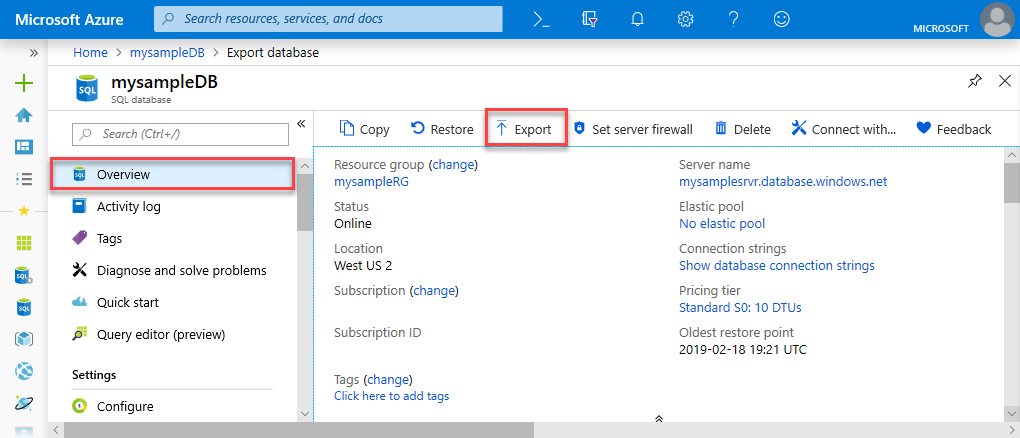
To export a database using the Azure portal, open the page for your database and click Export on the toolbar.
-
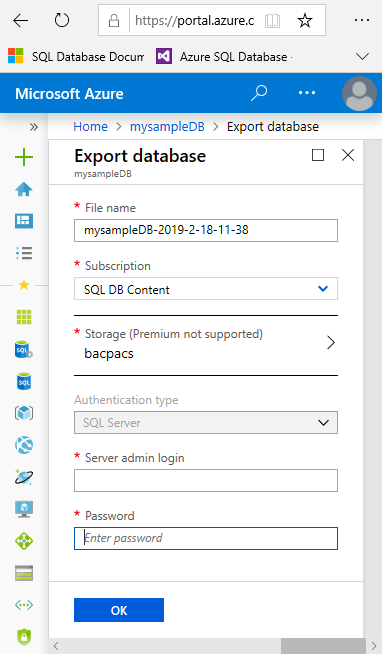
Specify the BACPAC filename, select an existing Azure storage account and container for the export, and then provide the appropriate credentials for access to the source database. A SQL Server admin login is needed here even if you are the Azure admin, as being an Azure admin does not equate to having admin permissions in Azure SQL Database or Azure SQL Managed Instance.
-
Click OK.
-
To monitor the progress of the export operation, open the page for the server containing the database being exported. Under to Settings and then click Import/Export history.


To export a database in SQL Database using the SqlPackage command-line utility, see Export parameters and properties. The SQLPackage utility ships with the latest versions of SQL Server Management Studio and SQL Server Data Tools for Visual Studio, or you can download the latest version of SqlPackage directly from the Microsoft download center.
We recommend the use of the SQLPackage utility for scale and performance in most production environments. For a SQL Server Customer Advisory Team blog about migrating using BACPAC files, see Migrating from SQL Server to Azure SQL Database using BACPAC Files.
This example shows how to export a database using SqlPackage.exe with Active Directory Universal Authentication:
SqlPackage.exe /a:Export /tf:testExport.bacpac /scs:"Data Source=apptestserver.database.windows.net;Initial Catalog=MyDB;" /ua:True /tid:"apptest.onmicrosoft.com"The newest versions of SQL Server Management Studio provide a wizard to export a database in Azure SQL Database or a SQL Managed Instance database to a BACPAC file. See the Export a Data-tier Application.
Note
Azure SQL Managed Instance does not currently support exporting a database to a BACPAC file using Azure PowerShell. To export a managed instance into a BACPAC file, use SQL Server Management Studio or SQLPackage.
Use the New-AzSqlDatabaseExport cmdlet to submit an export database request to the Azure SQL Database service. Depending on the size of your database, the export operation may take some time to complete.
$exportRequest = New-AzSqlDatabaseExport -ResourceGroupName $ResourceGroupName -ServerName $ServerName `
  -DatabaseName $DatabaseName -StorageKeytype $StorageKeytype -StorageKey $StorageKey -StorageUri $BacpacUri `
  -AdministratorLogin $creds.UserName -AdministratorLoginPassword $creds.Password
To check the status of the export request, use the Get-AzSqlDatabaseImportExportStatus cmdlet. Running this immediately after the request usually returns Status: InProgress. When you see Status: Succeeded the export is complete.
$exportStatus = Get-AzSqlDatabaseImportExportStatus -OperationStatusLink $exportRequest.OperationStatusLink
[Console]::Write("Exporting")
while ($exportStatus.Status -eq "InProgress")
{
    Start-Sleep -s 10
    $exportStatus = Get-AzSqlDatabaseImportExportStatus -OperationStatusLink $exportRequest.OperationStatusLink
    [Console]::Write(".")
}
[Console]::WriteLine("")
$exportStatus- To learn about long-term backup retention of a single database and pooled databases as an alternative to exporting a database for archive purposes, see Long-term backup retention. You can use SQL Agent jobs to schedule copy-only database backups as an alternative to long-term backup retention.
- For a SQL Server Customer Advisory Team blog about migrating using BACPAC files, see Migrating from SQL Server to Azure SQL Database using BACPAC Files.
- To learn about importing a BACPAC to a SQL Server database, see Import a BACPAC to a SQL Server database.
- To learn about exporting a BACPAC from a SQL Server database, see Export a Data-tier Application
- To learn about using the Data Migration Service to migrate a database, see Migrate from SQL Server to Azure SQL Database offline using DMS.
- If you are exporting from SQL Server as a prelude to migration to Azure SQL Database, see Migrate a SQL Server database to Azure SQL Database.
- To learn how to manage and share storage keys and shared access signatures securely, see Azure Storage Security Guide.