| title | Build an R model and save to SQL Server | Microsoft Docs | |
|---|---|---|
| ms.custom | ||
| ms.date | 07/14/2017 | |
| ms.prod | sql-server-2016 | |
| ms.reviewer | ||
| ms.suite | ||
| ms.technology |
|
|
| ms.tgt_pltfrm | ||
| ms.topic | article | |
| applies_to |
|
|
| dev_langs |
|
|
| ms.assetid | 69b374c1-2042-4861-8f8b-204a6297c0db | |
| caps.latest.revision | 21 | |
| author | jeannt | |
| ms.author | jeannt | |
| manager | jhubbard |
In this step, you'll learn how to build a machine learning model and save the model in [!INCLUDEssNoVersion].
The model you build is a binary classifier that predicts whether the taxi driver is likely to get a tip on a particular ride or not. You'll use the data source you created in the previous lesson to train the tip classifier, using logistic regression.
-
Call the rxLogit function, included in the RevoScaleR package, to create a logistic regression model.
system.time(logitObj <- rxLogit(tipped ~ passenger_count + trip_distance + trip_time_in_secs + direct_distance, data = sql_feature_ds));
The call that builds the model is enclosed in the system.time function. This lets you get the time required to build the model.
-
After you build the model, you can inspect it using the
summaryfunction, and view the coefficients.summary(logitObj);Results
Logistic Regression Results for: tipped ~ passenger_count + trip_distance + trip_time_in_secs +
direct_distance
Data: featureDataSource (RxSqlServerData Data Source)
Dependent variable(s): tipped
Total independent variables: 5
Number of valid observations: 17068
Number of missing observations: 0
-2*LogLikelihood: 23540.0602 (Residual deviance on 17063 degrees of freedom)
Coefficients:
Estimate Std. Error z value Pr(>|z|)
(Intercept) -2.509e-03 3.223e-02 -0.078 0.93793
passenger_count -5.753e-02 1.088e-02 -5.289 1.23e-07 ***
trip_distance -3.896e-02 1.466e-02 -2.658 0.00786 **
trip_time_in_secs 2.115e-04 4.336e-05 4.878 1.07e-06 ***
direct_distance 6.156e-02 2.076e-02 2.966 0.00302 **
---
Signif. codes: 0 ‘***’ 0.001 ‘**’ 0.01 ‘*’ 0.05 ‘.’ 0.1 ‘ ’ 1
Condition number of final variance-covariance matrix: 48.3933
Number of iterations: 4
Now that the model is built, you can use to predict whether the driver is likely to get a tip on a particular drive or not.
-
First, use the RxSqlServerData function to define a data source object for storing the scoring resul
scoredOutput <- RxSqlServerData(
  connectionString = connStr,
  table = "taxiScoreOutput"  )
-
To make this example simpler, the input to the logistic regression model is the same feature data source (
sql_feature_ds) that you used to train the model. More typically, you might have some new data to score with, or you might have set aside some data for testing vs. training. -
The prediction results will be saved in the table, taxiscoreOutput. Notice that the schema for this table is not defined when you create it using rxSqlServerData. The schema is obtained from the rxPredict output.
-
To create the table that stores the predicted values, the SQL login running the rxSqlServer data function must have DDL privileges in the database. If the login cannot create tables, the statement fails.
-
-
Call the rxPredict function to generate results.
rxPredict(modelObject = logitObj,
    data = sql_feature_ds,
    outData = scoredOutput,
    predVarNames = "Score",
    type = "response",
    writeModelVars = TRUE, overwrite = TRUE)
If the statement succeeds, it should take some time to run. When complete, you can open SQL Server Management Studio and verify that the table was created and that it contains the Score column and other expected output.
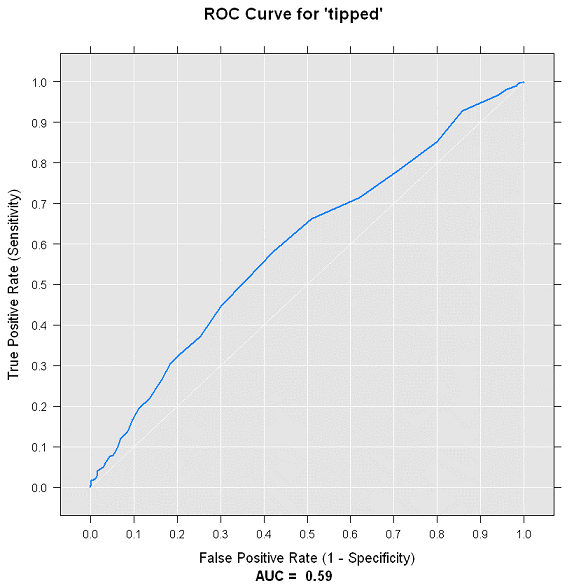
To get an idea of the accuracy of the model, you can use the rxRoc function to plot the Receiver Operating Curve. Because rxRoc is one of the new functions provided by the RevoScaleR package that supports remote compute contexts, you have two options:
-
You can use the rxRoc function to execute the plot in the remote compute context and then return the plot to your local client.
-
You can also import the data to your R client computer, and use other R plotting functions to create the performance graph.
In this section, you'll experiment with both techniques.
-
Call the function rxRoc and provide the data defined earlier as input.
scoredOutput = rxImport(scoredOutput);
rxRoc(actualVarName= "tipped", predVarNames = "Score", scoredOutput);
This call returns the values used in computing the ROC chart. The label column is tipped, which has the actual results you are trying to predict, while the Score column has the prediction.
-
To actually plot the chart, you can save the ROC object and then draw it with the
plotfunction. The graph is created on the remote compute context, and returned to your R environment.scoredOutput = rxImport(scoredOutput); rocObjectOut <- rxRoc(actualVarName= "tipped", predVarNames = "Score", scoredOutput); plot(rocObjectOut);
View the graph by opening the R graphics device, or by clicking the Plot window in RStudio.

-
For the local compute context, the process is much the same. You use the rxImport function to bring the specified data into your local R environment.
scoredOutput = rxImport(scoredOutput)
-
Using the data in local memory, you load the ROCR package, and use the prediction function from that package to create some new predictions.
library('ROCR');
pred <- prediction(scoredOutput$Score, scoredOutput$tipped);
-
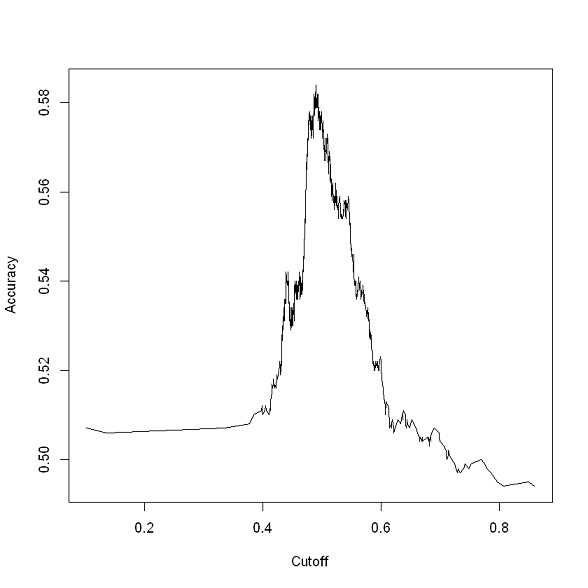
Generate a local plot, based on the values stored in the output variable
pred.acc.perf = performance(pred, measure = 'acc'); plot(acc.perf); ind = which.max( slot(acc.perf, 'y.values')[[1]] ); acc = slot(acc.perf, 'y.values')[[1]][ind]; cutoff = slot(acc.perf, 'x.values')[[1]][ind];

Note
Your charts might look different from these, depending on how many data points you used.
After you have built a model and ascertained that it is performing well, you probably want to deploy it to a site where users or people in your organization can make use of the model, or perhaps retrain and recalibrate the model on a regular basis. This process is sometimes called operationalizing a model.
Because [!INCLUDErsql_productname] lets you invoke an R model using a [!INCLUDEtsql] stored procedure, it is easy to use R in a client application.
However, before you can call the model from an external application, you must save the model to the database used for production. In [!INCLUDErsql_productname], trained models are stored in binary form, in a single column of type varbinary(max).
Therefore, moving a trained model from R to SQL Server includes these steps:
-
Serializing the model into a hexadecimal string
-
Transmitting the serialized object to the database
-
Saving the model in a varbinary(max) column
In this section, you learn how to persist the model, and how to call it to make predictions.
-
Switch back to your local R environment if you are not already using it, serialize the model, and save it in a variable.
rxSetComputeContext("local");
modelbin <- serialize(logitObj, NULL);
modelbinstr=paste(modelbin, collapse="");
-
Open an ODBC connection using RODBC.
library(RODBC);
conn <- odbcDriverConnect(connStr);
You can omit the call to RODBC if you already have the package loaded.
-
Call the stored procedure created by the PowerShell script, to store the binary representation of the model in a column in the database.
q <- paste("EXEC PersistModel @m='", modelbinstr,"'", sep="");
sqlQuery (conn, q);
Saving a model to a table requires only an INSERT statement. However, it's easier when wrapped in a stored procedure, such as PersistModel.
[!NOTE] If you get an error such as "The EXECUTE permission was denied on the object PersistModel", make sure that your login has permission. You can grant explicit permissions on just the stored procedure by running a T-SQL statement like this:
GRANT EXECUTE ON [dbo].[PersistModel] TO <user_name> -
After you have created a model and saved it in a database, you can call it directly from [!INCLUDEtsql] code, using the system stored procedure, sp_execute_external_script.
However, with any model you use often, it's easier to wrap the input query and the call to the model, together with other parameters, in a custom stored procedure.
Here is the complete code of one such stored procedure. We recommend creating stored procedure such as this one to make it easier to manage and update your R models in [!INCLUDEssNoVersion].
CREATE PROCEDURE [dbo].[PersistModel]  @m nvarchar(max)
AS
BEGIN
  SET NOCOUNT ON;
  INSERT INTO nyc_taxi_models (model) values (convert(varbinary(max),@m,2))
END
Note
Use the SET NOCOUNT ON clause to prevent extra result sets from interfering with SELECT statements.
In the next and final lesson, you learn how to perform scoring against the saved model using [!INCLUDEtsql].