| title | Backup and restore a database |
|---|---|
| titleSuffix | Azure Data Studio |
| description | Learn how to backup and restore a database using Azure Data Studio |
| ms.prod | sql |
| ms.technology | azure-data-studio |
| ms.topic | tutorial |
| author | markingmyname |
| ms.author | maghan |
| ms.reviewer | alayu; sstein |
| ms.custom | seodec18 |
| ms.date | 11/04/2019 |
Backup and Restore databases using [!INCLUDEname-sos]
In this tutorial, you learn how to use [!INCLUDEname-sos] to:
[!div class="checklist"]
- Backup a database
- View the backup status
- Generate the script used to perform the backup
- Restore a database
- View the status of the restore task
This tutorial requires the SQL Server TutorialDB. To create the TutorialDB database, complete one of the following quickstarts:
- [Connect and query SQL Server using [!INCLUDEname-sos-short]](quickstart-sql-server.md)
This tutorial requires connecting to a SQL Server database. Azure SQL Database has automated backups, so Azure Data Studio doesn't perform Azure SQL Database backup and restore. For details, see Learn about automatic SQL Database backups.
-
Open the TutorialDB database dashboard (open the SERVERS sidebar (CTRL+G), expand Databases, right-click TutorialDB, and select Manage).
-
Open the Backup database dialog (click Backup on the Tasks widget).

-
This tutorial uses the default backup options, so click Backup.


After clicking Backup, the Backup database dialog disappears and the backup process begins.
-
The Task History pane appears or press CTRL+T.

-
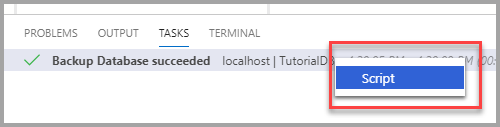
To view the backup script in the editor, right-click Backup Database succeeded and select Script.


-
Open the SERVERS sidebar (CTRL+G), right-click your server, and select Manage.
-
Open the Restore database dialog (click Restore on the Tasks widget).

-
Select Backup file in the Restore from field.
-
Click the ellipses (...) in the Backup file path field, and select the latest backup file for TutorialDB.
-
Type TutorialDB_Restored in the Target database field in the Destination section to restore the backup file to a new database. Then select Restore.

-
To view the status of the restore operation, press CTRL+T to open the Task History.


