| title | Quickstart for verifying R exists in SQL Server |
|---|---|
| description | Quickstart for verifying that R and Machine Learning Services exist in SQL Server. |
| ms.prod | sql |
| ms.technology | machine-learning |
| ms.date | 01/04/2019 |
| ms.topic | quickstart |
| author | dphansen |
| ms.author | davidph |
| manager | cgronlun |
[!INCLUDEappliesto-ss-xxxx-xxxx-xxx-md-winonly]
SQL Server includes R language support for data science analytics on resident SQL Server data. Your R script can consist of open-source R functions, third-party R libraries, or built-in Microsoft R libraries such as RevoScaleR for predictive analytics at scale.
Script execution is through stored procedures, using either of the following approaches:
- Built-in sp_execute_external_script stored procedure, passing R script in as an input parameter.
- Wrap R script in a custom stored procedure that you create.
In this quickstart, you will verify that SQL Server 2017 Machine Learning Services or SQL Server 2016 R Services is installed and configured.
This exercise requires access to an instance of SQL Server with one of the following already installed:
- SQL Server 2017 Machine Learning Services, with the R language installed
- SQL Server 2016 R Services
Your SQL Server instance can be in an Azure virtual machine or on-premises. Just be aware that the external scripting feature is disabled by default, so you might need to enable external scripting and verify that SQL Server Launchpad service is running before you start.
You also need a tool for running SQL queries. You can run the R scripts using any database management or query tool, as long as it can connect to a SQL Server instance, and run a T-SQL query or stored procedure. This quickstart uses SQL Server Management Studio (SSMS).
You can confirm that Machine Learning Services (with R) is enabled for your SQL Server instance and which version of R is installed. Follow the steps below.
-
Open SQL Server Management Studio and connect to your SQL Server instance.
-
Run the code below.
EXECUTE sp_execute_external_script
@language =N'R',
@script=N'print(version)';
GO
-
The R
printfunction returns the version to the Messages window. In the example output below, you can see that SQL Server in this case have R version 3.3.3 installed.Results
platform       x86_64-w64-mingw32
arch           x86_64
os             mingw32
system         x86_64, mingw32
status
major          3
minor          3.3
year           2017
month          03
day            06
svn rev        72310
language       R
version.string R version 3.3.3 (2017-03-06)
nickname       Another Canoe
If you get any errors from this query, rule out any installation issues. Post-install configuration is required to enable use of external code libraries. See Install SQL Server 2017 Machine Learning Services or Install SQL Server 2016 R Services. Likewise, make sure that the Launchpad service is running.
Depending on your environment, you might need to enable the R worker accounts to connect to SQL Server, install additional network libraries, enable remote code execution, or restart the instance after everything is configured. For more information, see R Services Installation and Upgrade FAQ.
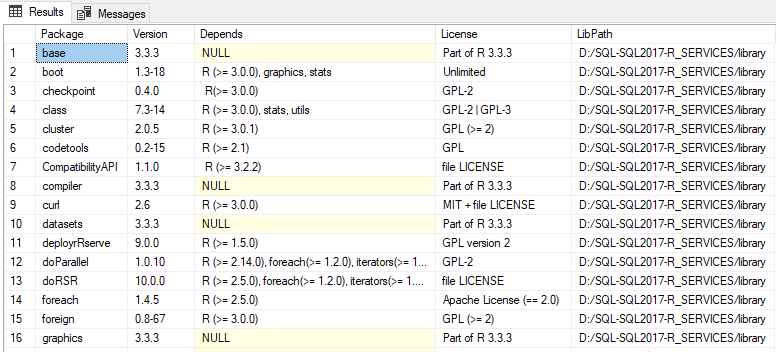
Microsoft provides a number of R packages pre-installed with Machine Learning Services in your SQL Server instance. To see a list of which R packages are installed, including version, dependencies, license, and library path information, follow the steps below.
-
Run the script below on your SQL Server instance.
EXECUTE sp_execute_external_script @language = N'R'
, @script = N'
OutputDataSet <- data.frame(installed.packages()[,c("Package", "Version", "Depends", "License", "LibPath")]);'
WITH result sets((Package NVARCHAR(255), Version NVARCHAR(100), Depends NVARCHAR(4000)
    , License NVARCHAR(1000), LibPath NVARCHAR(2000)));
-
The output is from
installed.packages()in R and returned as a result set.Results

Now that you have confirmed your instance is ready to work with R, take a closer look at a basic R interaction.
[!div class="nextstepaction"] Quickstart: "Hello world" R script in SQL Server