| title | Backup and restore a database |
|---|---|
| titleSuffix | Azure Data Studio |
| description | Learn how to backup and restore a database using Azure Data Studio |
| ms.prod | sql |
| ms.technology | azure-data-studio |
| ms.topic | tutorial |
| author | markingmyname |
| ms.author | maghan |
| ms.reviewer | alayu; sstein |
| ms.custom | seodec18 |
| ms.date | 09/24/2018 |
Backup and Restore databases using [!INCLUDEname-sos]
In this tutorial, you learn how to use [!INCLUDEname-sos] to:
[!div class="checklist"]
- Backup a database
- View the backup status
- Generate the script used to perform the backup
- Restore a database
- View the status of the restore task
This tutorial requires the SQL Server TutorialDB. To create the TutorialDB database, complete one of the following quickstarts:
- [Connect and query SQL Server using [!INCLUDEname-sos-short]](quickstart-sql-server.md)
This tutorial requires connecting to a SQL Server database. Azure SQL Database has automated backups, so Azure Data Studio does not perform Azure SQL Database backup and restore. For details, see Learn about automatic SQL Database backups.
-
Open the TutorialDB database dashboard (open the SERVERS sidebar (CTRL+G), expand Databases, right-click TutorialDB, and select Manage).
-
Open the Backup database dialog (click Backup on the Tasks widget).

-
This tutorial uses the default backup options, so click Backup.


After clicking Backup, the Backup database dialog disappears and the backup process begins.
-
Open the Task History sidebar by clicking the clock icon on the Action bar or press CTRL+T.

-
To view the backup script in the editor, right-click Backup Database succeeded and select Script.
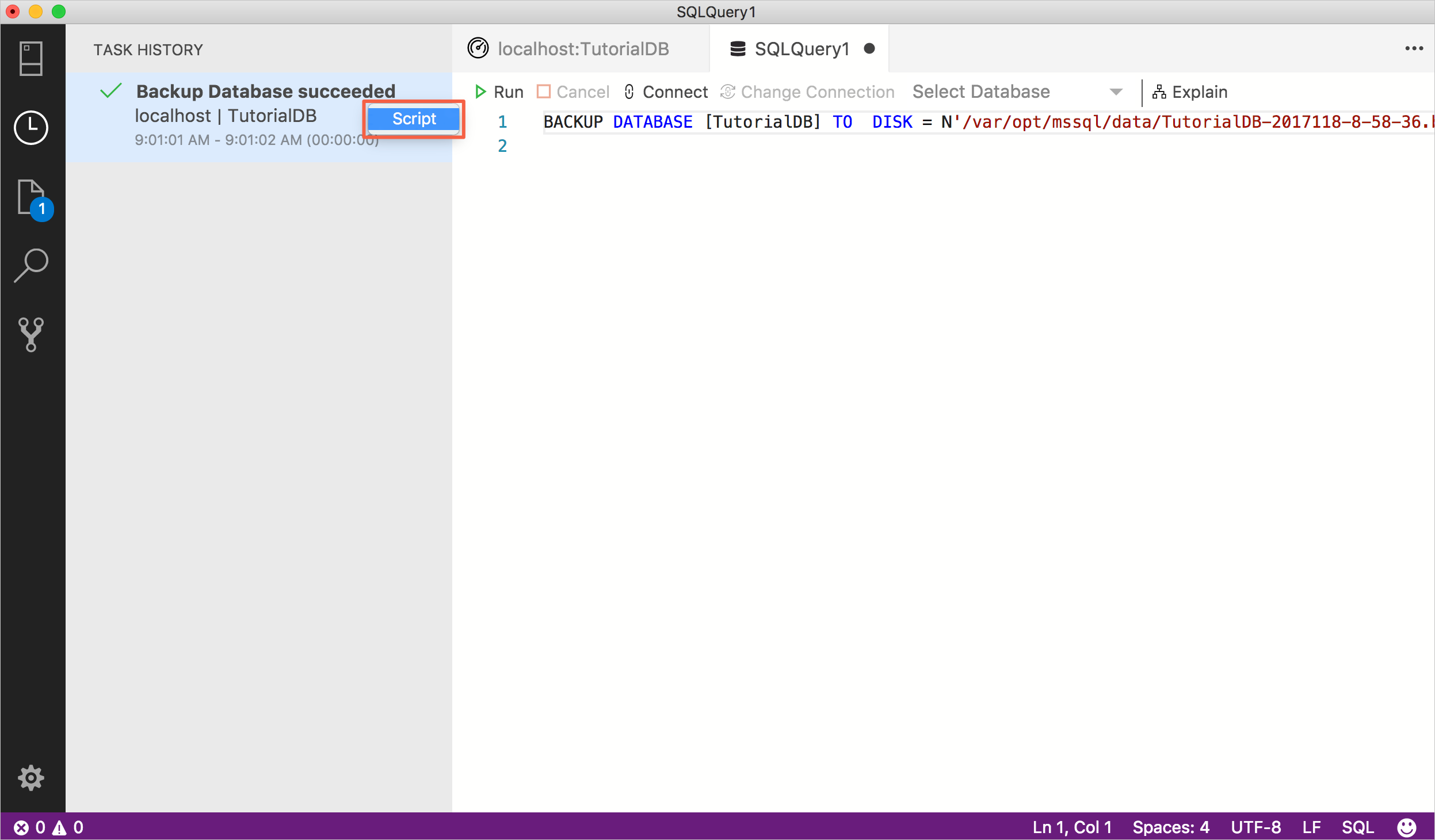


-
Open the SERVERS sidebar (CTRL+G), right-click your server, and select Manage.
-
Open the Restore database dialog (click Restore on the Tasks widget).
-
Select Backup file in the Restore from field.
-
Click the ellipses (...) in the Backup file path field, and select the latest backup file for TutorialDB.
-
Type TutorialDB_Restored in the Target database field in the Destination section to restore the backup file to a new database.

-
Click Restore
-
To view the status of the restore operation, press CTRL+T to open the Task History sidebar.


In this tutorial, you learned how to:
[!div class="checklist"]
- Backup a database
- View the backup status
- Generate the script used to perform the backup
- Restore a database
- View the status of the restore task