| title | Create Graphs and Plots Using R (Data Science End-to-End Walkthrough) | Microsoft Docs | |
|---|---|---|
| ms.custom |
|
|
| ms.date | 11/23/2016 | |
| ms.prod | sql-server-2016 | |
| ms.reviewer | ||
| ms.suite | ||
| ms.technology |
|
|
| ms.tgt_pltfrm | ||
| ms.topic | article | |
| applies_to |
|
|
| dev_langs |
|
|
| ms.assetid | 5f70f0a6-fd4a-410f-9f44-1605503f77ec | |
| caps.latest.revision | 16 | |
| author | jeannt | |
| ms.author | jeannt | |
| manager | jhubbard |
In this lesson, you'll learn techniques for generating plots and maps using R with [!INCLUDEssNoVersion] data. You'll create a simple histogram, to get some practice, and then develop a more complex map plot.
-
Generate the first plot, using the rxHistogram function. The rxHistogram function provides functionality similar to that in open source R packages, but can run in a remote execution context.
#Plot fare amount on SQL Server and return the plot
start.time <- proc.time()
rxHistogram(~fare_amount, data = inDataSource, title = "Fare Amount Histogram")
used.time \<- proc.time() - start.time
print(paste("It takes CPU Time=", round(used.time[1]+used.time[2],2), " seconds, Elapsed Time=", round(used.time[3],2), " seconds to generate features.", sep=""))
-
The image is returned in the R graphics device for your development environment. For example, in RStudio, click the Plot window. In [!INCLUDErsql_rtvs], a separate graphics window is opened.
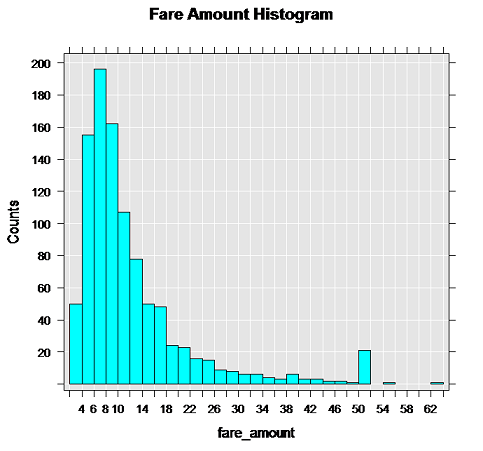
[!NOTE] Because the ordering of rows using TOP is non-deterministic in the absence of an ORDER BY clause, you might see very different results. We recommend that you experiment with different numbers of rows to get different graphs, and note how long it takes to return the results in your environment. This particular image was generated using about 10,000 rows of data.

Typically, database servers block Internet access, so you might not be able to download the map representation and generate the plot you want. However, you can generate the map representation on the client, and then overlay on the map the points that are stored as attributes in the nyctaxi_sample table.
In other words, you'll create the map representation by calling into Google maps, and then pass the map representation to the SQL context.
This is a pattern that you might find useful when developing your own applications.
-
Define the function that creates the plot object.
mapPlot <- function(inDataSource, googMap){
    library(ggmap)
    library(mapproj)
    ds <- rxImport(inDataSource)
    p <- ggmap(googMap)+
    geom_point(aes(x = pickup_longitude, y =pickup_latitude ), data=ds, alpha =.5,
color="darkred", size = 1.5)
    return(list(myplot=p))
}
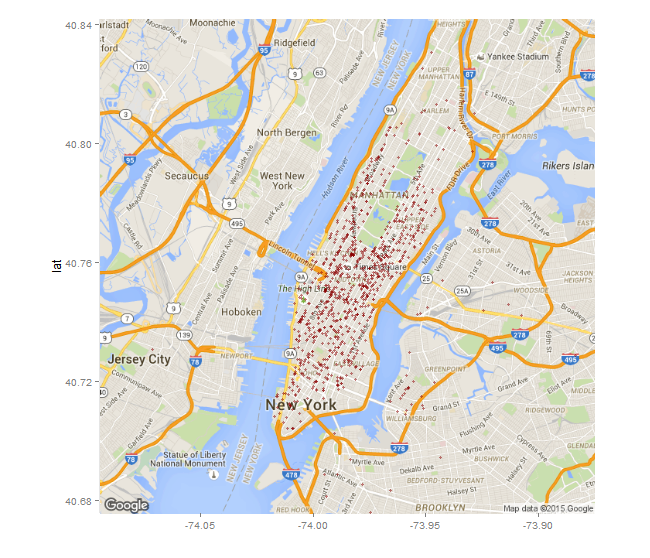
- The custom R function mapPlot creates a scatter plot that uses the taxi pickup locations to plot the number of rides that started from each location. It uses the ggplot2 and ggmap packages, which should already be installed and loaded.
- The mapPlot function takes two arguments: an existing data object, which you defined earlier using RxSqlServerData, and the map representation passed from the client.
- Note the use of the ds variable to load data from the previously created data source, inDataSource. Whenever you use open source R functions, data must be loaded into data frames in memory. You can do this by using the rxImport function in the RevoScaleR package. However, this function runs in memory in the [!INCLUDEssNoVersion] context defined earlier. That is, the function is not using the memory of your local workstation.
-
Load the libraries required for creating the maps in your local R environment.
library(ggmap)
library(mapproj)
gc <- geocode("Times Square", source = "google")
googMap <- get_googlemap(center = as.numeric(gc), zoom = 12, maptype = 'roadmap', color = 'color';
- This code is run on the R client. Note the repeated call to the libraries ggmap and mapproj. The previous function definition ran in the server context and the libraries were never loaded locally. Now you are bringing the plotting operation back to your workstation.
-
The gc variable stores a set of coordinates for Times Square, NY.
-
The line beginning with googmap generates a map with the specified coordinates at the center.
-
Execute the plotting function and render the results in your local R environment, by wrapping the plot function in rxExec as shown here.
myplots <- rxExec(mapPlot, inDataSource, googMap, timesToRun = 1)
plot(myplots[[1]][["myplot"]]);
-
The rxExec function is part of the RevoScaleR package, and supports execution of arbitrary R functions in a remote compute context.
-
In the first line, the map data is passed as an argument (googMap) to the remotely executed function mapPlot. That is because the maps were generated in your local environment, and must be passed to the function in order to create the plot in the context of [!INCLUDEssNoVersion].
-
The rendered data is then serialized back to the local R environment so that you can view it, using the Plot window in RStudio or other R graphics device.
-
-
The following image shows the output plot. The taxi pickup locations are added to the map as red dots.

Lesson 3: Create Data Features (Data Science End-to-End Walkthrough)