| title | Tutorial: Enable the table space usage sample insight widget in SQL Operations Studio (preview) | Microsoft Docs |
|---|---|
| description | This tutorial demonstrates how to enable the table space usage sample insight widget on the SQL Operations Studio (preview) database dashboard. |
| ms.custom | tools|sos |
| ms.date | 03/19/2018 |
| ms.prod | sql |
| ms.reviewer | alayu; sstein |
| ms.suite | sql |
| ms.prod_service | sql-tools |
| ms.component | sos |
| ms.tgt_pltfrm | |
| ms.topic | tutorial |
| author | stevestein |
| ms.author | sstein |
| manager | craigg |
Tutorial: Enable the table space usage sample insight widget using [!INCLUDEname-sos]
This tutorial demonstrates how to enable an insight widget on the database dashboard, providing an at-a-glance view about the space usage for all tables in a database. During this tutorial, you learn how to:
[!div class="checklist"]
- Quickly turn on an insight widget using a built-in insight widget example
- View the details of table space usage
- Filter data and view label detail on an insight chart
This tutorial requires the SQL Server or Azure SQL Database TutorialDB. To create the TutorialDB database, complete one of the following quickstarts:
- [Connect and query SQL Server using [!INCLUDEname-sos-short]](quickstart-sql-server.md)
- [Connect and query Azure SQL Database using [!INCLUDEname-sos-short]](quickstart-sql-database.md)
Turn on a management insight on [!INCLUDEname-sos]'s database dashboard
[!INCLUDEname-sos] has a built-in sample widget to monitor the space used by tables in a database.
-
Open User Settings by pressing Ctrl+Shift+P to open the Command Palette.
-
Type settings in the search box and select Preferences: Open User Settings.
-
Type dashboard in Settings Search input box and locate dashboard.database.widgets.
-
To customize the dashboard.database.widgets settings you need to edit the dashboard.database.widgets entry in the USER SETTINGS section (the column in the right side). If there is no dashboard.database.widgets in the USER SETTINGS section, hover over the dashboard.database.widgets text in the DEFAULT SETTINGS column and click the pencil icon that appears to the left of the text and click Copy to Settings. If the pop-up says Replace in Settings, don't click it! Go to the USER SETTINGS column to the right and locate the dashboard.database.widgets section and advance to the next step.
-
In the dashboard.database.widgets section, add the following:
     {
         "name": "Space Used by Tables",
         "gridItemConfig": {
             "sizex": 2,
             "sizey": 1
         },
         "widget": {
             "table-space-db-insight": null
         }
     },
The dashboard.database.widgets section should look similar to the follwing image:

-
Press Ctrl+S to save the settings.
-
Open database dashboard by right-clicking TutorialDB and click Manage.
-
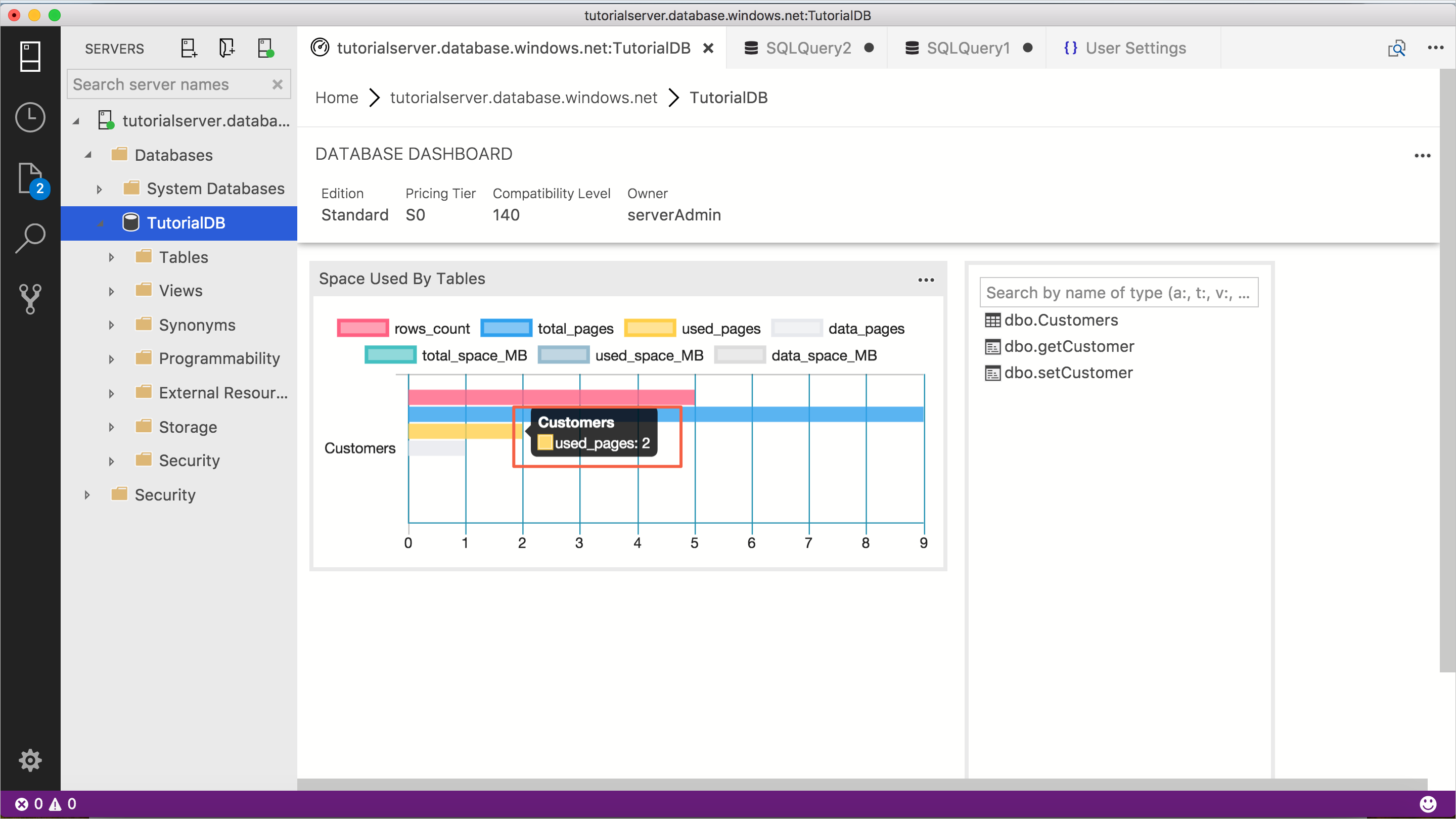
View the table space insight widget as shown in the following image:


[!INCLUDEname-sos]'s insight chart provides filtering and mouse-hover details. To try out the following steps:
-
Click and toggle the row_count legend on the chart. [!INCLUDEname-sos] shows and hides data series as you toggle a legend on or off.
-
Hover the mouse pointer over the chart. [!INCLUDEname-sos] shows more information about the data series label and its value as shown in the following screenshot.

In this tutorial, you learned how to:
[!div class="checklist"]
- Quickly turn on an insight widget using a built-in insight widget sample.
- View the details of table space usage.
- Filter data and view label detail on an insight chart
To learn how to build a custom insight widget, complete the next tutorial:
[!div class="nextstepaction"] Build a custom insight widget.