| title | Run a sample notebook using Spark |
|---|---|
| titleSuffix | SQL Server Big Data Clusters |
| description | This tutorial shows how you can load an run a sample Spark notebook on a SQL Server 2019 big data cluster. |
| author | WilliamDAssafMSFT |
| ms.author | wiassaf |
| ms.reviewer | hudequei |
| ms.date | 03/30/2020 |
| ms.prod | sql |
| ms.technology | big-data-cluster |
| ms.topic | tutorial |
[!INCLUDESQL Server 2019]
[!INCLUDEbig-data-clusters-banner-retirement]
This tutorial demonstrates how to load and run a notebook in Azure Data Studio on a SQL Server 2019 big data cluster. This allows data scientists and data engineers to run Python, R, or Scala code against the cluster.
Tip
If you prefer, you can download and run a script for the commands in this tutorial. For instructions, see the Spark samples on GitHub.
- Big data tools
- kubectl
- Azure Data Studio
- SQL Server 2019 extension
- Load sample data into your big data cluster
Use the following instructions to load the sample notebook file spark-sql.ipynb into Azure Data Studio.
-
Open a bash command prompt (Linux) or Windows PowerShell.
-
Navigate to a directory where you want to download the sample notebook file to.
-
Run the following curl command to download the notebook file from GitHub:
curl https://raw.githubusercontent.com/Microsoft/sql-server-samples/master/samples/features/sql-big-data-cluster/spark/data-loading/transform-csv-files.ipynb -o transform-csv-files.ipynb
The following steps show how to open the notebook file in Azure Data Studio:
-
In Azure Data Studio, connect to the master instance of your big data cluster. For more information, see Connect to a big data cluster.
-
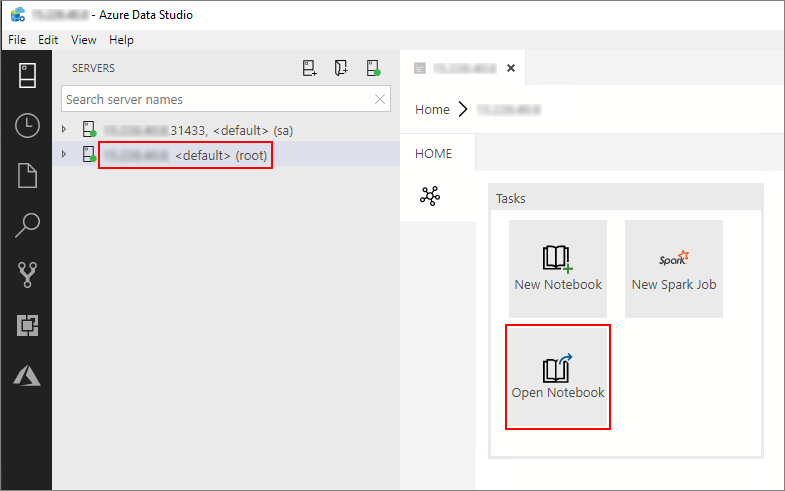
Double-click on the HDFS/Spark gateway connection in the Servers window. Then select Open Notebook.
-
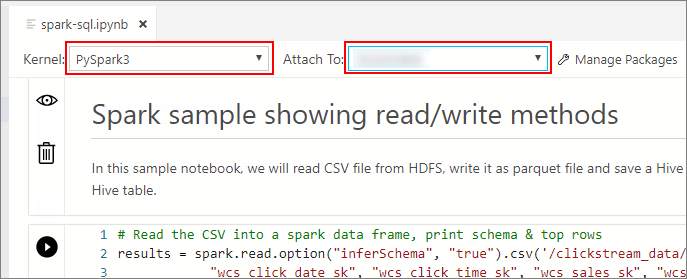
Wait for the Kernel and the target context (Attach to) to be populated. Set the Kernel to PySpark3, and set Attach to to the IP address of your big data cluster endpoint.


Important
In Azure Data Studio, all Spark notebook types (Scala Spark, PySpark and SparkR) conventionally define some important Spark session related variables upon first cell execution. Those variables are: spark, sc, and sqlContext. When copying logic out of notebooks for batch submission (into a Python file to be run with azdata bdc spark batch create for example), make sure you define the variables accordingly.
You can run each notebook cell by pressing the play button to the left of the cell. The results are shown in the notebook after the cell finishes running.

Run each of the cells in the sample notebook in succession. For more information about using notebooks with [!INCLUDEbig-data-clusters-2019], see the following resources:
Learn more about notebooks:
[!div class="nextstepaction"] How to use notebooks