| title | Step 3: Explore and Visualize the Data | Microsoft Docs | ||
|---|---|---|---|
| ms.custom | |||
| ms.date | 05/25/2017 | ||
| ms.prod | sql-server-2017 | ||
| ms.reviewer | |||
| ms.suite | |||
| ms.technology |
|
||
| ms.tgt_pltfrm | |||
| ms.topic | article | ||
| applies_to |
|
||
| dev_langs |
|
||
| ms.assetid | |||
| caps.latest.revision | 2 | ||
| author | jeannt | ||
| ms.author | jeannt | ||
| manager | jhubbard |
Developing a data science solution usually includes intensive data exploration and data visualization. In this step, you'll explore the sample data and generate some plots. Later, you'll learn how to serialize graphics objects in Python, and then deserialize those object and make plots.
Note
This walkthrough demonstrates only the binary classification task; you are welcome to try building separate models for the other two machine learning tasks, regression and multiclass classification.
In the original dataset, the taxi identifiers and trip records were provided in separate files. However, to make the sample data easier to use, the two original datasets have been joined on the columns medallion, hack_license, and pickup_datetime. The records were also sampled to get just 1% of the original number of records. The resulting down-sampled dataset has 1,703,957 rows and 23 columns.
Taxi identifiers
- The medallion column represents the taxi’s unique id number.
- The hack_license column contains the taxi driver's license number (anonymized) .
Trip and fare records
-
Each trip record includes the pickup and drop-off location and time, and the trip distance.
-
Each fare record includes payment information such as the payment type, total amount of payment, and the tip amount.
-
The last three columns can be used for various machine learning tasks. The tip_amount column contains continuous numeric values and can be used as the label column for regression analysis. The tipped column has only yes/no values and is used for binary classification. The tip_class column has multiple class labels and therefore can be used as the label for multi-class classification tasks.
-
The values used for the label columns are all based on the tip_amount column, using these business rules:
Derived column name Rule tipped If tip_amount > 0, tipped = 1, otherwise tipped = 0 tip_class Class 0: tip_amount = $0
Class 1: tip_amount > $0 and tip_amount <= $5
Class 2: tip_amount > $5 and tip_amount <= $10
Class 3: tip_amount > $10 and tip_amount <= $20
Class 4: tip_amount > $20
Because visualization is such a powerful tool for understanding the distribution of the data and outliers, Python provides many packages for visualizing data. The matplotlib module is a popular library that includes many functions for creating histograms, scatter plots, box plots, and other data exploration graphs.
In this section, you'll learn how to work with plots using stored procedures. You'll store the plot Python object as a varbinary data type, and save the plots generated on the server.
The revoscalepy module included with SQL Server 2017 Machine Learning Services contains libraries analogous to the R libraries in the RevoScaleR package. In this example, you'll use the Python equivalent of rxHistogram to plot a histogram based on data from a [!INCLUDEtsql] query. To make it easier, you will wrap it in a stored procedure, PlotHistogram.
The stored procedure returns a serialized Python figure object as a stream of varbinary data. You cannot view the binary data directly, but you can use Python code on the client to deserialize and view the figures, and then save the image file on a client computer.
-
In [!INCLUDEssManStudioFull], open a new Query window.
-
Select the database for the walkthrough, and create the procedure using this statement. Be sure to modify the code to use the correct table name, if needed.
CREATE PROCEDURE [dbo].[SerializePlots]
AS
BEGIN
  SET NOCOUNT ON;
  DECLARE @query nvarchar(max) =
  N'SELECT cast(tipped as int) as tipped, tip_amount, fare_amount FROM [dbo].[nyctaxi_sample]'
  EXECUTE sp_execute_external_script
  @language = N'Python',
  @script = N'
import matplotlib
matplotlib.use("Agg")
import matplotlib.pyplot as plt
import pandas as pd
import pickle

fig_handle = plt.figure()
plt.hist(InputDataSet.tipped)
plt.xlabel("Tipped")
plt.ylabel("Counts")
plt.title("Histogram, Tipped")
plot0 = pd.DataFrame(data =[pickle.dumps(fig_handle)], columns =["plot"])
plt.clf()

plt.hist(InputDataSet.tip_amount)
plt.xlabel("Tip amount ($)")
plt.ylabel("Counts")
plt.title("Histogram, Tip amount")
plot1 = pd.DataFrame(data =[pickle.dumps(fig_handle)], columns =["plot"])
plt.clf()

plt.hist(InputDataSet.fare_amount)
plt.xlabel("Fare amount ($)")
plt.ylabel("Counts")
plt.title("Histogram, Fare amount")
plot2 = pd.DataFrame(data =[pickle.dumps(fig_handle)], columns =["plot"])
plt.clf()

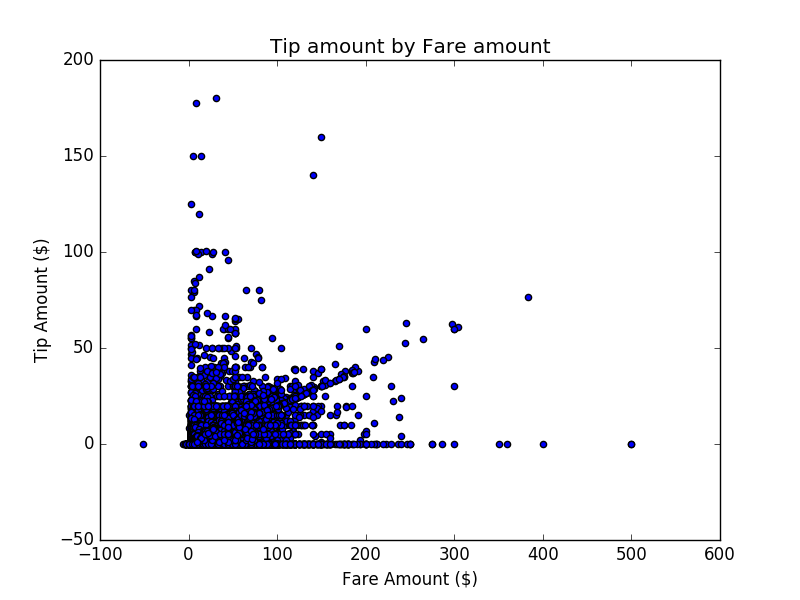
plt.scatter( InputDataSet.fare_amount, InputDataSet.tip_amount)
plt.xlabel("Fare Amount ($)")
plt.ylabel("Tip Amount ($)")
plt.title("Tip amount by Fare amount")
plot3 = pd.DataFrame(data =[pickle.dumps(fig_handle)], columns =["plot"])
plt.clf()

OutputDataSet = plot0.append(plot1, ignore_index=True).append(plot2, ignore_index=True).append(plot3, ignore_index=True)
',
                                 @input_data_1 = @query
  WITH RESULT SETS ((plot varbinary(max)))
END

GO
Notes:
- The variable
@querydefines the query text ('SELECT tipped FROM nyctaxi_sample'), which is passed to the Python code block as the argument to the script input variable,@input_data_1. - The Python script is fairly simple: matplotlib
figureobjects are used to make the histogram and scatter plot, and these objects are then serialized using thepicklelibrary. - The Python graphics object is serialized to an Python pandas DataFrame for output.
-
In [!INCLUDEssManStudio], run the following statement:
EXEC [dbo].[SerializePlots]Results
plot 0xFFD8FFE000104A4649... 0xFFD8FFE000104A4649... 0xFFD8FFE000104A4649... 0xFFD8FFE000104A4649...
-
On the client machine, run the following Python code, replacing the server name, database name, and credentials as appropriate.
For SQL server authentication:
```python
import pyodbc
import pickle
import os
cnxn = pyodbc.connect('DRIVER={SQL Server};SERVER={SERVER_NAME};DATABASE={DB_NAME};UID={USER_NAME};PWD={PASSOWRD}')
cursor = cnxn.cursor()
cursor.execute("EXECUTE [dbo].[SerializePlots]")
tables = cursor.fetchall()
for i in range(0, len(tables)):
    fig = pickle.loads(tables[i][0])
    fig.savefig(str(i)+'.png')
print("The plots are saved in directory: ",os.getcwd())
```
For Windows authentication:
```python
import pyodbc
import pickle
import os
cnxn = pyodbc.connect('DRIVER={SQL Server};SERVER={SERVER_NAME};DATABASE={DB_NAME};Trusted_Connection=yes;')
cursor = cnxn.cursor()
cursor.execute("EXECUTE [dbo].[SerializePlots]")
tables = cursor.fetchall()
for i in range(0, len(tables)):
    fig = pickle.loads(tables[i][0])
    fig.savefig(str(i)+'.png')
print("The plots are saved in directory: ",os.getcwd())
```
[!NOTE] Make sure the Python version is the same on the client and the server. Also, make sure that the Python libraries you’re using on your client (such as matplotlib) are of the same or higher version relative to the libraries installed on the server.
-
If the connection is successful, you will see the results below
The plots are saved in directory: xxxx
-
The output file will be created in the Python working directory. To view the plot, just open the Python working directory. The following image shows an example plot saved on the client computer.

Step 4: Create Data Features using T-SQL